You’re staring at a wall of black rectangles. They all look identical, just screens in boxes. But one of them will ruin your day. I’ve been there—wasting $400 on a monitor that gave me a headache, or worse, buying a “gaming” screen that made my spreadsheets look terrible.
I’m Jordan Miller. For the past decade in tech, I’ve been obsessed with what I call “High Lifestyle ROI.” It’s not about the cheapest or most luxurious gadget. It’s about the product that genuinely makes your daily life better, solving a real problem without creating new ones. A monitor is the single piece of tech you stare at for hours. Getting it wrong isn’t just a waste of money; it’s a daily punishment.
This guide is your “Monitor Translator.” We’re going to cut through the spec-sheet overwhelm, translate jargon into plain English, and match you with a screen that fits your desk, your computer, and your eyes. Let’s make sure your next monitor is a joy to use, not a regret.
The 60-Second Monitor Decision Flowchart
Feeling that “monitor buying confusion”? You’re not alone. The industry loves to throw acronyms at us. Let’s cut through it. Before we dive into specs, answer these three questions. They’ll point you in the right direction instantly.
- What’s your MAIN activity? (Be honest. It’s okay if it’s 80% work and 20% gaming.)
- Productivity & Comfort: You live in spreadsheets, documents, and 20+ browser tabs. Sharp text and easy-on-the-eyes clarity are king.
- Competitive Gaming: Every millisecond counts. You play fast shooters (Valorant, CS2) or racing sims and want the edge.
- Creative Work: You edit photos, design graphics, or color-grade video. True-to-life color is non-negotiable.
- Mixed-Use / Entertainment: A bit of everything—some work, some AAA gaming, some Netflix. You need a great all-rounder.
- What’s your realistic budget?
- Under $250: The value zone. You can get a fantastic 1080p or basic 1440p screen for everyday tasks.
- $250 – $600: The sweet spot. This is where 1440p high-refresh and entry-level 4K live.
- $600+: The premium tier. Hello, OLED, high-end 4K, and ultra-wide immersion.
- What’s powering your pixels? (Be realistic about your PC or console.)
- Integrated Graphics / Older GPU / Basic Laptop: Stick with 1080p. It’s still a great experience.
- Mid-Range GPU (e.g., RTX 4060, RX 7600): You’re in the 1440p kingdom. Perfect balance.
- High-End GPU (e.g., RTX 4070 Super and above) / Modern Console (PS5, Xbox Series X): You can seriously consider 4K, especially for slower-paced games and media.
If you answered those, you already have a persona. Hold that thought. Now, let’s learn the language so you know why we’re making the recommendations we are.
The Jargon Decoder: Specs That Actually Matter (and What to Ignore)
Forget memorizing every acronym. You only need to understand three core concepts to make a smart choice. Think of them as the monitor’s DNA.
Resolution & Size: The PPI Sweet Spot
The Jargon: 1080p (Full HD), 1440p (QHD), 4K (UHD).
The Translation: This is the canvas density. More pixels in the same space = a sharper, more detailed image.
Here’s the simple math: A 4K (3840×2160) screen has about 8.3 million pixels. A 1080p (1920×1080) screen has about 2.1 million [1]. That’s 4x the detail.
But sharper isn’t always better if your hardware can’t keep up (we’ll get to that). The key is matching resolution to screen size to get a high “Pixels Per Inch” (PPI) without overloading your GPU.
- 24-inch screen: 1080p is perfectly sharp. 1440p is overkill.
- 27-inch screen: This is the Goldilocks zone. 1440p is the ideal pairing, offering fantastic clarity for work and gaming without insane GPU demands. 4K at 27-inch is incredibly sharp, but you’ll need to use OS scaling, and it demands more from your PC.
- 32-inch and above: Here, 4K starts to make a lot of sense. At this size, 1440p can look slightly soft, especially with text. As noted by experts, 4K truly shines on 27-inch and larger displays where the pixel density benefit is most visible [2].
My Personal Rule: For a home office or mixed-use desk, 27-inch 1440p is the single best “no-regrets” starting point for most people in 2025.
Panel Types: IPS vs. VA vs. OLED
The Jargon: IPS, VA, TN, OLED.
The Translation: This is the canvas material. It determines the core personality of your display: its colors, contrast, and viewing angles.
- IPS (In-Plane Switching): The reliable all-rounder. Great colors, excellent viewing angles (looks the same from the side), and fast enough for most gamers. Its weakness? “IPS glow”—a slight whitish haze in dark corners—and mediocre contrast, so blacks look more like dark gray. Best for: Office work, content creation, and general gaming where color accuracy matters.
- VA (Vertical Alignment): The contrast king. VA panels have much deeper blacks and higher contrast ratios than IPS, making movies and games feel more immersive. The trade-off? Slower pixel response, which can cause “smearing” in fast motion, and color shifts when viewed from an angle. Best for: Media consumption, RPGs, simulation games, and anyone who prioritizes rich contrast in a dark room.
- OLED (Organic Light-Emitting Diode): The absolute pinnacle. Each pixel produces its own light and can turn off completely for infinite contrast and perfect blacks. Colors pop, motion is incredibly fast, and the image is stunning. The 2025 catch? Potential for burn-in with static elements (like taskbars) and a higher price, though costs are dropping fast. Best for: Enthusiasts, competitive gamers who want the best motion clarity, and home theater setups.
The one to mostly avoid now: TN (Twisted Nematic). It’s only for ultra-budget, high-refresh esports displays, and its terrible colors and viewing angles aren’t worth it when IPS is so affordable.
Choosing by Role: What’s Your Primary Mission?
This is where we put the “Translator” to work. Your answers from the flowchart slot you into one of these camps. Let’s build your perfect monitor profile.
The Home Office Hero (Productivity & Comfort)
Your pain point isn’t frame rates—it’s neck strain and eye fatigue after the 5th video call. Your monitor is your command center for 8+ hours a day.
Your Spec Priority List:
- #1 Ergonomics: A stand with height, tilt, and swivel adjustment is non-negotiable. Your top edge should be at or just below eye level. If the included stand is wobbly or fixed, ensure it has a VESA mount (100x100mm is standard) so you can add your own arm.
- #2 Resolution & Size: More screen real estate means less frantic tab switching. A 31.5-inch 4K monitor, like those recommended by PCWorld, is becoming the new productivity powerhouse, giving you ample space for multiple windows with crisp text [3]. If your desk is smaller, 27-inch 1440p is the classic sweet spot.
- #3 Connectivity: A USB-C port with Power Delivery (at least 65W) is a game-changer. One cable from your laptop charges it, sends video, and connects your peripherals. It’s the ultimate clean-desk enabler.
- Bonus – Eye Care: Look for a flicker-free backlight and a blue light filter mode for those late nights.
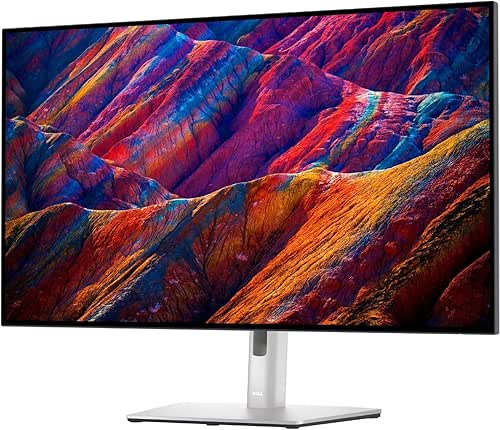
A Product That Nails This: The Dell U3223QE.
- PAIN: My home office desk was a cable nightmare, and squinting at a small laptop screen killed my productivity.
- JOURNEY: I needed a hub that could clean it all up. I tested several “USB-C docking monitors,” and the consistency of Dell’s UltraSharp line stood out.
- SOLUTION: The 32-inch 4K IPS panel is incredibly sharp for text. It has a built-in USB-C hub that delivers 90W of power to my laptop, connects my webcam, speakers, and keyboard with one cable, and even has an Ethernet port.
- MICRO-VERDICT: It transforms a laptop into a pristine, powerful desktop setup with a single plug.
- PLACEHOLDER: 2026年10月12日 11:55 AM
-

The Competitive Gamer (Speed & Immersion)
You need every advantage. Your monitor isn’t just a display; it’s your reaction-time interface with the game world.
Your Spec Priority List:
- #1 Refresh Rate (Hz): This is how many times the screen updates per second. 60Hz is baseline. 144Hz is the 2025 entry point for serious gaming. 240Hz and 360Hz offer diminishing but noticeable returns for elite-level play. Match this to what your GPU can actually output.
- #2 Response Time: How fast pixels can change color. Slower times cause motion blur. Look for true Gray-to-Gray (GtG) measurements, not just “1ms MPRT” marketing. Independent testers like RTINGS.com are crucial here for real data [4].
- #3 Adaptive Sync: G-Sync (NVIDIA) or FreeSync (AMD) eliminates screen tearing and stutter by syncing the monitor’s refresh rate with your GPU’s frame rate. It’s essential for smooth gameplay.
- Panel Choice: For pure speed, high-end IPS is great. But in 2025, OLED is the new king for gamers who want the ultimate combination of perfect blacks, instant pixel response (near-zero blur), and high refresh rates.
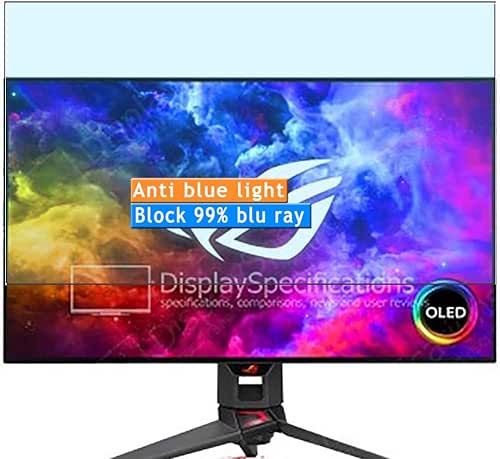
A Product That Nails This: The ASUS ROG Swift OLED PG27AQDM.
- PAIN: My old VA panel had terrible ghosting in fast-paced shooters, and the dull colors sucked the life out of single-player adventures.
- JOURNEY: I wanted the next-gen experience. I tested this 27-inch 1440p OLED against several high-refresh IPS panels.
- SOLUTION: The OLED panel’s near-instantaneous response makes motion buttery smooth, and the infinite contrast makes games visually stunning. The 240Hz refresh is the perfect sweet spot for high-FPS competitive play and gorgeous visuals.
- MICRO-VERDICT: It delivers elite-tier motion clarity and cinematic contrast in one flawless panel.
- PLACEHOLDER: 2026年10月12日 11:55 AM
-
The Creative Professional (Color & Detail)
Your work depends on accuracy. A color shift or inaccurate profile isn’t an annoyance; it’s a professional liability.
Your Spec Priority List:
- #1 Color Gamut & Accuracy: Look for high coverage of professional color spaces: 100% sRGB is a baseline, 95%+ of DCI-P3 or Adobe RGB is ideal for photo and print work, as emphasized by creative industry experts [5]. Even more critical is a low Delta-E value (ΔE < 2), which indicates high factory color accuracy.
- #2 Resolution: Pixel density is your friend for seeing fine details. 4K at 27-inch or 32-inch is the professional standard, giving you room for toolbars and a high-detail canvas.
- #3 Hardware Calibration: Some pro monitors allow you to load calibration data (from a tool like an X-Rite i1Display) directly into the monitor itself, ensuring accuracy regardless of the computer it’s plugged into.
- #4 Uniformity: The screen should have consistent brightness and color from corner to corner. This is where budget monitors often fail.
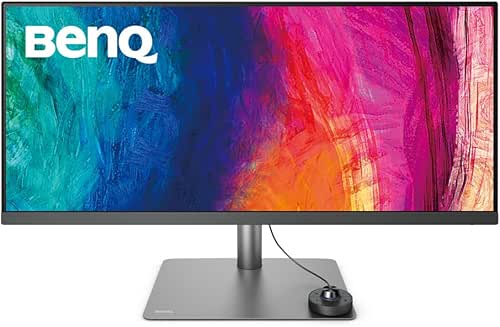
A Product That Nails This: The BenQ PD3420Q.
- PAIN: Client feedback about color mismatches between my screen and their print proofs was a nightmare.
- JOURNEY: I needed a monitor built for accuracy, not just specs. The BenQ SW/PD series is consistently trusted in creative fields.
- SOLUTION: This 34-inch ultrawide 1440p display covers 98% of DCI-P3, is factory-calibrated (ΔE ≤ 3), and includes a handy puck controller for switching between color modes (sRGB, Rec.709, etc.) instantly.
- MICRO-VERDICT: It provides the color-critical accuracy and expansive workflow space a professional needs.
- PLACEHOLDER: 2026年10月12日 11:55 AM
-
The Hardware Matchmaker: Don’t Outrun Your GPU
This is the single biggest source of “choosing wrong monitor for needs.” Buying a 4K 144Hz monitor for a laptop that struggles with 1080p is a recipe for frustration.
Here’s a pragmatic pairing guide for 2025:
- Laptop / Older GPU (GTX 1660, etc.): Perfectly happy with 1080p at 60Hz or 75Hz. Don’t overspend.
- Mid-Range GPU (RTX 4060, RX 7600): Your ideal partner is a 1440p monitor with a 144Hz to 180Hz refresh rate. You’ll get high frame rates in esports and great visuals in AAA titles with settings adjusted.
- High-End GPU (RTX 4070 Super, RX 7900 GRE): You have choices. You can max out a 1440p 240Hz+ display or drive a 4K 120Hz+ display beautifully for most games.
- Enthusiast GPU (RTX 4080 Super and above): This is 4K territory. Pair it with a high-refresh 4K monitor (120Hz+) to fully utilize its power.
- PlayStation 5 / Xbox Series X: These consoles are designed for 4K 120Hz outputs. Ensure your monitor has HDMI 2.1 ports to unlock their full potential (4K at 120Hz with VRR).
The Cable Check: This matters! To run high resolutions at high refresh rates, you often need a specific cable. For 4K 144Hz, you’ll likely need the monitor’s included DisplayPort 1.4 cable or a certified Ultra High Speed HDMI 2.1 cable. Using an old HDMI cable can lock you to lower specs.
Ergonomics and Eye Health: Jordan’s Personal Setup Tips
This is the “High Lifestyle ROI” in action. A monitor that causes strain is a bad investment, no matter how good the specs.
- The 20-20-20 Rule (Applied): Every 20 minutes, look at something 20 feet away for 20 seconds. My trick? My desk faces a window. It’s a built-in break.
- Viewing Distance: Your face should be about an arm’s length (20-30 inches) from the screen. If you’re squinting or leaning in, the text might be too small—adjust scaling in your OS, not your posture.
- Height & Angle: The top of the screen should be at or slightly below eye level. Your gaze should angle slightly downward. I use a monitor arm for infinite adjustability. If you’re using a fixed stand, don’t be afraid to put your monitor on a stack of books to get the height right.
- Glare: Position your monitor so lights (especially overhead) and windows don’t create reflections. An anti-glare matte screen coating is your friend in bright rooms.
- My Austin Setup: I use a 27-inch 1440p monitor on a single gas-spring arm next to my laptop. The arm lets me push it back for relaxed media viewing or pull it close for detailed work. It’s the single best ergonomic upgrade I’ve made to my desk.
As Wired wisely pointed out, choosing a monitor you won’t hate in a few years means prioritizing long-term comfort over flashy, gimmicky features [6].
The 2025 Monitor Buying Checklist
Print this, screenshot it, or copy it into your notes. Walk through these steps before you click “buy.”
Pre-Purchase Questions:
- Did I define my primary use case (Office/Gaming/Creative/Mixed)?
- Did I measure my desk space and check the monitor’s physical dimensions?
- Did I verify my PC/console’s GPU can drive my target resolution and refresh rate?
- Did I check that the monitor has the right ports (HDMI 2.1, DP 1.4, USB-C) for my devices?
Essential Spec Verification:
- Resolution & Size: Does the PPI match my viewing distance? (27”/1440p is the safe bet).
- Panel Type: Does it match my priority (IPS for all-round, VA for contrast, OLED for the best)?
- Refresh Rate: Is it 144Hz+ for gaming or 60Hz/75Hz sufficient for work?
- Ergonomics: Does the stand adjust? If not, does it have VESA mounts for an arm?
- Adaptive Sync: Does it have G-Sync Compatible or FreeSync Premium for gaming?
Post-Purchase Setup (First 30 Minutes):
- Set the monitor to its native resolution in your OS display settings.
- Enable Adaptive Sync/G-Sync/FreeSync in both the monitor’s OSD menu and your GPU control panel.
- Adjust the height and tilt so the top is at eye level.
- Run through RTINGS.com’s recommended settings for your specific model as a starting point for brightness and color.
- For creatives, consider a basic hardware calibrator for peace of mind.
The “best” monitor isn’t the most expensive one with the longest spec sheet. It’s the one that disappears—the screen that feels like a natural extension of your workflow, your play, and your vision. It’s the tool that gets out of the way and lets you focus on what you’re actually trying to do.
That’s the goal of the Monitor Translator: to turn overwhelming tech into a confident choice that pays dividends in comfort and clarity every single day.
Still confused? Leave a comment with your GPU, budget, and main use, and I’ll help you pick. Otherwise, if you’re ready to see my top picks across every category, check out our
list.Disclosure: This guide contains affiliate links. Recommendations are based on lab data from RTINGS and PCMag, combined with hands-on testing and industry expertise. We aim to provide transparent, user-first advice.
References
- Riverdi. (2025). Monitor Resolution Chart: A Handy Guide for the Best Visual Experience. Riverdi Blog. This source was used to explain the pixel count difference between 1080p and 4K resolutions.
- HP. (2025). What is a 4K Monitor?. HP Tech Takes. This source was cited to support the recommendation that 4K resolution is most beneficial on screens 27 inches and larger.
- PCWorld. (2025). Monitor Buying Guide. This source was referenced for its expert recommendation of 31.5-inch 4K displays as ideal for productivity.
- RTINGS.com. (2025). Monitor Reviews and Tests. This highly authoritative independent testing site was cited for providing real-world data on response times (GtG vs. MPRT) and performance metrics beyond marketing claims.
- Creative Bloq. (2025). Best monitor for graphic artists. This industry source was used to establish the professional color gamut targets (95%+ DCI-P3/Adobe RGB) for creative work.
- Wired. (2025). How to Choose a Computer Monitor You Won’t Hate in a Few Years. This editorial guide was referenced for its emphasis on long-term comfort and avoiding feature-gimmickry when choosing a monitor.