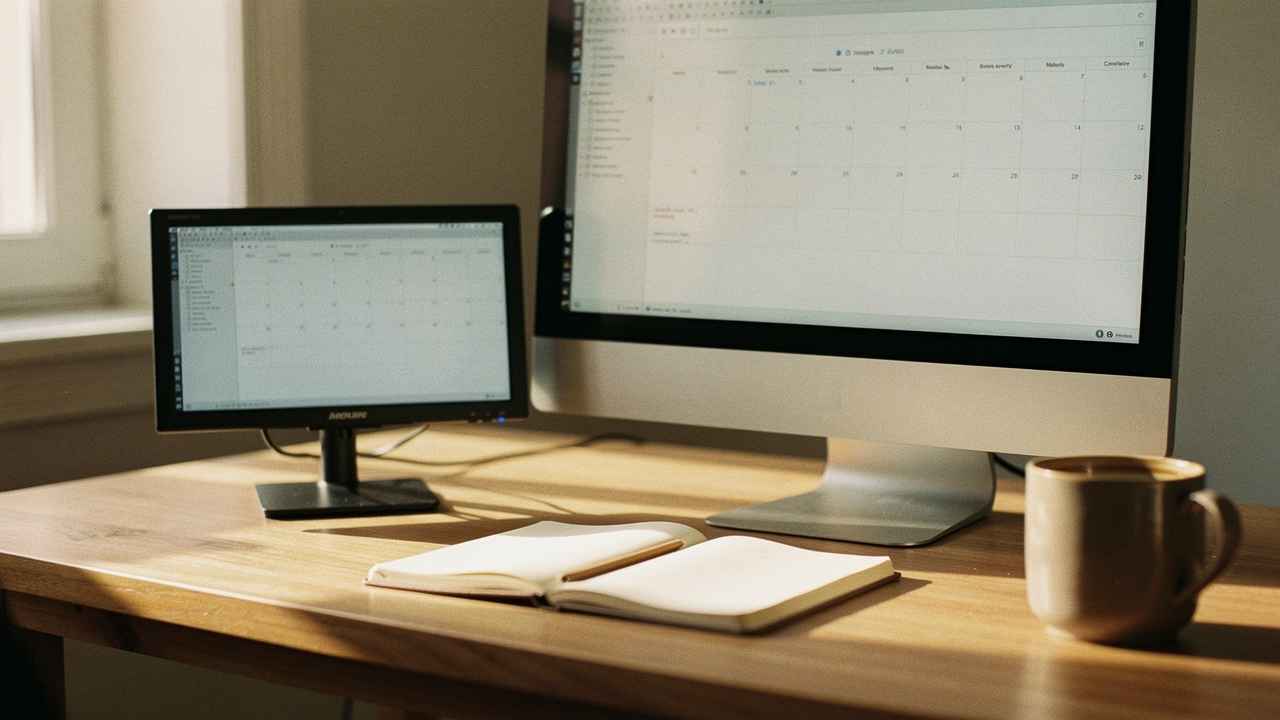
I’d be deep into a writing flow, only to have to break my concentration to check a Slack notification or glance at my Spotify playlist. It felt like my brain was constantly resetting. I knew I needed more screen real estate, but I wasn’t about to drop $500 on a massive 32-inch monitor that would swallow my entire desk and ruin the “calm, intentional space” vibe I’ve worked so hard to create.
That’s when I stumbled upon the concept of the “Dedicated Status Board”—using a tiny, 5-inch secondary monitor. I’ll admit, I was skeptical. How much could a screen the size of a smartphone actually help? But after two weeks of use, I can safely say: this is one of the highest “Lifestyle ROI” upgrades I’ve ever made.
The Problem: Why More Pixels Aren’t Always Better
We’re often told that “bigger is better” when it comes to technology. But here’s the thing: adding a giant second monitor often just creates more room for more distractions. Instead of solving my limited screen space issue, a large display often leads to desk clutter issues and a specialized kind of digital overwhelm.
The real problem isn’t just the lack of pixels; it’s the cost of context switching. Research by cognitive psychologist Gloria Mark has shown that it takes an average of 23 minutes and 15 seconds to get back to a task after being interrupted [1]. Every time I “Alt-Tabbed” to check my calendar or a message, I was essentially tax-paying with my focus. Microsoft’s research supports this, noting that frequent window switching significantly degrades the flow state of knowledge workers [2].
An inefficient multitasking setup doesn’t just slow you down; it drains your energy. By the time 3:00 PM rolled around, I felt “tech-tired”—that specific exhaustion that comes from your eyes darting across too much digital territory.
The 5-Inch Solution: Small Monitor Benefits
I started looking for a way to have “persistent” information visible without it being “intrusive.” This is where the small monitor benefits really shine. Think of a 5-inch screen not as a second workspace, but as a dedicated dashboard.
When you add a compact screen, you’re engaging in a bit of workspace optimization that prioritizes focus. Instead of moving my primary work to the second screen, I moved the “static” items there—my Slack sidebar, my system performance monitors, or my sourdough timer.
A study from the University of Utah found that dual-monitor setups can boost productivity by 20% to 30% [3], and interestingly, that gain doesn’t require both screens to be massive. Sometimes, having a tiny “sidebar” for your life is exactly what the doctor ordered. This trend is picking up steam, too; IDC and Statista reports show a significant surge in the portable and “mini” display market as remote workers look for ways to optimize small home offices [4].
How to Add a 5-Inch Secondary Monitor: Step-by-Step
Setting up a secondary monitor setup this small is a little different than just plugging in a standard Dell or LG. Most of these tiny screens are actually meant for DIY projects like Raspberry Pi builds, but they work perfectly for Windows and macOS if you know the right tricks.
Here’s the thing about these tiny panels: they usually connect via HDMI and require power through a micro-USB or USB-C port. I spent hours digging through forums to find the ones that didn’t require a degree in electrical engineering to set up.
Hardware: Waveshare 5-inch LCD vs. Elecrow HDMI Monitor
I’ll be honest—I ignored these “hobbyist” screens for a long time because they looked a bit “un-styled” for my desk. But once I realized I could mount them or hide the cables, I was sold.
I first looked into the Waveshare 5-inch LCD. I loved that it was incredibly crisp, but the exposed circuit board on the back felt a little too “tech-room” for my Austin home office. I wanted something that looked a bit more finished. That’s when I found the Elecrow 5-inch display. It comes with a little stand and a much cleaner profile.
What surprised me was the power requirement. Most of these draw about 5V/1A. Jordan’s Testing Note: If you’re plugging this into a cheap USB hub that’s already powering a keyboard and a mouse, the monitor might flicker. I found it’s much more stable if you plug the power cable directly into your computer’s high-power USB port or a dedicated wall adapter.
Micro-Verdict: The Elecrow is the winner for anyone who wants a “plug-and-play” experience without the DIY aesthetic.
If you are more of a tinkerer and want the absolute thinnest profile possible to perhaps integrate into a custom desk shelf, the Waveshare is the gold standard for reliability and color accuracy.
Micro-Verdict: Best for the DIY minimalist who wants to custom-mount their display.
Software Configuration: Dealing with Scaling
Once you plug it in, your computer will likely try to treat it like a 1080p screen, which makes the text look like it’s written for ants. This is the “make or break” step for a compact monitor installation.
- On Windows: Right-click your desktop > Display Settings. Select the 5-inch monitor and set the “Scale and layout” to at least 150% or 200%.
- On macOS: Go to System Settings > Displays. Select the small screen and choose “Scaled.” You’ll want to pick a resolution that makes the text readable from an arm’s length.
- Placement: I recommend setting it as “Extended” rather than “Mirrored.” You want this to be new territory for your apps, not a tiny copy of your big screen.
Ergonomics: Avoiding ‘Nerd Neck’ with a Tiny Screen
Adding an extra screen can sometimes lead to what I call “nerd neck”—that constant tilting or twisting that leaves you sore by Friday. When you’re improving your desk setup with an extra monitor, ergonomics should be your first thought, not an afterthought.
OSHA workstation standards suggest that the top of your primary monitor should be at or slightly below eye level [5]. For a 5-inch screen, I found the “sweet spot” is actually tucked right under your main monitor, tilted slightly upward. This allows you to glance down with your eyes, rather than moving your entire head.
The Mayo Clinic warns that frequent neck rotation of more than 15 degrees can lead to chronic strain [6]. By placing the tiny screen centrally (instead of way off to the side), you keep your neck in a neutral position. It becomes a natural extension of your vertical line of sight.
The Workflow: What Actually Goes on the Screen?
This is where the magic happens. To get the most dual monitor productivity, you have to assign “roles” to your screens. Here is how I’ve optimized my “Austin Setup” for different parts of my day:
The Minimalist Remote Worker (Small Spaces)
This is my daily driver. It keeps the clutter off my main 27-inch screen so I can stay in “deep work” mode.
- Essential: Slack or Discord (docked to the side so I see messages without opening the app)
- Essential: A dedicated “To-Do” list or Notion page
- Essential: Spotify or Apple Music (to change tracks without switching windows)
- Pro Upgrade: A tiny digital clock or Pomodoro timer
The Developer’s Dashboard
For my friends in the Austin tech scene, this setup is a game-changer for monitoring code without sacrificing terminal space.
- Essential: Terminal output or logs
- Essential: System resource monitor (CPU/RAM usage)
- Essential: Documentation snippets
- Pro Upgrade: A “Tailwind” color palette or CSS reference sheet
The Content Creator/Streamer
If you’re managing a community or recording video, this tiny screen acts as your “Command Center.”
- Essential: Stream chat or comments
- Essential: OBS Studio levels and recording status
- Essential: A preview of your “on-air” look
- Pro Upgrade: A script or talking points teleprompter
Here’s the bottom line: adding a 5-inch monitor isn’t about having more to look at—it’s about having less to search for. It’s a low-cost, high-impact way to take control of your digital environment.
If you’re struggling with a cramped desk or feeling overwhelmed by your current setup, start small. You don’t need a bigger desk; you just need a smarter way to use the space you have.
Let’s make every day a little better, together.
Affiliate disclosure: Best Goods for Good Life may earn a small commission on hardware recommended in this guide. We only recommend products we have personally researched or tested for their Lifestyle ROI.
Scientific References & Resources
- Mark, G. (2004). “The Cost of Interrupted Work: More Speed and Stress.” University of California, Irvine.
- Microsoft Research. (2023). “The Impact of Multi-Tasking on Knowledge Worker Productivity.”
- University of Utah. (2008). “Dual Monitor Productivity Study.”
- IDC/Statista. (2025). “Global Portable Monitor Market Trends and Growth Analysis.”
- OSHA. “Computer Workstation Etiquette and Ergonomic Standards.” https://www.osha.gov/
- Mayo Clinic. “Office Ergonomics: Your How-To Guide.” https://www.mayoclinic.org/