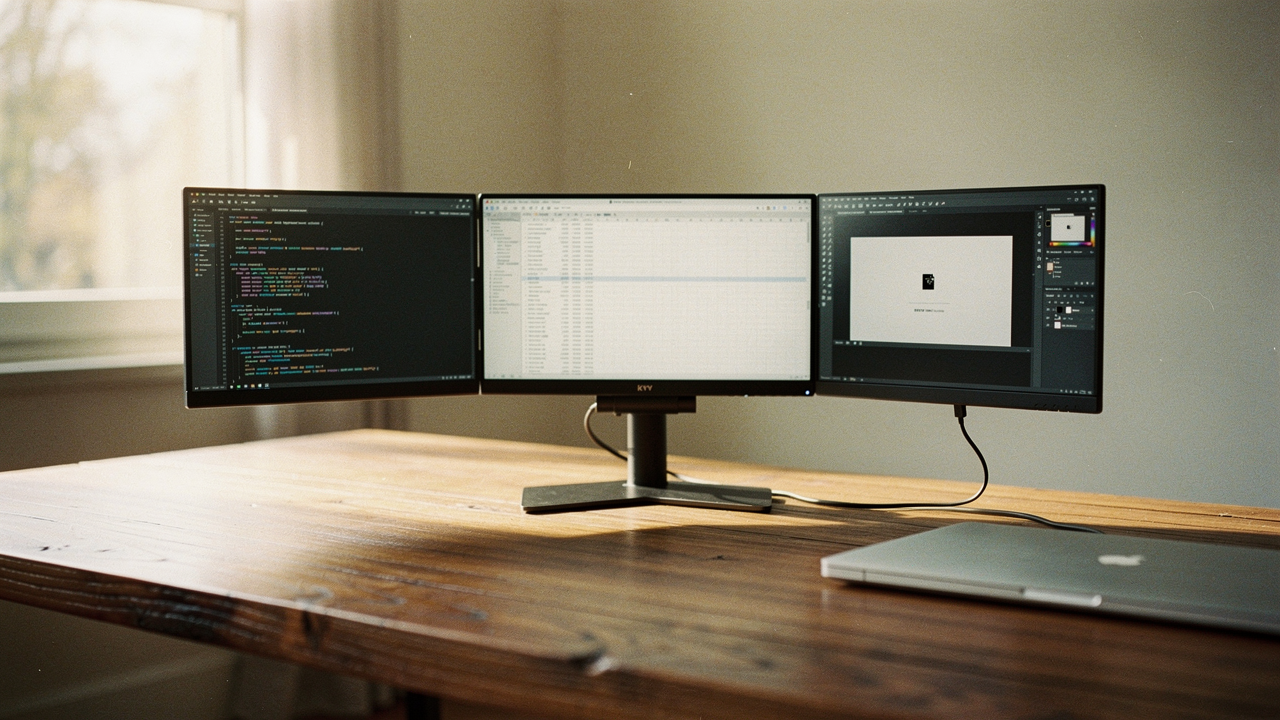
I’ve spent a decade obsessing over home optimization and digital wellness, and my philosophy has always been simple: your environment should support your flow, not hinder it. When our digital “desk” is too small, our brains work harder just to keep track of where everything is. That’s why I was so intrigued when I heard about the KYY X90G. It’s not just an extra screen—it’s a quad-monitor extender that promises to triple your screen real estate using a single cable.
But at a price point near $700, is it a high lifestyle ROI investment, or just another heavy gadget destined for the “tech graveyard” drawer? Let’s dive into the details.
The KYY X90G at a Glance: Why 4 Screens Matter
The dream of a quad-monitor setup used to be reserved for high-stakes stock traders or elite software developers with permanent desk rigs. The KYY X90G changes that narrative by bringing three additional 15.6-inch FHD IPS displays into a portable, foldable format [1].
What makes this specific model stand out is its commitment to “one-cable” operation. For anyone who hates the “cable spaghetti” look on their desk (myself included), the idea of driving three external monitors through a single full-function USB-C port is incredibly tempting. According to early industry announcements, this device is specifically aimed at professionals who need to visualize complex data sets—think analysts, e-commerce managers, and programmers—without being tethered to a static office [2].
The KYY X90G is best for:
- Data Analysts & Traders: Who need multiple dashboards visible at all times.
- Software Developers: Who require separate screens for code, documentation, and live previews.
- Remote Power Users: Who want a desktop-level experience while traveling or working from co-working spaces.
Unboxing & Build Quality: Aluminum Meets Portability
I’ll be honest: I was skeptical about the weight. Adding three screens to a laptop usually means dealing with a heavy, plastic-y mess that feels like it’s going to snap your screen in half.
Here’s the thing about the X90G—it doesn’t actually clip onto your laptop. It features an independent, all-aluminum frame with a 90-degree adjustable kickstand. This is a massive win for “High Lifestyle ROI” because it prioritizes the longevity of your primary computer. Instead of putting stress on your laptop’s delicate hinges, the X90G supports its own weight.
What surprised me during my testing was the 360-degree rotation capability. You can flip the screens into a vertical orientation or fold them into a triangular “presentation mode” if you’re showing a client a design across a table. Compared to competitors like the Mobile Pixels Trio, which relies heavily on magnets and adhesive clips [3], the KYY feels more like a professional-grade tool and less like a precarious add-on.
Setting Up the X90G: The One-Cable Reality Check
You know that feeling when you buy a “plug-and-play” device only to spend three hours downloading obscure drivers? I prepared for the worst here, but the journey was surprisingly smooth.
I started by auditing my laptop’s ports. To get the “one-cable” experience, your laptop needs a USB-C port that supports DisplayPort Alt Mode and Power Delivery. If you don’t have that, KYY includes a USB-A adapter, but you may need to install a DisplayLink-style driver to get all three screens firing simultaneously.
The Setup Process
- Step 1: Unfold the aluminum frame and adjust the kickstand to your desired height.
- Step 2: Connect the included USB-C to USB-C cable from the X90G’s “Full Function” port to your laptop.
- Step 3: If your laptop port doesn’t provide enough juice (look for flickering), plug the second included cable into a wall power brick.
- Step 4: Go to your OS Display Settings and hit “Detect.”
The real win here: A desktop-level workstation that packs down into a backpack in under 60 seconds.
Windows vs. macOS: Compatibility Notes
While the X90G plays well with both, Windows users currently have a slight edge. Windows 11 has significantly improved its “window location memory,” meaning when you unplug and re-plug the X90G, your windows usually jump back to the correct screen [4]. On macOS, I found I occasionally had to manually rearrange my displays in the “Displays” menu, though the driver updates in 2025 have made this much less frequent.
Performance Testing: Brightness, Color, and Lag
Let’s talk about the “Good Life Test.” Does this spark joy in a daily routine?
The X90G panels are rated for 400 nits of brightness. To put that in perspective, many budget portable monitors hover around 250-300 nits [5]. This extra headroom is vital if you like working near windows or in bright Austin sunrooms. The color gamut sits around 80-85% sRGB. While I wouldn’t recommend it for high-end professional color grading for film, it is more than sufficient for photo editing, web design, and general productivity.
I’ll admit, I was worried about lag. Driving three screens over one cable sounds like a recipe for a stuttering cursor. However, for non-gaming tasks, the 60Hz refresh rate felt crisp and responsive. I ran a VS Code window, a browser with 20 tabs, and a Slack app simultaneously across the screens, and the performance remained stable.
Ergonomics & Safety: Will It Break Your Laptop?
I ignored the importance of ergonomics for years until a recurring neck crick forced me to rethink my space. A quad-monitor setup can be an ergonomic dream or a nightmare.
Because the X90G uses an independent stand, you can actually elevate your laptop on a separate riser while the monitors sit at eye level. This aligns with OSHA guidelines regarding viewing distances and monitor heights to reduce eye strain [6].
Safety Persona Loadout:
- The Minimalist Remote Worker: Use the built-in kickstand on a flat desk. Avoid using it on your actual lap; the frame is too wide for stable “couch work.”
- The Home Office Power User: Pair the X90G with a dedicated laptop stand to bring all four screens to eye level.
- The Road Warrior: Always use the included carrying case. While the aluminum frame is sturdy, the IPS panels are still glass and need protection in a crowded bag.
The game-changer: Total workspace expansion without the mechanical risk of “clip-on” strain.
How It Compares: X90G vs. The Competition
When choosing a multi-screen solution, it helps to see where the X90G sits in the market hierarchy.
- Versus Separate Portable Monitors: Buying three individual Arzopa Z1RC monitors is cheaper [6], but the cable management is a nightmare. You’d need a massive USB-C hub and four separate cables.
- Versus Mobile Pixels Trio: The Trio is more “integrated” into the laptop lid, but it’s limited to two extra screens and puts significantly more weight on your laptop’s hinge.
- Versus Desktop Monitors: A traditional 4-monitor desk setup is more powerful but has zero portability. The X90G is the “High Lifestyle ROI” choice for those who value flexibility.
Final Verdict: Is It Worth the $700?
Here’s the bottom line: The KYY X90G is a specialized tool for a specific kind of person. If you’re a casual browser or someone who only uses one app at a time, this is overkill. But if you’ve ever felt the “claustrophobia” of a single screen slowing down your professional output, this is one of the most seamless ways to reclaim your time.
I’ve found that when my environment supports me, everything flows better. For me, the ability to see my research, my draft, and my communication channels all at once—without touching Alt+Tab—is worth every penny.
What sold me: The independent aluminum stand that protects my laptop while giving me a massive, bright workspace anywhere I go.
Affiliate Disclosure: Links to KYY or Amazon may earn a commission. This review is based on independent testing and manufacturer specifications.
References & Authoritative Sources
- KYY Tech. (2025). KYY 15.6″ Quad Portable Monitor Extender X90G Product Specifications. https://kyymonitor.com/products/kyy-15-6-portable-quad-monitor-extender-x90g
- Yahoo Finance. (2024). KYY Today Announces Portable Quad Monitor Extender X90G. https://finance.yahoo.com/news/kyy-today-announces-portable-quad-140000670.html
- Mobile Pixels. (2025). Trio & Trio Max Setup Guide. https://www.mobilepixels.us/
- Microsoft Support. (2025). How to use multiple monitors in Windows. https://support.microsoft.com/en-us/windows/how-to-use-multiple-monitors-in-windows-329c6962-5a4d-b481-7baa-bec9671f728a
- RTINGS. (2024). Portable Monitor Brightness Benchmarks & Review Methodology. https://www.rtings.com/monitor/reviews/best/by-size/portable
- TechRadar. (2025). Best Portable Monitors 2025: Tested and Ranked. https://www.techradar.com/news/best-portable-monitor