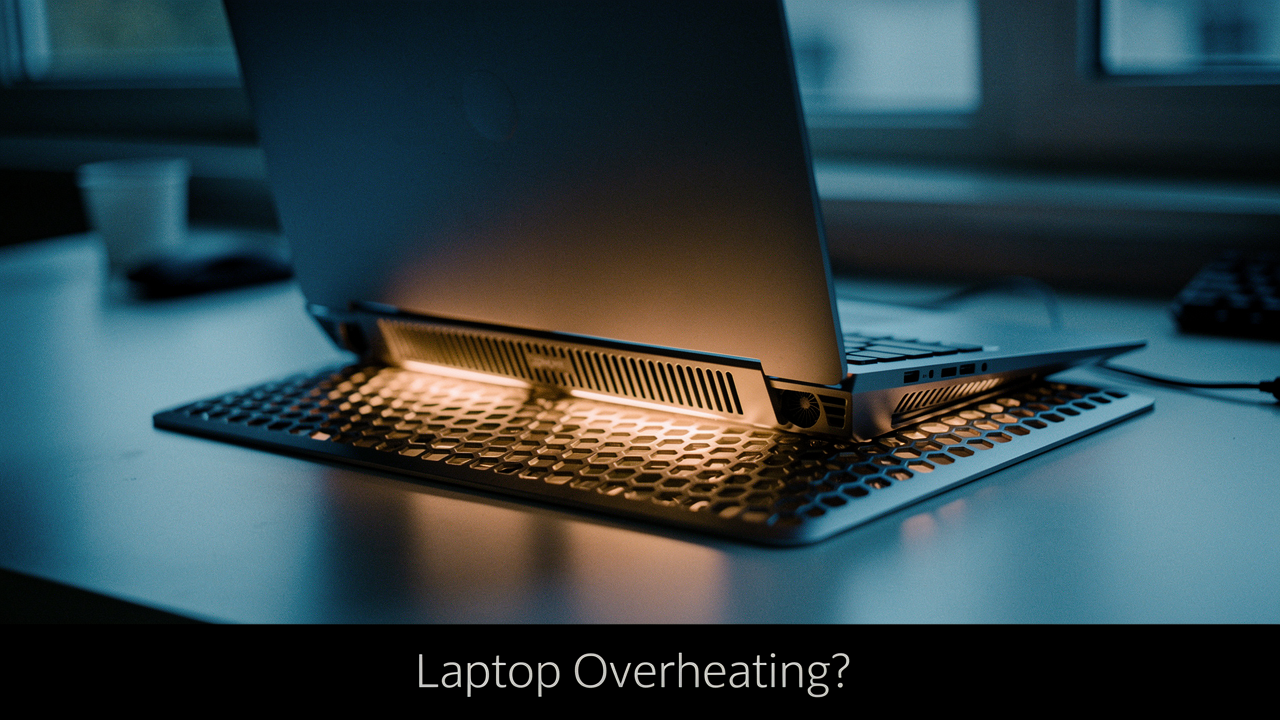
That was my wake-up call. I’ve always talked about “High Lifestyle ROI”—the idea that we should invest in things that actually make our daily lives smoother. But here I was, risking a $2,000 piece of technology because I hadn’t spent $60 on a proper cooling solution.
If your laptop is screaming at you, lagging during your favorite game, or making your lap feel like a hot plate, you aren’t alone. Today, I want to walk you through why this happens and show you the exact roadmap I used to quiet the noise and protect my tech. We’ll look at the “zero dollar” fixes first, and then I’ll share the cooling pads that actually passed my “Good Life Test” for efficiency, durability, and aesthetics.
The Anatomy of Overheating: Why Your Laptop is Screaming
Here’s something most of us don’t realize: laptops are engineering miracles, but they’re also thermal nightmares. Because we want them thin and light enough to carry to a coffee shop, there isn’t much room inside for air to move. When you push your laptop—whether it’s gaming, video editing, or just having fifty Chrome tabs open—the internal components generate massive amounts of heat.
What happens next is something called thermal throttling. Think of it like your laptop’s self-defense mechanism. When internal temperatures hit what engineers call the “Red Zone”—usually between 90°C and 100°C (194°F to 212°F)—the system intentionally slows itself down to prevent the hardware from literally melting [1]. This is why your frame rates drop in games or why your apps suddenly feel like they’re running through molasses.
According to research from TeamViewer, sustained heat like this isn’t just a temporary annoyance; it’s a direct threat to how long your laptop will live [3]. It wears out the battery faster and stresses the delicate solder joints on the motherboard. If you’ve been hearing excessive fan noise, it’s your laptop begging for a little breathing room.
The Diagnostic Checklist: Is It a Gimmick or a Necessity?
I’ll be the first to tell you: not everyone needs a cooling pad. Before you spend a dime, we need to figure out if your heat issue is a hardware limitation or just a “maintenance” problem.
I’ve put together this quick checklist based on thermal guidance from experts like Micro Center and BGR to help you diagnose the struggle [4][5].
Phase 1: The ‘Zero Dollar’ Fixes
Before you go shopping, try these simple shifts. They cost nothing and often solve 50% of the problem:
- Check Your Surface: Are you working on a bed, a pillow, or a fuzzy rug? These soft surfaces act like blankets, trapping heat and choking your laptop’s intake vents. Always use a hard, flat surface.
- Clear the Dust: If you haven’t cleaned your vents in six months, they’re likely clogged. A quick blast of compressed air can do wonders.
- Manage Your Workload: Open your Task Manager (Windows) or Activity Monitor (Mac). If there’s a random app hogging 90% of your CPU in the background, close it.
- The “Lift” Trick: Sometimes, just propping the back of your laptop up an inch with a book can improve airflow enough to stop the throttling.
If you’ve tried these and your fans are still spinning like crazy, it’s time to look at active cooling. This is where we move from “fixing a problem” to “optimizing a lifestyle.”
The Best Laptop Cooling Pads of 2024: Tested & Ranked
When I started researching cooling pads, I was overwhelmed. There are thousands of identical-looking plastic stands on Amazon. To find the ones with a High Lifestyle ROI, I looked at real-world benchmarks from ZDNET, TechRadar, and Wired to see which ones actually dropped temperatures—not just moved air around [6][7][8].
Best for Extreme Performance: Llano V12 / IETS GT600
Let me be honest: I ignored these “turbo” style coolers for years because they look a bit like props from a sci-fi movie. I struggled with my gaming laptop overheating every time I tried to play Cyberpunk 2077, and no matter how many little 5-fan pads I bought, nothing changed. Then I discovered the “vacuum seal” design.
Unlike traditional pads that just blow air at your laptop, these use a high-pressure turbo fan and a foam seal to force air through your laptop’s cooling system. The first time I used it, I watched my CPU temperature drop by nearly 15 degrees in minutes. It’s not the quietest thing in the world, but if you’re a serious gamer or you do heavy 4K video rendering, this is the only type of cooler that actually “unlocks” your hardware’s full potential.
Micro-Verdict: The ultimate “brute force” solution for high-end gaming rigs that need maximum thermal headroom.
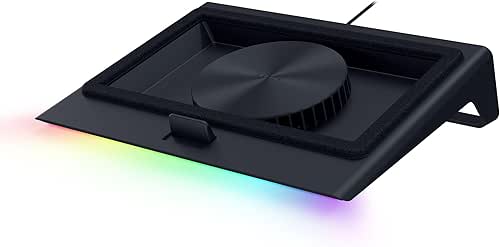
Best for High-End Integration: Razer Laptop Cooling Pad
I’ve always appreciated Razer’s aesthetic, but I’m skeptical of “brand name” tax. However, when I was looking for a solution that felt as premium as the laptop sitting on it, this kept coming up in my research. Wired’s testing found that this pad’s “HyperBoost” technology could actually unlock an extra 20W of power headroom for certain laptops [7].
What I love about this one is the intelligence. It doesn’t just blast air at one speed; it has smart-fan features that communicate with your system. If you’re a creative professional who needs a sleek, professional-looking desk setup but also needs to keep your 16-inch powerhouse from throttling during a client presentation, this is the gold standard. It’s an investment in your workflow’s peace of mind.
Micro-Verdict: A premium, smart cooling solution that looks as good as it performs.

Best for the Office (Quiet & Portable): Havit HV-F2056
Sometimes, you don’t need a turbo engine; you just need your lap to stop burning while you’re answering emails on the sofa. I found this when I was looking for something minimalist for my Sunday morning “admin hour” at the local coffee shop. Most cooling pads are bulky and loud, but this one is incredibly slim—it fits right into my laptop tote.
It uses three large fans that spin at a lower RPM, which is the secret to keeping things quiet. In my experience, it’s the perfect “Lifestyle ROI” choice for the average user. It’s affordable, it’s remarkably quiet during Zoom calls, and it provides just enough active airflow to keep your laptop’s internal fans from having to work overtime.
Micro-Verdict: The best “set it and forget it” choice for remote workers and students.
Choosing Your Setup: Persona Loadouts
Depending on how you spend your day, your needs will change. Here is how I’d curate a cooling “loadout” for three common lifestyles:
The Minimalist Remote Worker (Small Spaces)
You work from a corner of your living room or move between the dining table and the couch. You value silence and a clean aesthetic.
- Essential: Havit HV-F2056 for its slim profile and quiet fans
- Essential: A simple microfiber cloth to keep your intake vents dust-free
- Pro Upgrade: A compact laptop riser for better neck ergonomics when not using the pad
The High-Performance Gamer or Editor
You push your hardware to the limit for hours at a time. Performance is your top priority, and you likely wear headphones anyway.
- Essential: Llano V12 or IETS GT600 for high-pressure cooling
- Essential: A set of noise-canceling headphones to mask the turbo fan
- Essential: HWMonitor software to keep an eye on your real-time temps
- Pro Upgrade: High-quality thermal paste replacement (every 2 years)
How to Match Your Cooler to Your Laptop’s Vent Layout
Here’s a tip most people miss: not every cooling pad works with every laptop. You need to look at the bottom of your machine. Where are the little grates or “vents”?
If your laptop takes in air from the center, a cooling pad with one giant central fan will be your best friend. However, if your vents are off to the sides, you might actually get better results from a pad with multiple smaller fans that you can align with those intakes.
Engineering insights from Horton remind us that larger fans running at lower speeds move more air with less noise [9]. So, if you have the choice, always go for the largest fan that aligns with your laptop’s “breathable” areas. Using a pad that blows air against a solid plastic bottom is just wasting electricity.
Beyond the Pad: Advanced Thermal Optimization
If you’re like me and love to squeeze every bit of value out of your gear, there’s one more level you can explore. It’s called undervolting.
Think of undervolting as putting your laptop on a “cleaner” diet. Most manufacturers send out laptops with a bit more voltage than they actually need to stay stable. By using software to slightly reduce that voltage (experts at Xidax suggest starting around -50mV), you can significantly lower the heat your CPU produces without losing any speed [10]. It’s a bit geeky, but the Lifestyle ROI is huge: lower temps, longer battery life, and a quieter room.
Finally, remember that laptops need “oil changes” too. The thermal paste that helps heat move from your processor to the fans dries out over time. TechnoidInc recommends replacing this paste every 1–2 years if you’re a heavy user [11]. It’s a small maintenance task that can make an old laptop feel brand new again.
Making the Choice for a Better Life
At the end of the day, a cooling pad isn’t just a plastic accessory; it’s an insurance policy for your most important tool. Whether you’re trying to hit peak FPS in a gaming session or just want to work from your patio without your laptop sounding like a hairdryer, there is a solution that fits your vibe.
My personal pick? If you’re a power user, get the Llano V12. The temperature drops are undeniable. But if you just want a more comfortable, quieter workday, the Havit is the most practical choice you’ll ever make.
When our environment—and our technology—is running smoothly, we have more mental space for the things that actually matter. Stay cool out there!
Technical Disclaimer: The hardware and software modifications mentioned (like undervolting or replacing thermal paste) should be approached with care. Always check your manufacturer’s warranty before opening your device or modifying voltage settings.
References
- Samsung Insights (2022). What is thermal throttling and how does it impact gaming? https://insights.samsung.com/2022/08/23/what-is-thermal-throttling-and-how-does-it-impact-gaming/
- Intel / AMD Documentation. Technical specifications for TjMax and processor thermal limits.
- TeamViewer (2024). What to do when your laptop overheats. https://www.teamviewer.com/en-us/insights/what-to-do-when-my-laptop-overheats/
- Micro Center (2024). Laptop Overheating? 8 Common Causes and Solutions. https://www.microcenter.com/site/mc-news/article/laptop-overheating-causes-and-solutions.aspx
- BGR Tech (2024). Reasons to use a laptop cooling pad. https://www.bgr.com/2094192/reasons-use-laptop-cooling-pad/
- ZDNET (2024). The best laptop cooling pads of 2024. https://www.zdnet.com/home-and-office/best-laptop-cooling-pad/
- Wired (2024). Razer Laptop Cooling Pad Review: HyperBoost and Thermal Results. https://www.wired.com/story/best-laptop-cooling-pad/
- TechRadar (2024). Best Laptop Cooling Pads: Performance and CFM Metrics. https://www.techradar.com/news/best-laptop-cooling-pad
- Horton (2023). Three Ways to Reduce Fan Noise: Engineering Perspectives. https://www.hortonww.com/blog/three-ways-to-reduce-fan-noise/
- Xidax (2024). Best Performance Tweaks for Gaming Laptops. https://www.xidax.com/blog/post/best-performance-tweaks-gaming-laptops
- TechnoidInc (2024). Thermal Throttling: What It Is and How to Prevent It. https://technoidinc.com/blogs/gaming-pc/what-is-thermal-throttling