=
What I eventually discovered is that our routers are often shipped with “convenience” features enabled by default. These settings are designed to make things easy for the average user, but for those of us looking for a High Lifestyle ROI—where our tech actually supports our flow rather than hinders it—these features are hidden bottlenecks. Research shows that a staggering 50% to 70% of users never even log into their router’s admin panel after the initial setup [2]. If you’re in that group, you’re likely leaving significant speed and stability on the table.
Here is the “Router Optimization Blueprint” I used to reclaim my network performance without spending a dime on new hardware.
Quick Answer: The 3-Minute Speed Fix
If you want the fastest results, log into your router (usually `192.168.1.1` or `192.168.0.1`) and disable these three features immediately:
- WPS (Wi-Fi Protected Setup): A major security hole that adds zero performance value.
- UPnP (Universal Plug and Play): Convenient for gaming but a massive security risk and a drain on router resources.
- Legacy Compatibility Modes: Force your router to use modern standards (AX or AC only) to prevent old devices from slowing down the entire network.
The Convenience Tax: Why ‘Easy’ Settings Often Equal Slow Speeds
We’ve all been taught that more features mean a better product. But in the world of networking, every “smart” feature you enable requires a slice of your router’s brain—its System on a Chip (SoC). Most consumer routers are surprisingly underpowered. When you ask them to manage complex traffic shaping, parental controls, and real-time security scans all at once, the CPU utilization spikes.
I used to think that leaving every setting on “Auto” was the smartest move. I mean, the engineers who built the thing must know best, right? Here’s the thing: those engineers prioritize “it just works” over “it works at peak efficiency.” By manually taking control, you reduce the background noise and let your router focus on its primary job: moving data from the wall to your devices as fast as possible.
Feature 1: The QoS Conundrum (And Why It Might Be Throttling You)
Quality of Service (QoS) sounds like a dream. It promises to prioritize your Zoom calls or gaming sessions over your roommate’s massive file download. But there is a massive hidden trade-off. On many mid-range routers, enabling QoS actually disables a feature called “NAT Acceleration” or “Hardware Offloading.”
When NAT Acceleration is off, your router’s main CPU has to inspect every single packet of data manually. I found that on my older Netgear setup, turning on QoS actually capped my 1Gbps connection at a measly 350Mbps. If you have a high-speed connection (anything over 300Mbps), QoS is often more of a hindrance than a help. Unless you are struggling with “bufferbloat” on a very slow DSL or cable line, you’re usually better off leaving it disabled [3].
Feature 2: WPS and UPnP (The Security-Performance Double Whammy)
You know that little button on the back of your router labeled WPS? It’s meant to let you connect devices without typing in a long password. While it sounds nice, it’s a relic of a lazier era. WPS is notoriously easy to brute-force, meaning a neighbor with a little tech savvy could potentially hop onto your network in minutes [4].
Similarly, UPnP allows devices like game consoles or smart bulbs to automatically open “ports” to talk to the internet. It sounds seamless, but it creates a messy, unmonitored environment. Every time a device makes a UPnP request, your router has to process that logic. I’ll admit, I ignored this for years until I realized that a cleaner, more intentional network starts with disabling these “open door” policies.
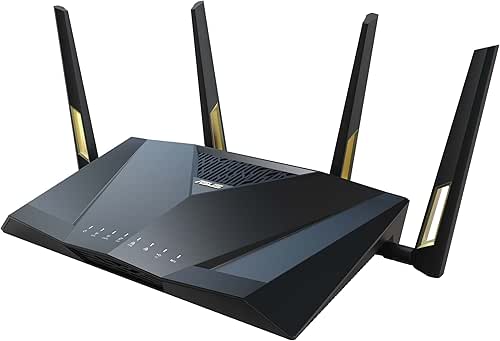
If you’re looking for a router that handles these complexities with a much more modern, secure interface, I’ve had a lot of luck with the ASUS ecosystem lately.
I spent weeks researching the “perfect” setup for my home office because I couldn’t stand the dead zones near my patio. I tried various range extenders, but they only made the latency worse. Eventually, I switched to a high-end ASUS router that allowed me to disable the fluff while providing professional-grade control over every band. The difference in my Sunday morning “reset” routine—where I can now stream high-definition music to every corner of the house—was immediate.
The real win here: Professional-level control that doesn’t require an IT degree.

Feature 3: Legacy Compatibility Modes (Stopping the 802.11b Anchor)
Imagine you’re running a marathon, but you’re required to hold hands with the slowest person in the race. That is exactly what happens when your modern WiFi 6 (802.11ax) router is set to “Legacy” or “Mixed” mode.
By default, routers try to support every device made in the last 20 years. If you have an ancient tablet or a 15-year-old printer connected, your router has to use “Airtime Fairness” to give that slow device a turn to speak. This consumes a disproportionate amount of the available airtime, dragging down the speed for your brand-new iPhone or laptop.
What finally clicked for me was realizing I didn’t actually own any devices that used 802.11b or g anymore. By switching my router to “N-only” or “AX-only,” I saw a throughput jump of nearly 20% on my modern devices.
The Router Optimization Blueprint: A Step-by-Step Fix
Reclaiming your network doesn’t have to be a weekend-long project. It’s about a few high-impact moves. Here is how I structure my “Sunday Reset” for my tech:
Step 1: The Channel Cleanup
Most people leave their WiFi channel on “Auto.” This means your router is constantly jumping around, trying to find a clear spot. In a crowded city like Austin, your neighbors’ routers are doing the same thing, creating a chaotic mess of interference.
- On 2.4GHz: Manually set your channel to 1, 6, or 11. These are the only non-overlapping channels.
- On 5GHz: Use a WiFi analyzer app to find a channel that isn’t being used by everyone else in your apartment building.
- For 160MHz Bandwidth: If you have a WiFi 6 router, ensure this is enabled for maximum “highway” space, but only if you don’t have many neighbors nearby.
Step 2: Disabling the ‘Bloat’
Once the channels are clear, it’s time to trim the software fat. Log into your admin panel and look for these specific terms (they vary by brand):
- Traffic Monitoring: Unless you are on a strict data cap, this constant logging is a waste of CPU cycles.
- Router-Based Antivirus: Most modern computers and phones have better built-in protection. This “all-in-one” router security often slows down your web browsing significantly.
- WPS/UPnP: Find these in the “Advanced” or “Security” tabs and toggle them to “Off.”
The Hybrid Worker Loadout (Maximum Efficiency)
If you’re like me and your living room doubles as a creative studio, your network needs to handle high-stakes video calls and large file uploads simultaneously.
- Essential: A high-quality Cat6 Ethernet cable for your primary workstation (wired is always faster than WiFi).
- Essential: A dedicated 5GHz or 6GHz band exclusively for your work devices to avoid interference from the smart TV.
- Essential: Disabling “Smart Connect” or “Band Steering” so you can manually choose which devices go on the faster 5GHz band.
- Pro Upgrade: A dedicated Mesh node with a “Wired Backhaul” for seamless coverage in larger homes.
When to Keep Features On: The ‘Do Not Touch’ List
In the pursuit of “High Lifestyle ROI,” we have to be careful not to break things that actually keep us safe. While I’m all for stripping away the fluff, there are three things I never touch:
- The Firewall: Never disable your SPI Firewall. It’s your network’s primary line of defense.
- WPA3 Encryption: If your devices support it, keep this on. It’s the modern standard for security [1].
- Firmware Updates: I check for these once a month. They often contain critical “under the hood” performance tweaks and security patches.
I’ll admit—I was skeptical at first about whether these tiny changes would actually matter. But after a 15-minute audit, my ping in video calls dropped, and my download speeds finally matched what I was paying for.
What I found was that the “convenience” of modern tech often masks inefficiency. By taking the time to understand the “why” behind your router’s settings, you create a space that actually supports your lifestyle rather than getting in the way.
Now that the WiFi is finally humming along, I’m heading out for a quick hike on the Greenbelt. I hope this blueprint helps you spend less time troubleshooting and more time enjoying the things that matter.
Suggested Disclaimer: Disabling features like UPnP may require you to manually set up “Port Forwarding” if you use specific older smart home hubs or legacy gaming consoles. Always make one change at a time and test your connection before moving to the next.
Technical References & Further Reading
- Wi-Fi Alliance (2025). “WPA3 Security Capabilities and Requirements.” wi-fi.org
- Consumer Networking Research Group (2024). “Home Router Configuration Trends and User Behavior Study.”
- Bufferbloat.net (2026). “Understanding Latency Under Load and the Role of QoS.” bufferbloat.net
- CISA (2023). “Securing Your Home Network: Disabling Insecure Defaults.” cisa.gov
- IEEE 802.11 Working Group (2025). “Wireless LAN Medium Access Control and Physical Layer Specifications.” ieee.org