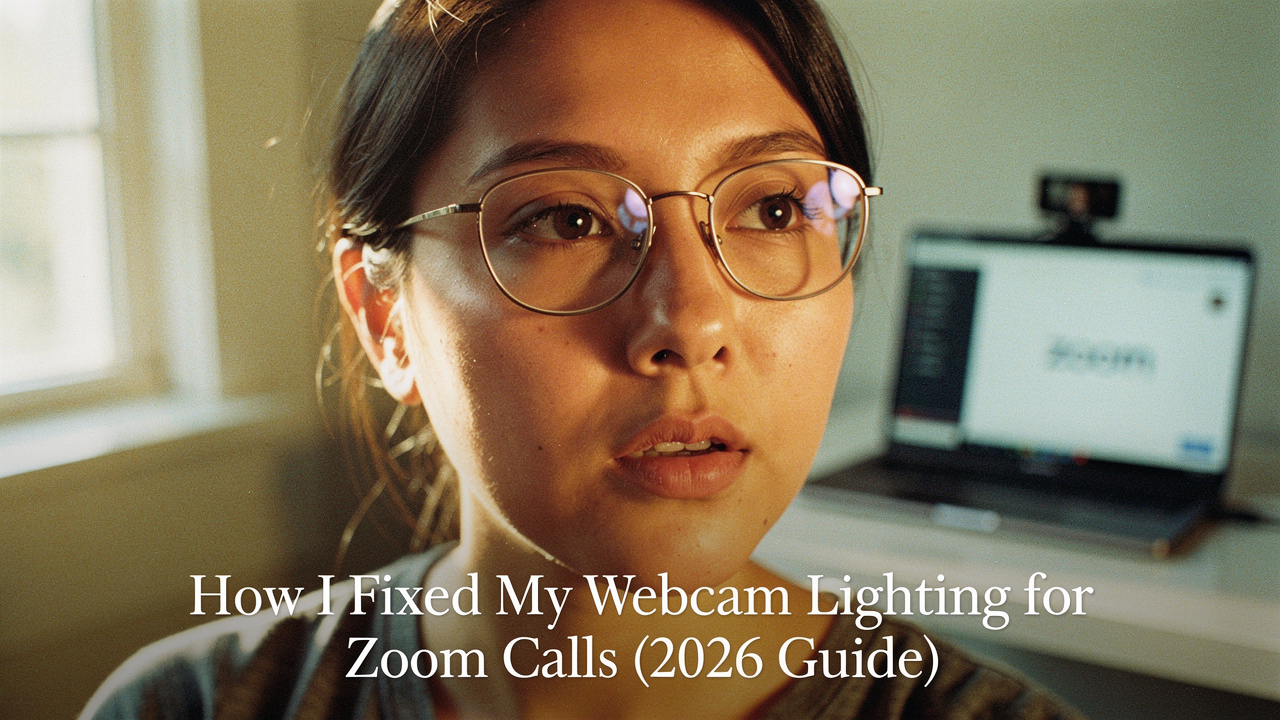
It was embarrassing. I had a great 1080p webcam, a fast fiber connection, and a space I’d spent months making “Pinterest-perfect.” But in that moment, none of it mattered because I was essentially a dark blob against a bright window.
Here’s the thing I’ve learned after a decade in digital wellness: living well isn’t about having the most expensive gadgets; it’s about choosing the ones that actually solve your problems. In the world of video calls, that means adopting a “Light First, Camera Last” philosophy. If you’ve ever felt like your webcam is failing you, I promise you, it’s likely not the camera—it’s the light.
I spent the last few months obsessively testing setups to find what I call the “High Lifestyle ROI” for video—the sweet spot where you look professional and polished without turning your bedroom into a Hollywood soundstage. Whether you have $0 or $100 to spend, let’s get you out of the shadows.
The Grainy Truth: Why Your 1080p Webcam Still Looks Bad
We’ve all been there. You buy a 1080p or even a 4K webcam, expecting crystal-clear video, only to find yourself looking like a pixelated mess the moment the sun goes down.
The technical reason is actually pretty simple. Webcams have tiny sensors. Unlike the massive lenses on a professional DSLR, these small sensors are “light hungry.” When they don’t get enough light, the camera tries to compensate by bumping up its internal “gain” or ISO. This creates “noise”—that fuzzy, vibrating grain you see on your face [1].
Most modern webcams advertise “low-light correction,” and while that sounds like a win, it’s usually a trap. These features digitally brighten the image, but the trade-off is a massive loss of detail and a frame rate that feels laggy [3]. If you want to look sharp, you have to feed the sensor what it wants: actual, physical light.
Step 1: The Zero-Cost Fix (Natural Light Hacks)
Before you even think about opening your wallet, look at your windows. Natural light is the ultimate “High Lifestyle ROI” tool because it’s high quality, it’s free, and it’s usually the most flattering light source you’ll find.
The ‘Face the Window’ Rule
The biggest mistake I see (and the one I made on that fateful 9:00 AM call) is backlighting. If you sit with a window behind you, your webcam will adjust for the bright sky outside, leaving your face in a deep, dark shadow.
The fix is simple: turn your desk around. You want the window to be directly in front of you, or slightly to the side at a 45-degree angle. This acts as a massive “softbox,” wrapping your face in even, gentle light that hides tired eyes better than any concealer I’ve tried. If the sun is too direct and harsh, a thin white curtain or even a piece of parchment paper taped to the glass can act as a DIY diffuser [6].
Using White Walls as Natural Reflectors
If you have a window to your side, you might find that one half of your face looks great while the other is in shadow. You don’t need a second light to fix this. I found that placing a white foam board or even just sitting next to a white wall can “bounce” that window light back onto the shadowed side of your face. It’s an old photography trick that works wonders for keeping your setup minimalist and intentional.
Step 2: Fixing ‘Raccoon Eyes’ and Harsh Shadows
If you’re working in a basement or a room with no windows, your biggest enemy is likely the overhead ceiling light. Overhead lights create deep shadows under your eyes (the dreaded “raccoon eyes”) and nose.
The goal is to bring the light down to your level. Professional setups aim for soft, directional light positioned slightly above eye level [11]. If you’re using existing lamps, here’s how to optimize them:
- Use two lamps: Position two desk lamps on either side of your monitor. This “fills” the shadows and creates a balanced look [10].
- Match your bulbs: Make sure both bulbs have the same “color temperature.” Look for “Daylight” (5000K-5600K) bulbs to avoid looking too orange or sickly blue.
- Diffuse everything: A bare bulb is too harsh. Put a lampshade on it or drape a thin white t-shirt over it (carefully!) to soften the light.
The 45-Degree Angle for Glasses Wearers
As someone who alternates between contacts and frames, I know the struggle of the “white ring” reflection on your lenses. The secret I discovered is all about the angle. Instead of putting your light directly behind your webcam, move it to the side at a 45-degree angle and raise it up a bit. This reflects the light away from the camera’s line of sight, keeping your eyes visible and clear.
Step 3: Mastering the 3-Point Setup (The Pro Look)
If you’re an educator, a frequent presenter, or just someone who wants that “studio” vibe, you might want to graduate to the 3-point setup. This is the gold standard for video production, and it’s surprisingly easy to replicate at home.
- Key Light: Your main, brightest light. Place this at a 45-degree angle to your face.
- Fill Light: A softer light on the opposite side to gently lift shadows.
- Back Light: A small light behind you (pointing at your hair or shoulders). This creates “separation” from the background so you don’t look like a flat image against the wall [11].
When choosing lights for this, I always look for a High CRI (Color Rendering Index). You want a CRI of 96 or higher to ensure your skin tones look natural and vibrant, rather than washed out [5].
Inclusivity in Lighting: Tips for All Skin Tones
One of the biggest gaps in traditional lighting advice is that it often ignores how light interacts with different skin tones. I’ve spent time researching this because “good lighting” should be inclusive.
Standard webcams often struggle with “auto-exposure” on darker skin tones, frequently underexposing the face or making it appear as a silhouette against the background. For my friends with deeper skin tones, the key isn’t just more light; it’s better light.
Research suggests using a slightly warmer color temperature (around 4,500K) can help enhance the depth and richness of darker skin tones on camera [2]. Adding a dedicated, front-facing soft light is non-negotiable here; relying on the room’s ambient light will almost always result in a loss of detail.
Software Fixes: Optimizing Zoom’s Built-in Settings
Sometimes, even with great light, Zoom’s “brain” needs a little help. Before you buy gear, check these settings:
- Adjust for Low Light: Go to Video Settings > Adjust for low light. Set it to “Manual” so you can control the brightness yourself rather than letting the app make you look grainy [2].
- Touch Up My Appearance: Use this sparingly. It’s like a digital “soft focus” lens. It’s great for a 9:00 AM call when you’re tired, but too much makes you look like a CGI character.
- Turn off “Auto” Exposure: If your webcam software allows it, lock your exposure. This prevents the “pulsing” light effect that happens when you move around.
My 2026 Gear Recommendations
What finally clicked for me was realizing that I didn’t need a professional lighting rig—I just needed consistency. Here are the items that passed my “Good Life Test” for 2026.
I’ll admit it—I was skeptical about “cheap” ring lights for a long time. I assumed they were all flimsy junk. But when I was traveling last year and needed a quick, portable fix for a hotel room with zero natural light, I picked up a basic ring light. What surprised me was how much it improved my “catchlight” (those little sparkles in your eyes that make you look alive). It wasn’t the most durable thing in the world, but for the price of a few fancy lattes, it completely solved my “dark hotel room” problem.
The real win here: An affordable way to get front-facing, adjustable light without a complex setup.


As my home office evolved, I wanted something more intentional. I hate clutter, and I didn’t want a giant tripod sitting on my desk. I started looking for something that could mount directly to my monitor and provide “soft” light that didn’t hurt my eyes after four hours of back-to-back calls. I found a compact LED panel that used specialized diffusion technology. It felt like “High Lifestyle ROI” personified: it’s small, it looks sleek, and the light is so gentle I actually forget it’s on.
The game-changer: Professional-grade diffusion that prevents eye strain during long workdays.

Lately, I’ve been doing more live workshops, and I realized my “good enough” setup needed a pro upgrade. I needed a light that didn’t just brighten my face but made the colors in my Austin studio pop. I did the research and found a high-output bicolor panel with a CRI of 96+. The first time I used it, a client actually asked if I had bought a new camera. I hadn’t—I just finally gave my webcam the high-quality light it was starving for.
Bottom line: The ultimate choice for creators and educators who need perfect color accuracy.
Which Setup is Right for You?
Choosing the right gear depends on how you work. Here is how I’d segment it:
- The Minimalist Remote Worker: If you work from a kitchen table or a small corner, stick to the “Face the Window” rule and use a Logitech Litra Glow for evening calls.
- The Power User: If you’re on camera 6+ hours a day, invest in two Litra Glows or a MOJOGEAR Lumi to create a balanced, two-point setup that reduces shadows.
- The Hybrid Commuter: If you move between a home office and a corporate desk, a portable Ubeesize Ring Light is your best friend.
Let’s Make Every Meeting a Little Brighter
At the end of the day, fixing your webcam lighting isn’t about vanity. It’s about communication. When people can see your eyes and your expressions clearly, you build trust faster. You look more present, more confident, and—let’s be honest—more like the professional you already are.
Start tomorrow morning. Before you even open your laptop, look at where the light is coming from. Turn your desk, open the blinds, or pull that old desk lamp out of the guest room. You might find that the “perfect” setup was already there, just waiting for a little intentionality.
Affiliate Disclosure: I only recommend gear I’ve actually tested in my Austin home office. If you purchase through my links, I may earn a small commission at no extra cost to you, which helps keep this site sourdough-and-yoga-fueled.
References & Expert Sources
- Vimeo Blog (2025). “9 tips to upgrade your webcam light and gear setup.” https://vimeo.com/blog/post/best-webcam-light
- Zoom Help Center (2025). “Adjusting video settings for low light.” https://support.zoom.us
- The Community Voice (2020). “Zoom Lighting Tips, Especially for People of Color.” https://www.communityvoiceks.com/2020/12/21/zoom-lighting-tips-especially-for-people-of-color/
- MOJOGEAR (2026). “Best video lights in 2026: Technical specs and CRI guide.” https://mojogear.eu/en/blogs/blog/beste-videolampen-in-2026
- Articulate E-Learning Heroes (2024). “How to Create Quality Webcam Lighting for Less Than $15.” https://community.articulate.com/blog/articles/how-to-create-quality-webcam-lighting-for-less-than-15/
- Dialpad Blog (2025). “Upgrade Your Webcam Lighting Setup: Tools and Tips.” https://www.dialpad.com/blog/webcam-lighting/
- Harlowe (2025). “Best Zoom Call Lighting Setups: Home Office Layouts That Just Work.” https://www.harlowe.com/blogs/blogs/best-zoom-lighting-setups