=
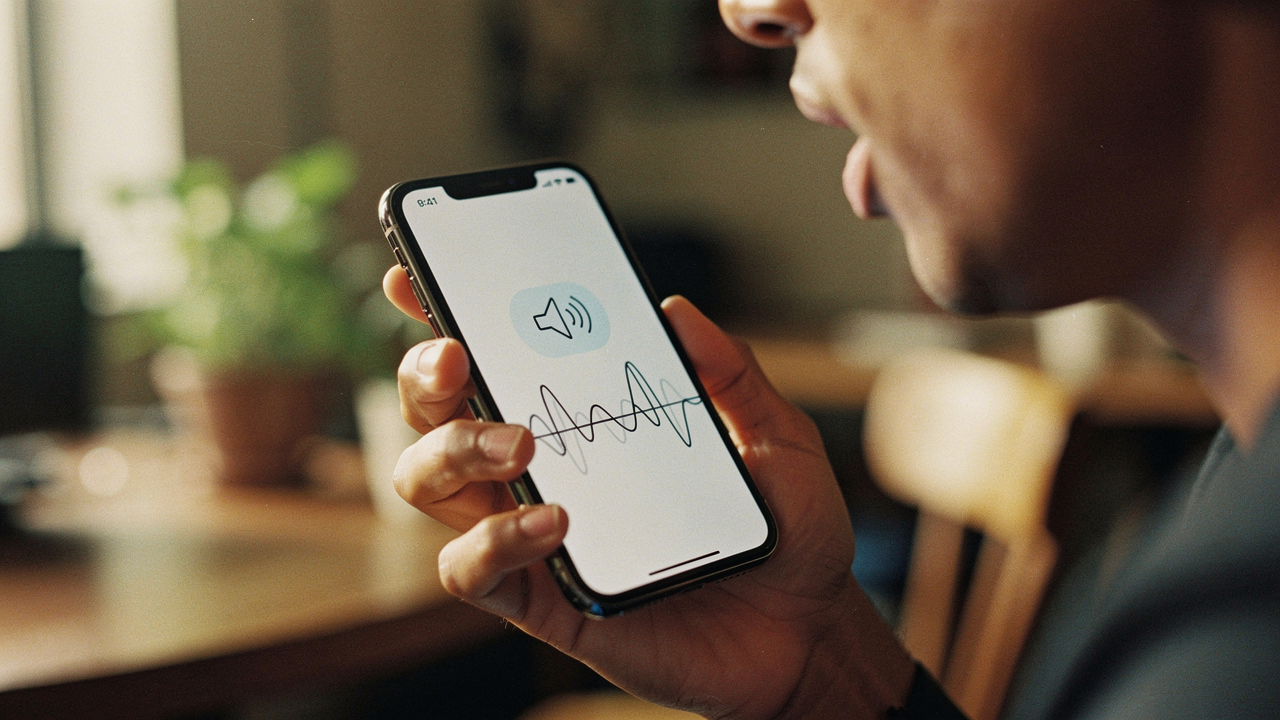
Whether you’re juggling a messy hobby, managing a physical limitation, or simply trying to stay safe while driving to the trailhead, learning to navigate your device touch-free is one of those “High Lifestyle ROI” skills. It’s not just about convenience; it’s about accessibility and reclaiming your focus. According to the World Health Organization, over 1.3 billion people live with some form of significant disability, many of whom rely on these very tools to bridge the digital gap [1].
In this guide, we’re going to move past the basic “Hey Siri” weather requests. I’m going to show you how to actually control every corner of your phone—scrolling, clicking, and texting—using nothing but your voice.
Assistant vs. Accessibility: Which Voice Tool Do You Need?
Here is the thing about voice tech: most people confuse “Voice Assistants” with “Voice Control.” It’s a distinction that matters.
Siri and Google Assistant are your digital concierges. They are great for quick, task-oriented hits—setting an alarm, checking the weather, or playing a podcast. But if you want to open a specific folder, scroll through a long article, or tap a “Submit” button inside a third-party app, you need the heavy hitters: Voice Control (iOS) and Voice Access (Android).
Apple and Google designed these features specifically as assistive technologies for users with motor impairments [2][3]. While assistants wait for a “wake word” to perform a single task, these accessibility tools stay active, listening for system-level navigation commands. Think of it this way: Siri is for “do this for me,” while Voice Control is for “act as my finger.”
How to Enable Voice Control on iPhone (iOS)
If you’re an iPhone user, you likely have one of the most sophisticated hands-free systems already sitting in your pocket. Apple has prioritized on-device processing for Voice Control, meaning your voice is analyzed locally on your chip rather than being sent to a cloud server, which is a massive win for privacy [2].
The Setup Process
To get started, follow this path: Settings > Accessibility > Voice Control.
When you toggle it on for the first time, your iPhone will download a local language file. You’ll need a Wi-Fi connection for this initial step. Once it’s ready, you’ll see a small blue microphone icon in the status bar at the top of your screen. This is your signal that your phone is “live” and waiting for your instructions.
Customizing Your Commands
What surprised me most about iOS Voice Control was the “Create New Command” feature. I’m a big believer in “choosing better” over “having more,” and custom commands are the epitome of that.
I used to find it incredibly tedious to navigate the five or six taps required to post a quick update to my Instagram Stories. Now, I’ve set up a custom command where I just say “Post Story,” and the phone executes that specific sequence of taps automatically. You can do this by going to Voice Control > Customize Commands > Create New Command. It allows you to record a gesture (like a tap or a swipe) and map it to a specific phrase. It feels like magic every time it works.
How to Set Up Voice Access on Android
Android handles voice control a bit differently, and it’s arguably even more powerful because of how it handles on-screen elements. If you’ve ever felt like your phone is a bit “too much” to handle one-handed, this is your solution.
Installing the Voice Access App
Depending on your device and OS version, you might need to grab the Voice Access app from the Google Play Store first. While Google Assistant is baked into the system, Voice Access is the specific accessibility service required for deep navigation [3].
Once installed, go to Settings > Accessibility > Voice Access and toggle “Use Voice Access” to on. You’ll be asked to grant several permissions—this is normal, as the app needs to “see” your screen and “hear” your commands to function.
Navigating by Numbers
The “win” for Android is undoubtedly its “Show Numbers” feature. When you’re struggling to use your phone hands-free, sometimes it’s hard to know what to call a specific button. Android solves this by overlaying a tiny number next to every clickable element on your screen.
If you want to open a link, you don’t have to describe it; you just say “Tap 14.” It removes the guesswork and makes the learning curve significantly flatter for anyone who finds the standard “swipe and tap” gestures frustrating.
Essential Voice Commands for Daily Life
To make this a “Good Life” habit, you don’t need to memorize a manual. You just need a few reliable “Persona Loadouts” for your most common daily tasks. I’ve tested these on iOS 17 and Android 14, and they are the ones that actually stick.
The Multi-Tasking Communicator
For when you’re driving, cooking, or just have your hands full of groceries.
- “Hey Siri/Google, read my notifications.” (Great for catching up on texts without looking.)
- “Send a message to [Name] saying I’m five minutes late.”
- “Answer call” or “Hang up.”
- “Dictate” (Used within any text field to start speech-to-text.)
The Hands-Free Navigator
For when you need to browse an article or a recipe without touching the screen.
- “Scroll down” or “Scroll up.”
- “Go home” (Returns you to the main screen.)
- “Open [App Name].”
- “Show grid” (iOS) or “Show numbers” (Android) for precise clicking.
Solving Common Voice Control Struggles
Let’s be honest: voice control isn’t always perfect. I’ve had my fair share of “I didn’t say that!” moments. Research shows that while speech recognition is incredibly accurate in quiet rooms, “word error rates” (WER) spike as soon as you add background noise, like a humming air conditioner or traffic [4].
If you find yourself struggling to be heard, check your environment. Are you in a “noisy” space? Are your phone’s microphones clogged with lint? Often, the solution isn’t software—it’s hardware.
Hardware ROI: Better Microphones
I used to get so frustrated trying to use voice commands while walking along the Ann and Roy Butler Hike-and-Bike Trail here in Austin. The wind would catch the microphone on my phone or my cheap earbuds, and my “Send text” command would turn into a garbled mess. I almost gave up on the whole “hands-free” dream until I decided to invest in a headset with a dedicated boom mic and noise-canceling technology.
The difference was night and day. Suddenly, I didn’t have to shout or repeat myself. I could walk, talk, and control my phone with a normal speaking voice, even with the Austin wind whipping around. It turned a point of friction into a seamless part of my morning routine.
Sony WH-1000XM5 Noise Canceling Headphones
I’ll be the first to admit I was skeptical about whether “fancy” headphones actually improved voice recognition. But after testing the Sony WH-1000XM5s, I’m a convert. The four-microphone array on each cup is specifically designed to isolate your voice while filtering out environmental noise. It’s the closest I’ve found to a “professional” voice control setup for the average person.
Micro-Verdict: The gold standard for voice clarity and noise isolation in any environment.
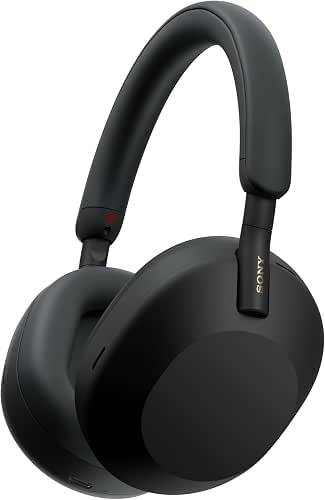

Best For: Remote workers who take calls in noisy coffee shops or outdoor enthusiasts who want reliable voice control on windy walks.
Privacy Audit: Controlling Your Data
I know what you’re thinking: “Jordan, is my phone always listening to me?” It’s a fair question. To keep your environment intentional and secure, I recommend a quick “Privacy Audit” every few months:
- Check “Always On” Settings: On iOS, you can toggle “Listen for Hey Siri” off and use the side button instead.
- Manage Voice History: In your Google Account settings, you can set your “Voice & Audio Activity” to auto-delete every 3 or 18 months.
- Local Processing: Prioritize features that say “On-Device.” Both Apple and Google are moving more toward local processing, which means your voice data stays on your phone [2][3].
A Note on Accessibility: While voice control technology has come a long way, it is important to remember that it is a tool, not a total replacement for all physical interactions. Some deep-system tasks, security prompts, or third-party apps with non-standard interfaces may still require physical touch or alternative assistive devices like switches.
References & Resources
- World Health Organization. (2023). Assistive Technology Fact Sheet. https://www.who.int/news-room/fact-sheets/detail/assistive-technology
- Apple Support. (2024). Use Voice Control on your iPhone, iPad, or iPod touch. https://support.apple.com/en-us/102208
- Google Accessibility Help. (2024). Get started with Voice Access on Android. https://support.google.com/accessibility/android/answer/6151848
- Microsoft Research. (2022). The Impact of Background Noise on Speech Recognition Accuracy. https://www.microsoft.com/en-us/research/publication/the-impact-of-background-noise-on-speech-recognition-accuracy/
The “Good Life” Verdict: Voice control is no longer a futuristic gimmick—it’s a High Lifestyle ROI tool that supports a more focused, intentional way of living. Start small this week. Try just three commands: one for messaging, one for scrolling, and one for opening your favorite app. You’ll be surprised at how much lighter your “digital load” feels when you finally let your voice do the heavy lifting.
Which voice command changed your workflow? Leave a comment below or share this with a friend who needs a hands-free setup!