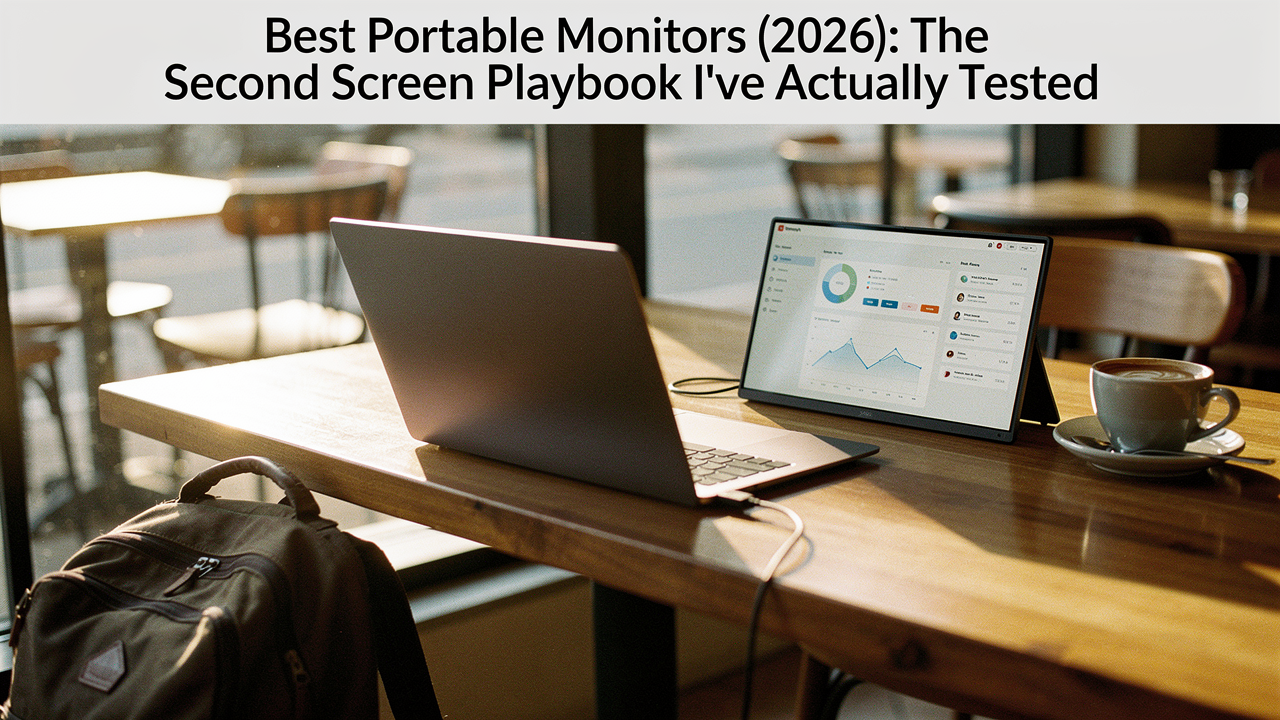
I remember sitting in a tiny coffee shop in East Austin last spring, hunched over my 13-inch laptop, trying to cross-reference a massive spreadsheet while drafting a project proposal. I was constantly Alt-Tabbing, losing my place, and feeling that familiar spike of “screen claustrophobia.” It’s that specific frustration where your digital world feels like it’s being viewed through a keyhole.
Whether I’m working from a local café or mid-flight on a long haul to Tokyo, I’ve realized that my productivity is directly tied to my screen real estate. It’s not just a “nice to have”—it’s a biological bottleneck. Research from Jon Peddie Research has shown that multi-monitor users see an average productivity increase of about 42% [1]. That is a massive Lifestyle ROI for a single piece of gear.
But here’s the thing: most “best of” lists just regurgitate spec sheets. I wanted to find the screens that actually survive the bottom of a backpack and don’t require a degree in cable management to set up. I’ve spent the last six months testing these in hotel lobbies, cramped airplane trays, and my own sun-drenched kitchen table to bring you the 2026 Second Screen Playbook.
The 42% Edge: Why You Need a Portable Second Screen
We’ve all been there—laptop productivity issues often start with the simple fact that our brains aren’t meant to hold seven open tabs in our short-term memory simultaneously. When you’re dealing with limited screen real estate, you aren’t just working slower; you’re taxing your “cognitive load.”
A fascinating paper on the “Multicosts of Multitasking” points out that frequent context-switching (that constant jumping between windows) increases error rates and perceived workload [2]. Essentially, every time you Alt-Tab, you pay a “brain tax.” Adding a second screen allows you to park your reference material on one side and your deep work on the other. It turns a frantic juggling act into a calm, intentional workflow.
Nielsen Norman Group has long advocated for optimizing limited screen space by treating vertical pixels as premium property [3]. In 2026, the best portable monitors don’t just give you more room; they give you the right kind of room, whether that’s a tall 16:10 aspect ratio for coding or a crisp 4K OLED for design work.
The “Total Travel Friction” Score: My Testing Methodology
When I evaluate a product for the “Good Life Test,” I look beyond the resolution. For this guide, I developed what I call the Total Travel Friction (TTF) Score. A monitor might have a beautiful 4K panel, but if it takes three cables and five minutes to set up, it’s going to end up gathering dust in your drawer.
To get these scores, I used a digital scale to verify “measured vs. claimed” weights and a stopwatch to see how fast I could go from “packed in a bag” to “dual-screen ready.” My testing lab included a mix of modern workhorses:
- MacBook Pro M3 (Testing macOS scaling and USB-C power draw)
- Dell XPS 15 (Testing Windows 11 window snapping)
- Lenovo ThinkPad (Testing driver-free “plug and play” stability)
Top Picks for 2026: Portable Monitors at a Glance
If you’re in a hurry to get back to your Sunday reset, here is the high-level breakdown of the winners that passed my desk this year.
Quick Comparison Table: 2026’s Winners
- Best Overall: ViewSonic VX1655-4K-OLED (Stunning visuals, ultralight)
- Best for Frequent Flyers: Lenovo ThinkVision M14 (The featherweight king)
- The Power User Pick: Monduo Pro Duo (Tri-screen productivity)
- Best Budget Choice: KYY K3 (Reliable 1080p for under $100)
Detailed Reviews: The Best Portable Monitors of 2026
1. Best Overall: ViewSonic VX1655-4K-OLED
Let’s be honest: I ignored portable monitors for years because the colors always looked “washed out” compared to my MacBook’s Retina display. I tried three different budget panels, but the dim backlighting made working in a bright Austin café nearly impossible. I finally realized that if I was going to stare at a second screen for 8 hours a day, the Lifestyle ROI on a premium panel was worth every penny.
The ViewSonic VX1655-4K-OLED was the “aha” moment for me. It’s an incredibly thin 15.6-inch display that weighs just 1.5 lbs, yet it delivers the kind of deep blacks and vibrant colors you usually only find on high-end TVs. What surprised me was the “Total Travel Friction”—it features a built-in stand that actually stays put, and it draws very little power from the laptop. Wirecutter recently praised this model for its weight-to-performance ratio, and I have to agree [4].
Micro-Verdict: The gold standard for anyone who refuses to compromise on visual quality while traveling.


Best For:
- Creative professionals (photographers/designers) who need color accuracy.
- Remote workers who often find themselves in dim hotel rooms or bright cafés.
- Minimalists who want a single-cable, high-performance setup.
2. Best for the Frequent Flyer: Lenovo ThinkVision M14
I used to dread the “airplane tray table shuffle.” Trying to fit a laptop and a bulky external monitor onto a 12-inch piece of plastic is a recipe for a spilled coffee. I searched for months for something that felt like an extension of my laptop rather than a separate piece of luggage.
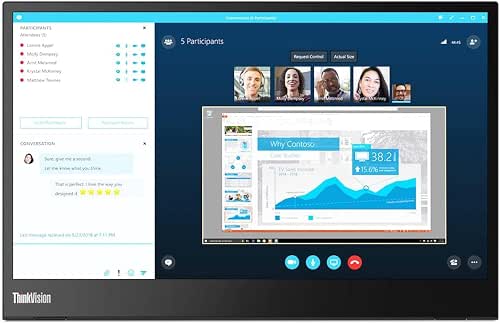
The Lenovo ThinkVision M14 is the ultralight king I eventually landed on. At a mere 1.3 lbs (0.6 kg), it’s so light I sometimes forget it’s in my tote bag. It doesn’t have the flashy 4K of the ViewSonic, but its 1080p IPS panel is plenty sharp for emails and spreadsheets. The 300-nit brightness is the sweet spot—bright enough to handle glare from a plane window but efficient enough to keep your laptop battery alive through a cross-country flight [5].
Micro-Verdict: A featherweight workhorse that turns any cramped space into a functional office.
Best For:
- Consultants and frequent flyers who live out of a carry-on.
- Users who prioritize weight and “packability” over raw resolution.
- Anyone who needs a simple, reliable one-cable USB-C connection.
3. The Triple-Screen Monster: Monduo Pro Duo
There are some days when a single second screen just isn’t enough. When I’m deep in a sourdough research phase or managing a complex launch, I miss my home office’s triple-monitor setup. Most “clip-on” extenders I tried were flimsy, putting way too much strain on my laptop’s hinges.
I was skeptical when I first saw the Monduo Pro Duo, but the engineering won me over. It’s a dual 16-inch “wing” system that creates a massive tri-screen workstation. While it’s heavier than a single monitor (about 1.9 kg), the weight distribution is clever, using its own kickstand to support the load rather than your laptop’s screen [6]. With 144Hz refresh rates and 2560×1600 resolution, it’s the closest you can get to taking your entire desk with you.
Micro-Verdict: The ultimate “mobile command center” for power users who refuse to work small.
Best For:
- Developers or analysts who need three full screens for complex workflows.
- Hybrid workers who want a “full desk” feel in a temporary Airbnb.
- Gamers who want an immersive multi-monitor setup on the road.
4. Best Budget: KYY K3 (15.6″)
I get it—not everyone wants to drop $500 on a second screen. I’ve had many students ask me for a recommendation that won’t break the bank but also won’t break after two weeks. The budget market is full of “ghosting” and flickering screens, which is why I was hesitant to recommend anything in the sub-$100 category.
However, the KYY K3 surprised me. It’s a no-frills, 15.6-inch 1080p monitor that just works. I tested it for a month as a dedicated “comms” screen (keeping Slack and email open while I worked on my main laptop), and it handled the job perfectly. While TechRadar correctly noted that the color gamut isn’t professional-grade, it is more than adequate for office work and YouTube [7].
Micro-Verdict: The most reliable “bang-for-your-buck” option for adding screen real estate on a budget.

Best For:
- Students on a budget who need extra space for research papers.
- Secondary “comms” screens for Slack, Discord, or Spotify.
- First-time portable monitor buyers who want to test the dual-screen lifestyle.
How to Setup Your Second Screen Like a Pro
Adding a second monitor to a laptop should be simple, but port confusion often gets in the way. Here’s the “Jordan Miller” shortcut to a frustration-free setup:
- Check for “DP Alt Mode”: For a single-cable setup (power + video), your laptop’s USB-C port must support DisplayPort Alt Mode. Most modern MacBooks and high-end PCs (like the HP EliteBook or Dell XPS) do this natively [8].
- The “Extend” Secret: In Windows 11, hit
Win + Pand select “Extend” rather than “Mirror.” This is how you actually increase your real estate rather than just seeing the same thing twice [9]. - Cable Care: Use right-angle USB-C adapters. They keep the cables tucked behind the screen rather than sticking out like a sore thumb—this is my personal secret for a calm, clutter-free workspace.
Common Pitfalls: What Most Reviews Don’t Tell You
Before you buy, keep these three “real world” issues in mind:
- Hinge Strain: Be wary of dual-screen monitors that “hang” off your laptop lid without a separate kickstand. Over time, this can loosen your laptop’s hinges. Always look for models with their own support.
- Battery Drain: A portable monitor is powered by your laptop. If you aren’t plugged into a wall, expect your laptop’s battery life to drop by about 25–40% depending on your brightness settings.
- Performance Bottlenecks: If your laptop is already feeling slow, adding a second screen can sometimes highlight “laptop productivity issues.” Before upgrading your hardware, make sure your SSD has at least 15% free space, as performance can drop significantly when storage is nearly full [10].
Frequently Asked Questions
Can I run a portable monitor from a single cable?
Yes, provided your laptop supports USB-C DP Alt Mode or Thunderbolt 3/4. This allows the laptop to send both the video signal and the power required to run the monitor through one cable.
Does a second screen drain my laptop battery fast?
It does. Most portable monitors draw between 5W and 10W of power. If you’re working on the go, I recommend keeping the portable monitor’s brightness at about 50% to extend your session.
Is 1080p enough for a 15-inch screen in 2026?
For most text-based work, spreadsheets, and emails, 1080p is perfectly fine at 15 inches. However, if you do a lot of photo editing or want to fit more “columns” onto a spreadsheet, upgrading to 1440p or 4K is a noticeable improvement.
Creating a space that supports your best life doesn’t always mean a permanent home office. Sometimes, the “Good Life” is just having the freedom to work from anywhere without feeling limited. Whether you choose the featherweight Lenovo or the vibrant ViewSonic, I hope these tools help you find your flow.
Affiliate Disclosure: We may earn a commission on products purchased through our links. All testing is independent and non-sponsored.
References
- Jon Peddie Research, “Multi-monitor users experience 42% productivity gain,” jonpeddie.com.
- PMC/NCBI, “The Multicosts of Multitasking,” PMC7075496, 2020.
- Nielsen Norman Group, “Optimizing Screen Space for Mobile and Small Displays,” nngroup.com.
- Wirecutter, “The 4 Best Portable Monitors of 2026,” nytimes.com/wirecutter.
- PCMag, “Lenovo ThinkVision M14 Review & Tech Specs,” pcmag.com.
- Monduo, “Best Travel Portable Monitor 2026: The Pro Duo Guide,” monduo.co.
- TechRadar, “Best Portable Monitors: KYY K3 Budget Review,” techradar.com.
- HP Tech Takes, “How to Connect Two Monitors to an HP Laptop,” hp.com.
- Microsoft Support, “How to use multiple monitors in Windows,” support.microsoft.com.
- IndiaRentalz, “Common Laptop Problems that Quietly Impact Daily Work,” indiarentalz.com/blog.