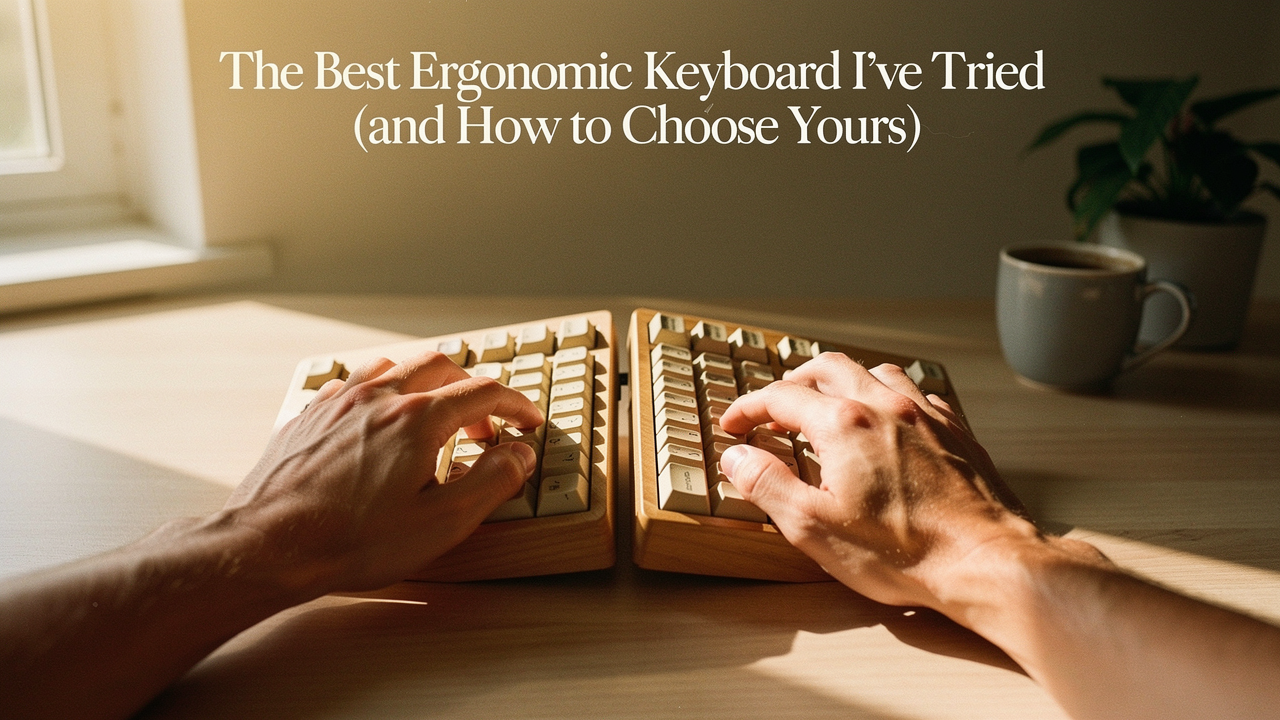
As someone who believes that living well is about choosing better, not having more, I realized my “high-performance” mechanical keyboard was actually a low-ROI disaster for my health. We spend forty-plus hours a week tethered to these devices; if the interface is broken, the whole system suffers. I spent the next three months researching biomechanics, testing layouts, and chatting with physical therapists to find a setup that actually supports the way we’re built to move.
Here is the thing: there isn’t one “perfect” keyboard for everyone. But there is a diagnostic way to find the one that stops your specific pain. This guide is the result of that journey—from understanding the science of why we hurt to finding the hardware that finally let me type pain-free again.
The Anatomy of Typing Discomfort: Why Your Wrists Hurt
Before we talk about gear, we have to talk about why most standard keyboards are essentially designed to fail our bodies. Think of it like running a trail in shoes that are two sizes too small; you can do it for a while, but eventually, your form is going to break.
According to the Cleveland Clinic, repetitive typing with bent wrists or a tight grip inflames the tendons in the carpal tunnel, which can lead to tendonitis or more chronic nerve issues [1]. In my research, I found that most of us are committing three “ergonomic sins” without even realizing it:
- Ulnar Deviation: This happens when you’ve got your wrists bent outward toward your pinky fingers to fit on a narrow, straight keyboard.
- Pronation: This is the act of typing with your palms flat against the desk. Our forearms actually prefer a more “handshake” or slightly angled position.
- Wrist Extension: This is the most common culprit—typing with your hands angled upward. OSHA guidelines suggest that for a truly neutral position, your forearms should be parallel to the floor, with the wrists straight rather than tilted back [2].
What surprised me during this process was how static posture alone can be an enemy. ATI Physical Therapy points out that a lack of movement decreases circulation and muscle flexibility, which is why that “heavy” feeling in your hands starts to set in around 3:00 PM [3]. Improving your comfort isn’t just about a new gadget; it’s about creating an environment where your body can remain in a “neutral” state.
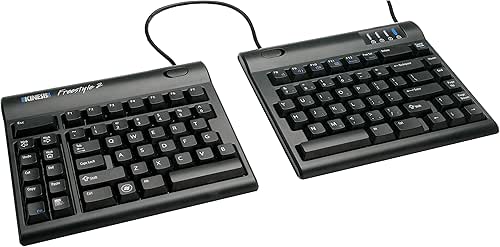
The Best Ergonomic Keyboard I’ve Ever Used: The Kinesis Freestyle2
Let me be honest: I ignored split keyboards for years because I thought they looked “intense” or overly clinical. I was wrong. After weeks of shoulder tension that felt like I was carrying the weight of the world in my trapezius muscles, I finally decided to try the Kinesis Freestyle2.
I had tried “ergonomic-lite” boards before—those slightly curved ones—but they didn’t address my specific issue: broad shoulders. Because standard keyboards are so narrow, I was constantly hunching my shoulders inward just to get my hands on the keys. When I switched to the Freestyle2, I was able to literally “open up” my chest. It felt like that moment in a yoga class when you finally transition from a cramped pose into a heart-opener.
The magic of this board is the two separate halves connected by a cable. You can place them as far apart as you need to keep your arms straight and your shoulders relaxed. It’s a design that has been a literal life-saver for others, too—I read about one academic who was able to finish a 176-page dissertation pain-free only after switching to this specific model [4].
Micro-Verdict: The game-changer for anyone struggling with shoulder tension or chest tightness.

Why the Split Layout Wins for Shoulder Tension
When you use a split layout, you eliminate ulnar deviation almost instantly. By tilting the two halves (a process called “tenting”), you also reduce pronation. I found that I could breathe deeper because my ribcage wasn’t being compressed by my own arms. It’s a High Lifestyle ROI choice because it solves multiple problems—wrist, shoulder, and neck alignment—in one single move. TechGearLab even noted that the Freestyle2 has a 43g actuation force, which is incredibly light, meaning you don’t have to “slam” the keys, further reducing fatigue [5].
A Prescriptive Guide: Matching Your Pain to the Right Keyboard
If the Kinesis feels like “too much keyboard” for your needs, don’t worry. Ergonomics is a spectrum. Here is how I’ve categorized the best options based on the specific struggles I’ve heard from the Best Goods community.
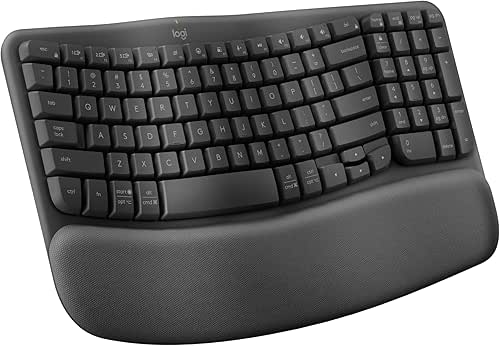
The “I Just Want More Comfort” Pick: Logitech Wave Keys
I’ll admit it—I was skeptical about “wave” designs at first. They look a bit like a standard keyboard that’s been left in the sun too long. But for my friends who don’t have chronic pain and just want to prevent the “afternoon ache” without a massive learning curve, this is the winner.
I recommended this to a friend who does freelance marketing and was tired of her laptop’s flat, cramped keys. She didn’t want to spend three weeks re-learning how to type; she just wanted to feel better. The Wave Keys offers a gentle, cushioned palm rest and a subtle curve that keeps the wrists in a more natural position than a flat board. It’s the “entry-level” ergo board that actually delivers on its promise.
- Best For: Casual users, students, or those with very mild discomfort.
- Essential: The integrated palm rest is high-quality and soft.
- The Win: Zero learning curve; you can start typing at full speed immediately.
Micro-Verdict: Bottom line: The most approachable way to upgrade your typing comfort without the “split” struggle.
The “Power Programmer” Choice: ZSA Moonlander
Here’s the thing about “pro” ergonomic boards: they require commitment. I spent a week with the Moonlander and felt like I was learning to play a new instrument. But for power users—especially coders or writers who spend 10+ hours a day typing—this is the peak of the mountain.
The Moonlander is a columnar, split mechanical keyboard. Unlike standard boards where keys are staggered, these keys are in straight columns, which is how your fingers naturally move. It also features “thumb clusters,” allowing your strongest fingers (your thumbs) to handle more than just the spacebar. If you’ve been struggling with “pinky fatigue” from hitting Shift or Enter all day, this solves it. E3 Consulting notes that these types of advanced layouts are the gold standard for maintaining neutral hand positions during high-intensity work [6].
- Best For: Software engineers, heavy typists, and those with existing RSI.
- Essential: Highly adjustable tenting legs to find your perfect “handshake” angle.
- Pro Upgrade: Hot-swappable switches let you choose the exact “click” and “weight” of your keys.
Micro-Verdict: The real win here: Total customization for the person who never wants to feel wrist strain again.
The “Work-From-Anywhere” Option: Logitech MX Keys S
You know that feeling when you’re working from a coffee shop and your wrists start to throb because you’re hunched over a tiny laptop? I ignored this for years, thinking portability meant sacrificing comfort. Then I tried the MX Keys S.
While not a “split” keyboard, it is a low-profile board with spherically dished keys that cradle your fingertips. What makes this a comfort win is the stability and the low height. Because it sits so flat to the desk, you don’t have to extend your wrists upward as much as you do with a bulky mechanical board. It’s my go-to for my Sunday “reset” sessions at the local library.
- Best For: Hybrid workers, minimalists, and laptop users who need a portable upgrade.
- Essential: Smart backlighting that turns on as your hands approach.
- The Win: Heavy enough to stay put, but slim enough to slide into a tote bag.
Micro-Verdict: What sold me: The perfect balance of premium tactile feel and low-profile ergonomics.

The ‘Hidden’ Factors: Switches, Tenting, and Trays
Choosing a keyboard is a bit like making sourdough—the individual ingredients matter immensely for the final result. If you get the layout right but the “switches” (the mechanism under the key) are too stiff, you’ll still end up with finger fatigue.
I’ve found that many “clicky” mechanical keyboards require too much force to press down. Over thousands of keystrokes, that adds up. Look for “linear” or “light tactile” switches if you want to maximize your Lifestyle ROI.
Furthermore, don’t overlook your desk setup. Weber Knapp, a leader in ergonomic hardware, emphasizes that even the best keyboard can’t save you if it’s sitting too high [7]. A keyboard tray that allows for “negative tilt”—where the front of the keyboard is higher than the back—can be a secret weapon for wrist health. In fact, studies show that even small adjustments in pelvic and neck angles (as little as 1.2°) can significantly improve your overall posture during long typing sessions [8].
How to Transition Without Losing Your Mind
I’ll be honest: the first 48 hours with a split or columnar keyboard can be frustrating. You’ll feel like you’re “hunt-and-pecking” like you’re back in middle school. Colorado State University warns that this “learning phase” can actually cause temporary neck strain if you’re constantly looking down at your hands [9].
To avoid this, I recommend a 14-day “Adaptation Plan”:
- Days 1-3: Use the new keyboard for just one hour a day during low-stakes tasks (like answering emails). Switch back to your old one for deep work.
- Days 4-7: Increase to half-days. Use a typing tutor website for 10 minutes each morning to build muscle memory.
- Days 8-14: Commit fully. By day 10, your brain will “click,” and your typing speed will start to climb back up.
Final Thoughts: Living Well Starts at Your Fingertips
At the end of the day, an ergonomic keyboard is an investment in your future self. It’s about ensuring that the work you do today doesn’t limit what you can do tomorrow. Whether you choose the total freedom of the Kinesis Freestyle2 or the approachable comfort of the Logitech Wave, you’re making a choice to honor your body’s design.
Remember, though, that hardware is only half the battle. No keyboard can replace the benefits of a Sunday afternoon hike or a quick stretching break every hour. Start with one small change—maybe it’s a new board, or maybe it’s just lowering your chair so your wrists stay neutral. Your body will thank you for it.
Found a keyboard you love? Tag me on social with your setup—I’m always looking for desk-spiration!
***
References & Research
- Cleveland Clinic. “Typing Troubles: How To Avoid Wrist Pain.” https://health.clevelandclinic.org/typing-troubles-how-to-avoid-wrist-pain
- Occupational Safety and Health Administration (OSHA). “Computer Workstations eTool.” https://www.osha.gov/etools/computer-workstations
- ATI Physical Therapy. “Wrist Pain at Work: Ergonomic Fixes That Actually Help.” https://www.atipt.com/wrist-pain-at-work-ergonomic-fixes-that-help/
- Styler, Will. “Ergonomic Keyboard Mega-Review.” University of California San Diego. https://wstyler.ucsd.edu/posts/ergo_keyboards.html
- TechGearLab. “Best Ergonomic Keyboard of 2025.” https://www.techgearlab.com/topics/small-and-home-office/best-ergonomic-keyboard
- E3 Consulting. “How Ergonomic Keyboards Work: Benefits & Features.” https://www.ergonomicconsultants.com/blog/ergonomic-workspace/how-ergonomic-keyboards-work/
- Weber Knapp. “The Best Ergonomic Position for a Keyboard.” https://blog.weberknapp.com/correct-office-ergonomics-whats-the-best-position-for-a-keyboard
- PMC8161121. “Sitting Posture during Prolonged Computer Typing.” National Institutes of Health. https://pmc.ncbi.nlm.nih.gov/articles/PMC8161121/
- Colorado State University. “Ergonomics and the Hunt-and-Peck Typing Habit.” https://rmi.colostate.edu/ergonomics-and-the-hunt-and-peck-typing-habit/