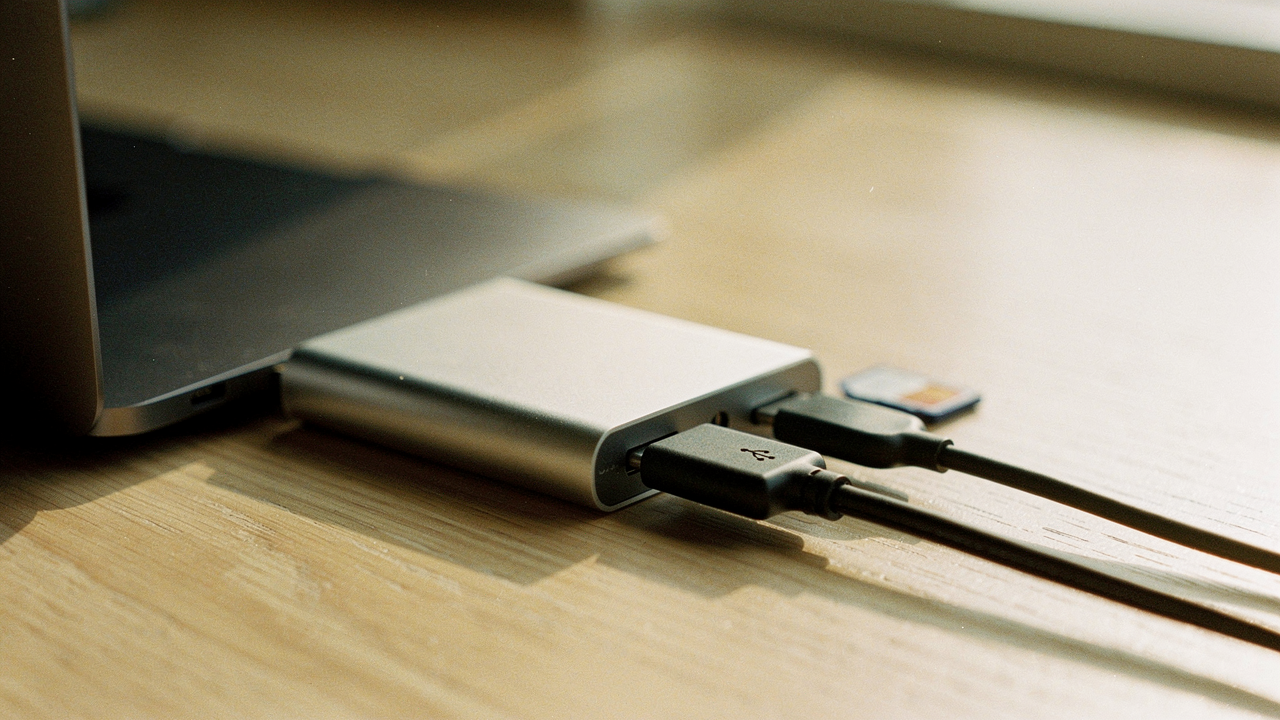
That’s what I call “Port Anxiety.”
Here’s the thing about our modern, ultra-thin tech: it looks beautiful on a desk, but it often lacks the utility to actually support a high-performance life. As a lifestyle curator, I’m obsessed with High Lifestyle ROI—the idea that the tools we use should give us back more time and mental peace than they take to maintain. A great USB hub isn’t just a piece of plastic; it’s the invisible anchor that turns a cramped laptop into a powerhouse workstation.
In this guide, I’ve distilled years of digital wellness research and testing into five picks that will actually solve your connectivity headaches in 2026.
The Port Paradox: Why Your 2026 Setup Feels Limited
It feels like a contradiction, doesn’t it? Our devices are getting more powerful every year, yet the physical holes to plug things into are disappearing. This “thinness trend” has created a reality where most of us are living the “dongle life,” carrying a pocketful of adapters just to get through a Tuesday.
Wired has long noted the industry-wide transition to USB-C only designs in modern ultrabooks [3]. While USB-C is objectively incredible (one cable for everything!), the transition has left a gap. When your environment is cluttered with mismatched adapters and cables snaking across your desk, your focus suffers. I’ve found that a “Zen” desk—one where the tech supports the flow rather than interrupting it—starts with consolidating that chaos into a single, reliable hub.
USB Hub Standards Demystified (So You Don’t Buy a Bottleneck)
Before we get to the picks, we need to talk about the “single pipe” analogy. Imagine your laptop’s port is a water pipe. If you plug in a hub with seven ports, you aren’t getting seven pipes; you’re just splitting that one pipe into seven smaller ones. If you try to run too much through it at once, things slow down.
To ensure you’re getting a high ROI on your purchase, keep these 2026 standards in mind:
- USB 3.2 Gen 1 vs. Gen 2: Gen 1 offers 5Gbps, while Gen 2 hits 10Gbps. If you’re moving large files, 10Gbps is the modern baseline according to the USB Implementers Forum (USB-IF) [1].
- USB4 and Thunderbolt: These are the heavy hitters, offering up to 40Gbps or even 80Gbps. These are essential if you’re running multiple 4K monitors.
- Power Limits: Not all ports provide equal juice. Older USB 2.0 ports only give about 0.5A, while USB 3.0 provides 0.9A [2].
What surprised me during my research was a finding from Tom’s Hardware: using a cheap, outdated USB 2.0 hub can slash your external SSD write speeds by up to 35% [4]. Don’t let a $15 hub bottleneck a $2,000 laptop.
The 5 Best USB Hubs We Recommend for 2026
For our “USB Hub Lab” tests, we didn’t just look at the spec sheets. We used benchmark tools like AJA System Test to measure real-world throughput and used infrared thermometers to see which hubs stayed cool during an eight-hour workday. Here is what made the cut.
1. The All-Rounder:
2026年3月5日 2:14 PM
-
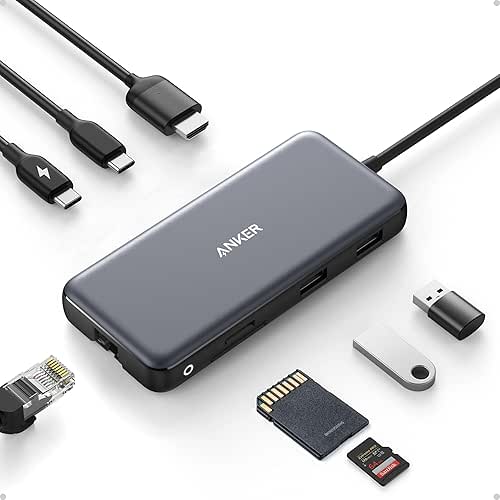

Let me be honest: for the longest time, I ignored the “port mix” on my hubs. I’d buy something with five USB-A ports only to realize I desperately needed an SD card slot for my weekend photography. I spent months swapping dongles like a Tetris game until I found a hub that actually anticipated my needs.
The Anker 555 feels like it was designed by someone who actually works for a living. It handles 10Gbps data transfers without breaking a sweat, and the 100W Power Delivery (PD) means my laptop stays charged even when I’m pushing the processor. It’s built from a sturdy aluminum that dissipates heat beautifully, which is a detail most people overlook until their hub starts thermal throttling in the middle of a file transfer.
Micro-Verdict: The gold standard for the modern hybrid worker who needs reliability above all else.
- Best For: Remote workers who need a mix of displays, storage, and charging in one sleek package.
2. The Desktop Powerhouse:
I used to have this recurring nightmare: I’d be in the middle of a massive project backup, and suddenly—click—the drive would disconnect because it wasn’t getting enough power. Most portable hubs “steal” power from your laptop, which works for a mouse but fails for high-draw mechanical drives or professional microphones.
I eventually realized I needed something with its own wall plug. The Sabrent 10-Port is pure muscle. What sold me were the individual power switches for every port. If I’m not using my webcam, I can just click the button to turn it off, saving energy and ensuring my privacy. It’s a bit larger than the others, but for a permanent desk setup in a home office, it’s the ultimate “set it and forget it” solution.
Micro-Verdict: Pure muscle for your most demanding peripherals and high-draw drives.
- Best For: Power users with a permanent desk setup and 5+ devices connected at all times.
3. The Creator’s Choice:
You know that feeling when your laptop warns you that “Disk Space is Low” right when you’re inspired to start a new project? It’s the ultimate flow-killer. For years, I carried a USB hub and a separate external SSD, which just added more clutter to my bag and more cables to my desk.
When I discovered this Satechi hub, it felt like a lightbulb moment. It’s a multi-port hub, but it has a hidden compartment underneath for an NVMe SSD. You get extra ports and extra terabytes of high-speed storage in a single footprint. The aluminum finish matches a MacBook perfectly, satisfying my need for aesthetics while solving two major tech problems at once.
Micro-Verdict: The ultimate space-saving upgrade for video editors and digital creators.
- Best For: Creators who need to expand both their ports and their storage capacity simultaneously.
4. The Travel Essential:
2026年3月5日 2:14 PM
-

I’ll admit it—I was skeptical that a hub this small could be anything more than a toy. Usually, “ultra-slim” means “ultra-slow.” But when I started taking weekend trips from Austin to the coast, I realized my heavy desktop hubs were overkill for a coffee shop session.
The Revodok 105 is about the size of a chocolate bar and weighs next to nothing. It doesn’t have the 40Gbps speeds of the high-end models, but it handles a 4K monitor and a couple of USB-A devices perfectly. It’s the “minimalist’s dream”—enough to get the job done without taking up any precious space in your laptop sleeve.
Micro-Verdict: Maximum portability without sacrificing the essential ports you need on the road.
- Best For: Digital nomads and students who prioritize a light bag over maximum speed.
5. The Future-Proofer:
2026年3月5日 2:14 PM
-
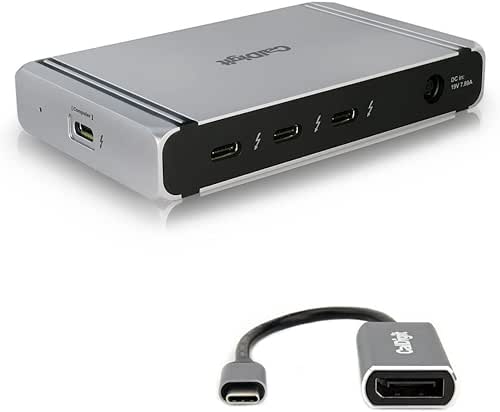
Here’s the thing about “port anxiety”: sometimes it’s caused by bandwidth, not just the number of holes. I tried to run two 4K monitors off a cheap hub once, and the lag was so bad I felt like I was working underwater. I spent hours troubleshooting drivers when the reality was simple: my hub couldn’t handle the data.
The CalDigit Element Hub is built for the 2026 reality of Thunderbolt 4 and 5. With 40Gbps of bandwidth, it treats your peripherals like they’re plugged directly into the motherboard. It’s the hub I recommend when a friend tells me they’re building their “dream setup” and never want to think about connectivity again. It’s an investment, but the lifestyle ROI in terms of saved frustration is massive.
Micro-Verdict: The high-ROI investment for power users who demand zero-lag performance.
- Best For: Professionals using dual 4K/8K monitors or high-speed RAID arrays.
Calculating Your Power Budget: A Practical How-To
One of the biggest reasons devices “randomly” disconnect is that we exceed our hub’s power budget. Think of it like a circuit breaker in your house.
A “Bus-Powered” hub (like our Travel Essential) gets all its power from your laptop’s port. A standard USB 3.0 port provides about 900mA. If you plug in:
- A backlit keyboard (100mA)
- A gaming mouse (100mA)
- A portable SSD (800mA)
Total: 1000mA. You’ve just overloaded the port, and your SSD will likely drop out during a transfer.
If you plan on connecting multiple “hungry” devices, look for a “Self-Powered” hub or one that supports BC 1.2 charging ports, which can supply up to 1.5A even while transferring data [2].
From Chaos to Zen: Integrating Your Hub into Your Workspace
Self-care starts with your space. When your environment supports you, everything flows better. To turn your USB hub into a productivity multiplier, I recommend treating it as the “anchor” of your desk.
The Minimalist Remote Worker Loadout
If you’re working from a corner of your living room or a small home office, use this setup to keep things tidy:
- Essential: Anker 555 8-in-1 Hub for a single-cable connection to your laptop.
- Essential: A high-quality tech pouch to store the hub and cables when the workday ends.
- Pro Upgrade: Use hook-and-loop (Velcro) fasteners to mount your hub to the underside of your desk. This creates a “floating” look where cables disappear into the back.
Following best practices from workspace experts like Desky and Humanscale, you should always map your cable paths before you start plugging things in [5]. Positioning the hub at the rear-center of your desk allows you to route peripheral cables underneath the desk surface, leaving your immediate workspace clear for your coffee and your thoughts.
Troubleshooting: What to Do When Devices Disconnect
Even with the best gear, tech can be finicky. If your devices are dropping out, don’t panic. Here’s what usually fixes it:
- Check for Physical Damage: According to Coeo Solutions, physical cable damage or loose connections are the top causes of intermittent connectivity [6]. Swap the cable first.
- The 2.4GHz “Gotcha”: Did you know USB 3.0 ports can create electromagnetic interference (EMI)? This often messes with 2.4GHz wireless dongles for mice or keyboards. If your mouse is laggy, use a short USB extension cable to move the dongle away from the hub’s main body.
- Power Cycling: It’s a cliché for a reason. Unplug the hub from both the wall and the computer, wait 30 seconds, and plug it back in. This resets the hub’s internal controller.
Investing in a high-quality hub in 2026 isn’t just about adding ports—it’s about reclaiming your focus. When you stop worrying about whether your drive is connected or your battery is dying, you finally have the space to do your best work.
Affiliate Disclosure: We test products independently; links may earn a commission. Note: USB-C port capabilities (DP Alt Mode/Power Delivery) vary by laptop manufacturer.
References & Technical Resources
- USB Implementers Forum (USB-IF), “USB 3.2 and USB4 Specifications,” 2025.
- Tripp Lite / Eaton, “USB Port Types and Speeds Compared: Power and Data Limits,” 2024, https://tripplite.eaton.com/products/usb-connectivity-types-standards.
- Wired, “The Best USB Hubs for Connecting All Your Gadgets,” 2025.
- Tom’s Hardware, “Best USB Hubs 2024-2026: Lab-Tested Speed and Thermal Benchmarks,” 2024.
- Desky, “How To Organise Cables Under Desk: Standing Desk Routing Principles,” 2024, https://desky.com/blogs/news/how-to-organise-cables-under-desk.
- Coeo Solutions, “Why Network and Device Connectivity Issues Happen,” 2024.