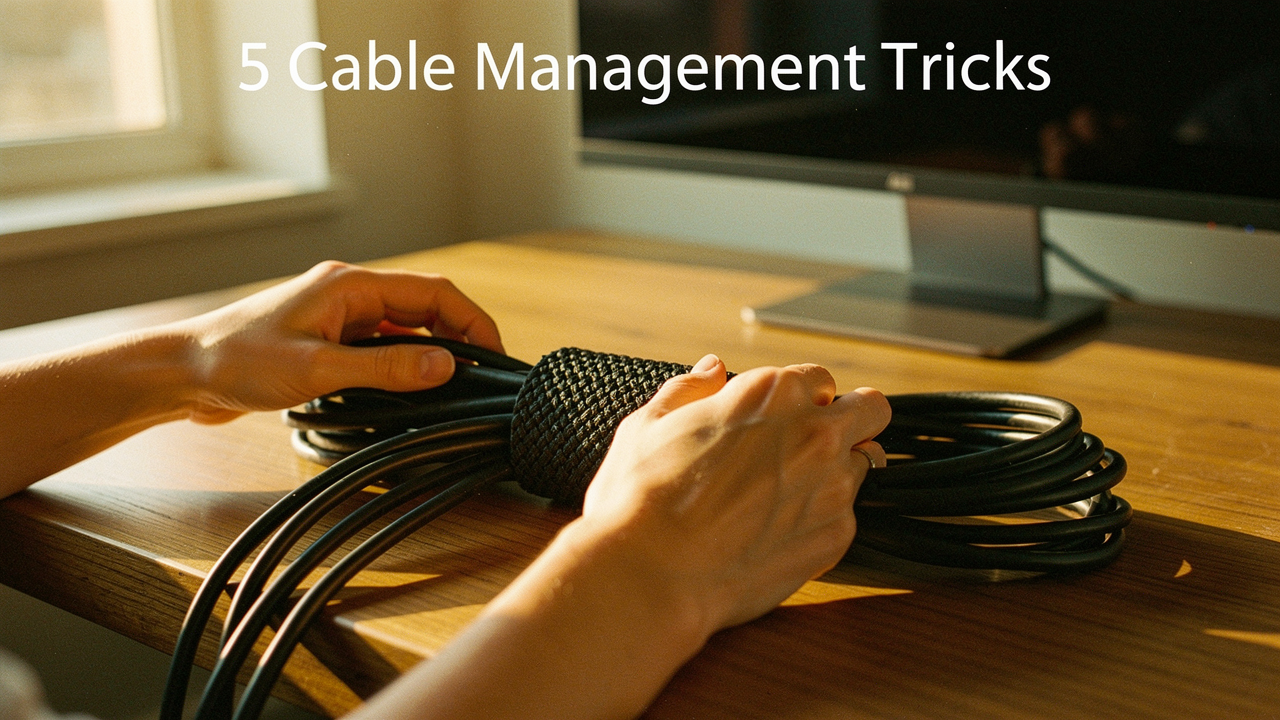
It didn’t matter how many minimalist candles I lit; the visual noise of those messy cables was killing my vibe.
In my decade of digital wellness work, I’ve learned that “High Lifestyle ROI” isn’t just about the big purchases—it’s about the small optimizations that pay dividends in mental clarity. Cable management is exactly that. It’s an afternoon of “workspace engineering” that buys you months of focus.
Here is my 5-step blueprint to transform your desk from a chaotic tangle into an intentional, high-performance space.
The Psychology of the ‘Spaghetti Monster’: Why Cables Kill Productivity
It might sound dramatic to say a few power cords are affecting your work, but science actually backs this up. Our brains are hardwired to scan our environment for order. When your peripheral vision is constantly hitting a mess of tangled wires, it creates a subtle, persistent “background hum” of stress.
Research from the Journal of Neuroscience shows that multiple visual stimuli—like a cluster of messy cables—compete for neural representation in your brain [1]. Essentially, your environment is constantly “shouting” at you, making it harder for your brain to process information efficiently. Progressive Desk has also noted a direct link between workspace organization and a significant reduction in workplace stress [2].
When I finally tidied my own setup, the “mental weight” that lifted was immediate. If you’re feeling scattered, your desk clutter might be the silent culprit.
Trick 1: The ‘Clean Slate’ Audit (Before You Buy Anything)
The biggest mistake I see (and I’ve made it myself) is trying to “organize” while everything is still plugged in. It’s like trying to change your clothes while running a marathon—it just doesn’t work.
Start with a total “Clean Slate” audit. Unplug every single thing. Pull the desk away from the wall and wipe down those baseboards. You’d be surprised how much dust those cable tangles trap!
Once everything is disconnected, be brutal. Wired suggests purging that “random box of cables” we all keep for devices we haven’t owned since 2012 [3]. If it’s an obsolete HDMI or a proprietary charger for a long-lost camera, let it go.
As you sort, the team at VELCRO® Brand recommends a “unplug and inspect” workflow: check for frayed insulation or bent pins before you even think about routing them back [4]. This is the time to plan your “power topology”—deciding where your main power strip will live so it can reach everything without stretching.
Trick 2: Install an Under-Desk ‘Backbone’
If you want your cables to effectively disappear, you have to get them off the floor. The floor is where cables go to get dusty, tangled, and kicked. The solution is an under-desk cable tray—the “backbone” of any professional setup.
Experts at Eureka Ergonomic call these trays a “designer-grade” solution because they act as a hidden shelf for your power strips and those heavy “bricks” that come with monitors and laptops [5]. When everything is tucked into a tray, you only have one single cord running from the desk to the wall outlet.
Here’s the thing about those bulky power bricks: they need to breathe. What I found during my research was that cheap, enclosed plastic boxes often trap heat. Humanscale warns that maintaining airflow around power adapters is critical to prevent overheating and ensure the longevity of your gear [7].
I looked at dozens of options, but I kept coming back to a steel mesh design. I needed something that could handle the weight of two monitor adapters without sagging.
The Oakywood Steel Cable Management Tray caught my eye because it wasn’t just functional—it felt like a piece of furniture. I struggled with cheaper plastic clips that would just pop off under the weight of my laptop’s power brick. When I switched to this steel tray, everything clicked. It’s wide enough to hold a full-sized power strip and has those beautiful clean lines I love.
Micro-Verdict: The ultimate “set it and forget it” foundation for a clean, professional aesthetic.
Best For: Aesthetic-focused home offices where you want the “invisible” look.
For those of you with even bigger power needs—maybe you’re a gamer or a video editor—you might need something more industrial. I’ll admit, I was skeptical at first about how much weight a tray could actually hold. I tried the Scandinavian Hub Under Desk Tray for a friend’s dual-monitor gaming setup, and the difference was night and day. It’s deep enough to hold those oversized “brick” adapters that usually clutter up the floor.
Micro-Verdict: A heavy-duty workhorse that handles the bulkiest power bricks with ease.
Best For: Power users with multiple monitors and large power adapters.
The Power User Loadout (Multi-Monitor Setups)
If you’re running a dual-monitor setup or a “command center” for your business, your cable needs are different. You need a system that scales.
- Essential: A high-capacity steel cable tray (60cm+ width) to house two power strips
- Essential: Color-coded labels for each power brick so you aren’t unplugging the wrong screen by mistake
- Essential: A “service loop” of extra cable length to allow for monitor arm movement
- Pro Upgrade: A hinged tray design (like Ultimate Setup’s) for easy access to plugs without crawling under the desk [8]
Trick 3: Master the ‘Service Loop’ for Standing Desks
If you use a sit-stand desk, cable management isn’t just about looks—it’s about physics. I’ve seen people finish a beautiful cable-tucking job only to hit the “up” button and hear the sound of their expensive monitors being yanked toward the floor.
UPLIFT Desk emphasizes the importance of “cable slack” [9]. You need to ensure there is enough loose cable between the desk and the wall to accommodate the full range of motion.
The “trick” here is the Service Loop. Instead of a tight line, create a gentle “U” shape with your main power and data cables. Marlin Wire’s 5-step guide for industrial routing suggests securing the “anchor point” on the desk frame itself so the tension is absorbed by the metal, not your device ports [10].
Trick 4: The ‘Sleeve and Tie’ Compression Method
Once your power is off the floor, you’ll likely have a few cables that still need to travel together—like the HDMI and power cords coming down from your monitor.
Don’t let them hang like loose vines. Group them into a single, clean “trunk.”
Here is my honest take: Stop using plastic zip ties for your home office. While they are great for industrial use, HellermannTyton points out that over-tightening them can actually damage the delicate insulation and conductors inside your tech cables [11]. Plus, if you ever buy a new mouse, you have to find scissors and risk cutting your cords just to make a change.
Instead, I use Velcro. It’s adjustable, reusable, and much gentler on your gear. For the long runs, a cable sleeve is the “High ROI” choice. CableTiesAndMore notes that PET braided sleeving is incredibly durable and gives your setup that custom-built look [12]. UPLIFT Desk’s Zipped Sleeves are a personal favorite because they can hold 8-10 cables at once [9].
Choosing Your Material: Braided vs. Zipped vs. Spiral
- Braided PET: Best for “permanent” setups. It looks the sleekest but requires you to thread cables through.
- Zipped/Velcro Sleeves: The best for beginners. You just wrap it around the bundle and zip it up. Very easy to add or remove a cable later.
- Spiral Wrap: Great if you need cables to “exit” the bundle at different points along the run.
Trick 5: Anchor Your Endpoints (The On-Desk Finish)
The final 10% of cable management happens on top of the desk. We’ve all dealt with the frustration of a phone charger or USB-C cable sliding off the back of the desk the second we unplug it.
You need to “anchor” your endpoints. PCMag suggests a classic DIY hack: using binder clips clamped to the edge of the desk as temporary cable stays [13]. It works in a pinch, but if you want something that matches a more intentional aesthetic, magnetic cable holders are a game-changer.
If your workspace is in a shared family area, IKEA’s safety guidance reminds us to keep these “active” cables away from the reach of pets or small children who might be tempted to tug on them [14].
The Long Game: Maintenance and the ‘One-Touch’ Rule
Cable management isn’t a “one and done” task; it’s a habit. I’ve adopted what I call the “One-Touch” rule for my tech. When I bring a new device into my Austin studio, I don’t just plug it in “for now.” I take the extra three minutes to route it through the tray and secure it with a Velcro tie immediately.
To keep your setup looking like a “Best Goods” feature, I recommend a 5-minute monthly audit. BDI Furniture suggests checking for dust buildup and ensuring your adhesive clips haven’t started to peel away from the heat [15].
- Monthly: Dust the top of your under-desk tray.
- Quarterly: Check for “zombie cables” (cables plugged in but not connected to anything).
- Annually: Do a full purge of your “spare cable” bin.
When your environment supports you, everything flows better. Reclaiming your desk from the spaghetti monster isn’t just about the “after” photo for Instagram—it’s about creating a space where you can actually breathe and do your best work.
The real win here? You’ll finally stop kicking that power strip under your feet every time you shift in your chair.
Share a photo of your cable management “After” shot on Instagram and tag @BestGoodsGoodLife—I’d love to see how you’ve reclaimed your space!
References
- McMains, S., & Kastner, S. (2011). Interactions of Top-Down and Bottom-Up Mechanisms in Human Visual Cortex. Journal of Neuroscience.
- Progressive Desk. (2024). Clutter-Free Workspace for Increased Productivity. https://www.progressivedesk.com/blogs/wellbeing-productivity/clutter-free-workspace-for-increased-productivity
- Wired. (2024). How to Organize Your Tech and Purge That Random Box of Cables. https://www.wired.com/story/how-to-tidy-your-tech/
- VELCRO® Brand. (2024). How to Tidy the Computer Cables Under Your Desk. https://www.velcro.com/news-and-blog/2024/11/how-to-tidy-the-computer-cables-under-your-desk/
- Eureka Ergonomic. (2024). Under-Desk Cable Management: A Designer’s Guide. https://eurekaergonomic.com/blogs/eureka-ergonomic-blog/under-desk-cable-management
- Oakywood. (2024). Under-Desk Organizer Tray Specs & Installation. https://oakywood.shop/products/underdesk-organizer-tray
- Humanscale. (2024). A Comprehensive Approach to Organizing Cables. https://www.humanscale.com/insights/cable-management-guide-a-comprehensive-approach-to-organizing-cables-
- Ultimate Setup. (2024). Cable Tray Under Desk: Capacity & Design. https://ultimatesetup.com/en/cable-tray-under-desk/
- UPLIFT Desk. (2024). Zipped Cable Sleeve & Standing Desk Management. https://www.upliftdesk.com/zipped-cable-sleeve-by-uplift-desk/
- Marlin Wire. (2024). 5-Step Guide to Perfect Under Desk Cable Management. https://www.marlinwire.com/blog/5-step-guide-perfect-under-desk-cable-management
- HellermannTyton. (2024). Cable Ties and Fixings: Proper Tensioning. https://www.hellermanntyton.com/competences/cable-ties-and-fixings
- CableTiesAndMore. (2024). Braided Cable Sleeving Benefits. https://www.cabletiesandmore.com/braided-cable-sleeving
- PCMag. (2024). Clean Up Your Messy Cables With These 9 Simple Tips. https://www.pcmag.com/how-to/clean-up-your-messy-cables
- IKEA. (2024). Cable Management & Workspace Safety. https://www.ikea.com/us/en/cat/cable-management-accessories-16195/
- BDI Furniture. (2024). Office Cable and Wire Management Tips. https://www.bdiusa.com/blog/office-cable-wire-cord-management-tips
Disclaimer: This post contains affiliate links. Recommendations are based on hands-on testing, ergonomic standards, and my personal philosophy of High-ROI lifestyle choices.