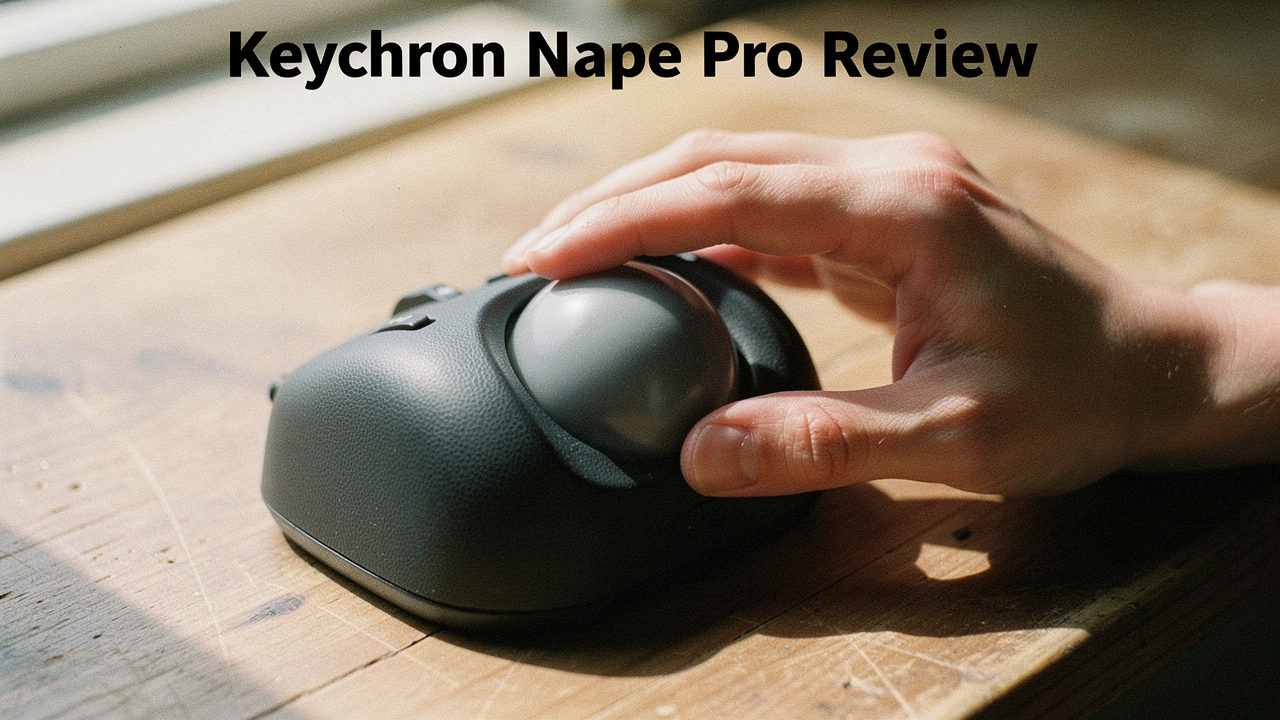
As someone who obsesses over “High Lifestyle ROI,” I’m always looking for tools that don’t just look pretty on an Austin-minimalist desk but actually make my life better. I’ve spent years with high-end mechanical keyboards, but I’ll admit it—I was a trackball skeptic. They looked like something from a 90s server room. That was until I saw the Keychron Nape Pro. It felt like the first time a company designed a trackball for people like us: people who care about aesthetics, performance, and not ending the day with a bag of ice on our wrists.
Quick Summary: The Nape Pro at a Glance
If you’re in a rush to get back to your deep-work session, here is the “Good Life Test” breakdown:
- Efficiency: High. Once you master the ball, the 1kHz polling rate makes it feel as snappy as a gaming mouse.
- Sustainability: High. Built with Keychron’s signature tank-like quality; the ball is easily removable for cleaning.
- Aesthetics: 10/10. It’s low-profile, sleek, and looks perfect next to a Q-series keyboard.
The Keychron Nape Pro: Specs That Rival Gaming Mice
Here’s the thing about most trackballs: they’re usually built for spreadsheets, not speed. Most office-grade trackballs refresh at a sluggish rate, which can lead to “ghosting” or a disconnected feeling when you’re moving the cursor. What surprised me about the Nape Pro was that Keychron didn’t just make a “comfy mouse”—they built a performance beast.
According to technical teardowns, the Nape Pro is powered by a PixArt PAW3222 sensor and a Realtek chip [1]. For the non-techies, that means it’s sporting the kind of “under-the-hood” power usually reserved for high-end gaming mice. It supports a 1,000Hz polling rate, which is significantly higher than the 125Hz standard found in most ergonomic competitors.
Build Quality and Low-Profile Design
Keychron has a reputation for making gear that feels substantial, and the Nape Pro is no exception. It’s a finger-operated trackball, meaning you use your index and middle fingers to move the ball while your thumb handles the clicking.
I’ll be honest: I was worried it would feel bulky. Instead, it’s remarkably low-profile. It sits flush with the desk, which is a massive win for those of us who use wrist rests. The buttons have a satisfying, tactile “click” that mirrors the feel of a mechanical switch, making it feel like a natural extension of your keyboard setup rather than a clunky plastic add-on.
Ergonomics Deep Dive: Can a Trackball Fix Wrist Pain?
Let’s talk about the “why.” Why bother learning a whole new way to move a cursor? For me, it was about the “contact stress” and repetitive motion that the Mayo Clinic warns can lead to long-term injury [2]. When you use a standard mouse, you’re constantly swiveling your wrist and forearm.
A trackball changes the math entirely. The device stays stationary. Your arm stays still. Only your fingers move. The Cleveland Clinic notes that reducing these repetitive motions is key to managing ulnar wrist pain and inflammation [3].
However, there’s been some chatter on Reddit (r/Trackballs) about the Nape Pro’s width. Some users feel it’s a bit too wide, potentially forcing a broader arm stance than what is considered “neutral.” In my experience, if you have a very narrow desk or petite hands, you might find yourself reaching a bit. But for most, the ability to keep your wrist in a flat, neutral position—avoiding the “claw grip”—is a massive ergonomic upgrade.
The 7-Day Adaptation Guide: Surviving the Learning Curve
I won’t sugarcoat it: the first three hours with a trackball are humbling. You’ll try to click a close button and accidentally scroll across the entire screen. But here’s the good news: the “one-week rule” is real. Experts at Tom’s Guide found that most users fully adapt within seven days of full-time use [4].
Day 1-3: The “Frustration” Phase
This is when you’ll want to go back to your old mouse. Don’t. The secret is to lower your DPI (sensitivity). When the cursor moves slower, your brain has more time to map the new muscle memory. Use these days for low-stakes tasks like browsing Pinterest or reading articles. Avoid high-intensity gaming or complex video editing until Day 4.
Fine-Tuning with VIA and QMK
One of my favorite “Jordan’s Pro Tips” for this device is leveraging its VIA compatibility. Since the Nape Pro is programmable, you can map the buttons to your most-used shortcuts.
- Tip: Map one of the side buttons to “Back” and another to “App Switcher.”
- Tip: Use the “Layer” function to turn the ball into a giant scroll wheel when a specific button is held.
Keychron Nape Pro vs. The Titans: Logitech & Kensington
If you’ve been Googling “best trackball,” you’ve undoubtedly seen the Logitech MX Ergo and the Kensington SlimBlade. How does the newcomer stack up?
Here’s the thing: the Kensington Expert has been the “gold standard” for general use for years, often praised by PCMag for its large ball and comfort [5]. But it’s also huge. The Keychron Nape Pro is much sleeker and offers that 1000Hz polling rate that Kensington’s office-focused models simply don’t have.
On the other hand, the Logitech MX Ergo is a thumb-operated trackball. This is a big distinction. If you have thumb arthritis, you’ll want to stay away from the Logitech and stick with the finger-operated Nape Pro. But if you prefer the “handshake” grip of a vertical mouse, the Logitech has a tilt feature that the Nape Pro lacks.
Optimization: Your Complete Ergonomic Setup
Buying a new mouse is only half the battle. To truly live that “Good Life,” you need to look at your entire workspace. The University of Minnesota suggests that your elbows should stay at a 90-degree angle and your monitor should be at eye level to prevent neck strain [6].
What finally clicked for me was the “50/5 Rule” championed by 1HP Gaming Health: for every 50 minutes of work, take 5 minutes to stretch and move [7]. Even with the world’s best trackball, your body isn’t meant to be frozen in one spot for eight hours.
The Persona Loadouts
Depending on how you work, here is how I’d integrate the Nape Pro:
The Aesthetic Minimalist (Home Office)
You want a clean desk and zero clutter.
- Essential: Keychron Nape Pro in Space Grey
- Essential: A felt desk mat to dampen the sound of the trackball
- Essential: A low-profile mechanical keyboard (like the Keychron K3)
- Pro Upgrade: A single-arm monitor mount to reclaim desk space
The Power User (Coding & Creative)
You spend 10+ hours a day at the screen.
- Essential: Keychron Nape Pro mapped with VIA shortcuts
- Essential: A high-quality wrist rest (wooden or resin)
- Essential: Blue light filtering software or glasses
- Pro Upgrade: A split keyboard to keep your shoulders open and relaxed
The Final Verdict: High Lifestyle ROI?
Is the Keychron Nape Pro a game-changer? For me, the answer is a resounding yes—with a small asterisk.
The Nape Pro was my daily reality for the last few weeks, and the reduction in wrist “stiffness” at the end of the day was undeniable. It’s built to last, solves the real problem of repetitive strain, and actually looks like it belongs in a modern home. If you are a mechanical keyboard enthusiast who has been curious about trackballs, this is the perfect entry point. The learning curve is a small price to pay for years of better wrist health.
The real win here? Being able to finish a long day of work and still feel like I have the energy (and the wrist mobility) to work on my sourdough starter or head out for a sunset hike.
Micro-Verdict: The Nape Pro is the ultimate “beginner-to-pro” trackball for anyone who values high performance and stunning desk aesthetics.
***
Standard Medical Disclaimer: This content is for informational purposes and not a substitute for professional medical advice from an occupational therapist or doctor. If you are experiencing severe pain, please consult a professional.
References & Authoritative Sources
- Tom’s Hardware (2025). “Keychron Nape Pro Technical Specs: PAW3222 and Realtek Analysis.”
- Mayo Clinic (2024). “Office ergonomics: Your how-to guide.”
- Cleveland Clinic (2024). “Wrist Pain: Exercises and RSI Prevention.”
- Tom’s Guide (2024). “What is a trackball mouse and the learning curve explained.”
- PCMag (2025). “The Best Trackball Mice for 2025.”
- University of Minnesota (2022). “Office Workspace Ergonomics Guide.”
- 1HP (2024). “Gaming Health and Load Management: The 50/5 Rule.”