
=
I’ve always believed in “High Lifestyle ROI.” To me, that means choosing products that actually solve a problem and protect your peace of mind. A laptop cooling pad might seem like a simple plastic tray with some fans, but after a decade of optimizing home offices, I’ve found it’s often the difference between a laptop that lasts five years and one that burns out in three.
Here’s the thing: you don’t necessarily need to spend a fortune to fix your thermal issues. We’re going to walk through the “Cooling Blueprint”—a step-by-step path from free software tweaks to the heavy-duty hardware that actually moves the needle.
The Science of Throttling: Why Your Laptop Feels Like a Space Heater
Laptops are incredible feats of engineering, but they have one massive enemy: physics. As processors get faster, they generate more heat. In thin-and-light designs, there just isn’t enough room for the heat to escape.
When your internal sensors hit a certain threshold—often called the “Tjunction”—the system performs what’s known as “thermal throttling.” According to Intel’s official documentation, this is a protective feature where the CPU intentionally slows down to prevent permanent hardware damage [12]. It’s why your frames drop in a game or your video export suddenly takes twice as long. Lexar’s research confirms that as you increase the frequency of your tasks, heat spikes become almost unavoidable in poorly cooled systems [11].
What’s worse is that Dell Support warns that once dust starts blocking those tiny internal vents, you’re on a fast track to emergency shutdowns [2]. If your laptop feels like a space heater, it’s not just an annoyance—it’s a signal that your hardware is struggling to breathe.
The Cooling Hierarchy: 3 Free Fixes to Try First
Before you click “buy” on a new accessory, I always want you to check the basics. Sometimes the best lifestyle ROI is the one that costs $0.
- Swap Your Surface: I’ve been guilty of this too—curling up on the couch with my laptop on a soft blanket. Lenovo’s thermal guidance is very clear: always use a hard, flat surface [1]. Soft surfaces like beds or cushions act like insulation, trapping heat and suffocating the intake vents.
- Leverage Your OEM Software: Most people ignore the pre-installed apps from their manufacturers. Tools like HP Command Center (look for “Cool Mode”), Dell Power Manager, or Lenovo Vantage allow you to tell the fans to be more aggressive before the heat becomes a problem [10].
- The 60-Second Clean: If it’s been six months since you looked at your vents, they likely have a layer of Austin dust. HP’s recommended procedure involves using a can of compressed air to blow out the debris—just make sure the laptop is powered off first [9].
Do Laptop Cooling Pads Actually Work? (The Data)
For years, there’s been a debate: are cooling pads a gimmick? I used to be a skeptic until I looked at the lab data.
Recent testing from TechRadar shows that a high-quality pad can limit peak temperature rise to just 15.3°C, compared to 31.9°C without one [5]. That is a 50% improvement in thermal management. Even WIRED’s testing of premium setups showed consistent 10°C drops in CPU temperature, which translated to a 10% gain in actual performance because the laptop didn’t have to throttle itself [3].
The secret is the “vacuum effect” or high static pressure. While cheap pads just blow air loosely at the bottom of your laptop, the newer 2025 models create a seal that forces air through the internal heatsinks where it’s needed most [4].
The Best Laptop Cooling Pads for 2025: Top Picks
I’ve looked at dozens of options, but these three represent the best ROI for different types of users. Whether you’re a pro gamer or someone just trying to get through a workday without a burned lap, here is what actually works.
Best for Pro Gamers: Llano V12 (High-Pressure)
You know that feeling when your laptop starts stuttering right at the climax of a game? It’s usually because your GPU is screaming for help. I’ll be honest—I ignored the high-pressure cooling pad trend for a while because they look a bit bulky. But after seeing how my gaming laptop struggled with 4K rendering, I did a deep dive into sealed-chamber designs. What I found was that traditional pads just don’t have the “push” to get air into the tight vents of a modern RTX-series laptop.
The Llano V12 changed my perspective because it doesn’t just blow air; it uses a high-speed 2,800 RPM fan and a foam seal to create a pressurized environment. It’s like giving your laptop a supercharger. While the fan can be audible at max speed, the trade-off is a massive drop in surface temperature and a much more stable framerate.
Micro-Verdict: The only pad that treats your laptop like a high-performance engine.


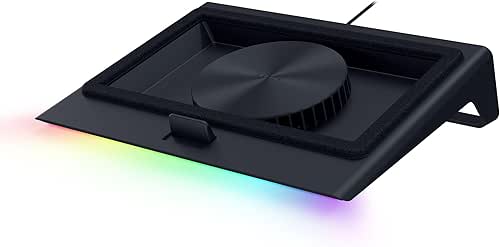
Best Premium Experience: Razer Laptop Cooling Pad
I’ll admit it—I used to prioritize looks over thermals until my keyboard became literally too hot to touch during long work sessions. I wanted something that looked intentional in my office, not like a piece of plastic hardware I found in a bargain bin. When I discovered the Razer cooling pad, I was skeptical of the price point. But once I realized it used a massive 140mm fan that stays remarkably quiet even at 3,000 RPM, it clicked.
It’s specifically designed for high-end laptops (especially if you use a Razer Blade with HyperBoost), but it works beautifully for any creative professional who needs consistent power without the “jet engine” noise. The foam-sealed chamber directs every bit of airflow exactly where the intakes are, which WIRED found could unlock an extra 20W of power budget for your CPU [3].
Micro-Verdict: Quiet power that integrates perfectly into a high-end setup.
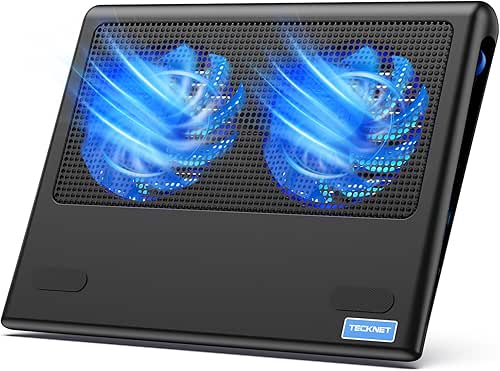
Best Budget Pick: Tecknet Dual-Fan Cooler
Sometimes you don’t need a heavy-duty vacuum; you just need a little extra breeze for your spreadsheets and Zoom calls. I keep one of these in my guest room for when friends visit and work from the house. It’s a simple, honest product that doesn’t try to be anything it isn’t.
What surprised me about the Tecknet was how much of a difference two 1,800 RPM fans can make for such a low price. It’s thin enough to fit in a backpack and runs entirely off a single USB port. If you’re using a standard office laptop or an older machine that just runs a little “warm,” this provides the airflow needed to keep the fans from ramping up to their loudest setting.
Micro-Verdict: Reliable cooling that won’t distract you during a Zoom call.
How to Choose: Vent Layout and Compatibility
The biggest mistake I see people make is buying a pad that doesn’t match their laptop’s “breathable” areas.
First, flip your laptop over. Where are the grilles? Most modern laptops are “bottom-intake,” meaning they pull air from the bottom and push it out the back or sides. If your grilles are on the bottom, a standard cooling pad is perfect. However, if your laptop has a sealed bottom (like some older MacBooks), a pad will only cool the outer casing, not the internal chips.
You also want to look at “static pressure.” As the experts at New Life Technology Group point out, if you have a powerful gaming laptop with very fine dust filters, you need a fan with enough pressure (measured in mmH2O) to actually force the air through those tiny holes [13]. A cheap, slow fan won’t have the strength to make a difference.
Persona Loadouts: What Do You Actually Need?
To make this easier, I’ve broken down the “Essential” vs. “Pro” gear for three common types of users:
The Competitive Gamer (High Performance)
You’re playing AAA titles and can’t afford a single frame drop or a thermal shutdown.
- Essential: A high-pressure, sealed-chamber cooling pad (like the Llano or IETS series)
- Essential: HWMonitor software to track your CPU/GPU temperature in real-time
- Pro Upgrade: A high-quality set of noise-canceling headphones to mask the cooling pad’s fan noise
The Creative Professional (Video/Photo)
You need sustained power for long exports, but you also value a quiet workspace for client calls.
- Essential: A premium, large-fan cooling pad (140mm+) for a better noise-to-performance ratio
- Essential: A dedicated USB-C hub so the cooling pad doesn’t steal your peripheral ports
- Pro Upgrade: A vertical laptop stand for when you’re using external monitors to maximize natural heat dissipation
The Digital Nomad (Lightweight/Travel)
You’re working from coffee shops or planes and need something that fits in a bag.
- Essential: A foldable, slim cooling pad with at least two USB-powered fans
- Essential: A small microfiber cloth to keep your vents clear of travel dust
- Pro Upgrade: A compact “vacuum” style cooler that clips onto your side exhaust vent
Final Thoughts: The ROI of Staying Cool
At the end of the day, a cooling pad is like an insurance policy for your most important tool. Spending $30 to $100 today to prevent a $2,000 motherboard failure two years from now is the definition of a High Lifestyle ROI choice.
If you’re gaming, go for the high-pressure Llano—your FPS will thank you. If you’re just looking for a more comfortable, quieter workday, the Tecknet or Razer options will serve you well. Just remember to keep those vents clean and stay off the blankets!
Check out our guide to the Best Ergonomic Desks to pair with your new cooled-down setup!
Affiliate Disclosure: Best Goods for Good Life is reader-supported. When you buy through links on our site, we may earn an affiliate commission at no extra cost to you. We only recommend products we have researched and believe in. Note: While cooling pads help significantly, they are not a substitute for internal cleaning or repair if your laptop has a failing internal fan or extreme dust buildup.
Sources and Technical References
- Lenovo (2025). How to Physically Cool Down Your Laptop. Lenovo Glossary. https://www.lenovo.com/us/en/glossary/how-to-cool-down-your-laptop/
- Dell Support (2025). How to Stop Computer and Laptop Overheating. Dell Knowledge Base. https://www.dell.com/support/kbdoc/en-us/000130867/how-to-troubleshoot-a-overheating-shutdown-or-thermal-issue-on-a-dell-pc
- WIRED (2025). The Best Laptop Cooling Pad and Why You Should Buy One. https://www.wired.com/story/best-laptop-cooling-pad/
- ZDNET (2025). The best laptop cooling pads of 2026: Expert tested. https://www.zdnet.com/home-and-office/best-laptop-cooling-pad/
- TechRadar (2025). These are my top three laptop cooling pads for keeping your laptop chill. https://www.techradar.com/computing/peripherals-accessories/im-techradars-reviews-editor-these-are-my-top-three-laptop-cooling-pads-for-keeping-your-laptop-chill-during-heatwaves
- BGR (2024). 4 Reasons Why You Should Be Using A Laptop Cooling Pad. https://www.bgr.com/2094192/reasons-use-laptop-cooling-pad/
- HP Support (2025). Reduce heat inside the laptop to prevent overheating. https://support.hp.com/ie-en/document/ish_3894569-1692683-16
- IGN (2024). Best Laptop Cooling Pads for Gaming Right Now. https://www.ign.com/articles/best-laptop-cooling-pad
- HP Tech Takes (2025). How to Fix Loud Laptop Fan Noise. https://www.hp.com/us-en/shop/tech-takes/how-to-fix-loud-laptop-fan-noise
- Dell Optimizer (2025). Managing Thermal Performance with Dell Power Manager. https://www.dell.com/support/kbdoc/en-us/000130867/how-to-troubleshoot-a-overheating-shutdown-or-thermal-issue-on-a-dell-pc
- Lexar (2024). Thermal Throttling—What Is it and How to Prevent it. https://www.lexar.com/global/blog/Thermal-Throttling-What-Is-It-and-How-to-Prevent-It/
- Intel Support (2025). Information about Temperature for Intel Processors. https://www.intel.com/content/www/us/en/support/articles/000088048/processors.html
- New Life Technology Group (2024). How To Keep Your Computer Cool and Prevent Overheating. https://www.newlifetechgroup.com/blog/how-to-keep-your-computer-cool-and-prevent-overheating