=
It turns out, your router is likely keeping a secret from you. Much like a high-performance sports car delivered in “valet mode,” most routers ship with settings that prioritize “safety” and “universal compatibility” over raw performance. Manufacturers want to make sure that even a ten-year-old printer can connect to the network, but that cautious approach is often exactly what’s throttling your brand-new iPhone or laptop.
What finally clicked for me was realizing that “factory default” is actually your WiFi’s worst enemy. Here is how we move past those conservative settings and reclaim the High Lifestyle ROI your home network is capable of.
The “Compatibility Trap”: Why Your Router is Slow by Default
Here’s the thing about router manufacturers: they hate support calls. To minimize “I can’t connect” complaints, they configure devices to be as “loud” and “compatible” as possible. This sounds like a good thing until you realize it means your router is likely using “mixed mode” legacy settings.
When your router is forced to support ancient wireless standards just in case you still have a laptop from 2012, it introduces overhead that slows down the entire network. According to Apple’s engineering guidance, these conservative defaults are designed for a “lowest common denominator” experience, not for the high-speed demands of modern streaming and remote work.
Step 1: Accessing Your Router’s Brain (The Admin Panel)
Before we can fix the default router configuration slowing down connection speeds, we have to get under the hood. Most people ignore the admin panel because it looks like something out of a 90s hacker movie, but I promise it’s not as scary as it looks.
- Find your IP: Check the sticker on the back of your router. You’re looking for a sequence like 192.168.1.1 or 192.168.0.1.
- Log In: If you haven’t changed it, the username and password are often just “admin” and “password” (and please, change those once you’re in!).
- The Jordan Tip: Before you change a single toggle, look for a “Backup” or “Export Configuration” button. It’s my golden rule for home optimization: always have a way to undo your work if things get wonky.
The “One” Setting: Disabling Smart Connect (Band Steering)
This is the big one. Almost every modern router features something called “Smart Connect” or “Band Steering.” It combines your 2.4GHz and 5GHz bands into a single network name (SSID).
The router is supposed to “intelligently” decide which band is best for your device. But here’s the WiFi performance bottleneck: routers are notoriously indecisive. They will often shove your high-speed laptop onto the 2.4GHz band because the signal is slightly stronger, even though that band is notoriously slow and crowded with interference. It’s like being forced to take the service road because the highway has a tiny bit of traffic—it’s a massive waste of potential.
How to Split Your SSID for Maximum Performance
To get a real WiFi optimization boost, you need to take the wheel. Look for the “Wireless Settings” menu and disable Smart Connect. This will allow you to name your bands separately—for example, “BestGoods_2.4” and “BestGoods_5G.”
Once you do this, you can manually connect your smart lightbulbs and older tech to the 2.4GHz band while keeping the 5GHz (or 6GHz) lane wide open for your TV, gaming console, and work computer. This ensures your most important tasks aren’t getting stuck behind a legacy device’s slow data packets.
Two More High-ROI Tweaks: Channel Width and QoS
If you’re still seeing a slow network configuration, it might be time to look at two technical “speed levers” that are usually left on the wrong setting.
- Channel Width: Think of this as the number of lanes on a highway. On the 2.4GHz band, you should almost always stick to 20MHz to avoid interference from your neighbor’s WiFi. However, on the 5GHz band, you want those lanes wide. Many routers default to 40MHz, but if you have a modern device, bumping this to 80MHz or even 160MHz can instantly double your local transfer speeds.
- The QoS Myth: Quality of Service (QoS) is a feature that’s supposed to prioritize “important” traffic like gaming. However, if you have a fast internet plan (300Mbps or higher), your router’s processor might actually struggle to keep up with the “sorting” process. Netgear’s research suggests that for many high-bandwidth households, enabling Upstream QoS can actually create a bottleneck rather than solving one. If your internet feels sluggish despite having a “Gigabit” plan, try turning QoS off entirely.
The “Nuclear Option”: When to Factory Reset and Start Over
I’ll admit it—sometimes we tweak things so much that the network becomes a tangled mess. If you’ve tried the settings above and your network speed is still crawling, it might be time for a fresh start.
A factory reset wipes the slate clean and clears out any buggy firmware “ghosts” that might be haunting your connection. Asus and other major manufacturers recommend holding the reset button for 10-30 seconds until the lights flash. After the reboot, immediately log in and apply your new “optimized” settings (split the bands, set the channel width) before you start reconnecting devices. It’s the ultimate Sunday reset for your digital life.
Jordan’s Top Gear: When Your Router is the Real Problem
Sometimes, no amount of settings-fiddling can fix the fact that your hardware is simply outmatched by your lifestyle. If you’re living in a larger home or trying to game while three other people are streaming 4K video, it might be time to upgrade to something that supports WiFi 6 or 6E.
Best for Gamers (Low Latency Focus)
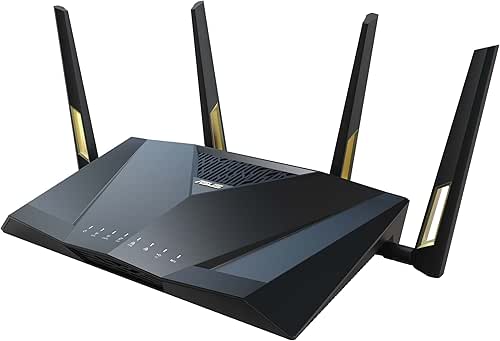
I used to think my “lag” was just a fact of life during busy evenings in Austin. I tried every software fix in the book, but my gaming sessions were still plagued by those split-second stutters that always seem to happen at the worst moment. I finally realized my old ISP router couldn’t handle the “High Lifestyle ROI” I demanded for my downtime.
I switched to a dedicated gaming powerhouse that features specialized MU-MIMO technology—which is basically like giving every device in your house its own private lane to talk to the router. The difference was night and day. No more “rubber-banding” in games, and my video calls are finally crystal clear, even when the rest of the house is online.
The real win here: Zero-lag performance that actually respects your leisure time.

Best for Large Homes (The Mesh Solution)
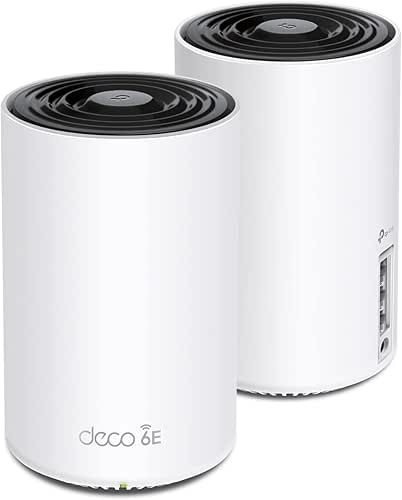
You know that feeling when you have “perfect” WiFi in the living room, but the second you step into the bedroom or the backyard, the signal vanishes? I struggled with this for years, trying to use “extenders” that honestly just made the problem worse by creating more interference.
What finally changed everything for me was moving to a mesh system. Instead of one overworked box trying to scream through three walls, you have multiple “nodes” that create a seamless blanket of coverage. It’s the ultimate minimalist solution because it eliminates dead zones without needing a maze of cables. Now, I can move from my morning yoga on the patio to my desk without the connection dropping once.
What sold me: Seamless roaming that makes your entire home feel truly connected.
Your router isn’t broken; it’s just being too cautious. By taking ten minutes to dive into those admin settings and splitting your bands, you aren’t just “fixing the internet”—you’re creating an environment that supports your work, your hobbies, and your rest.
Comment below: Which setting gave you the biggest speed boost? Also, sign up for the ‘Best Goods’ newsletter for more tech optimization and home rituals.
Standard tech disclaimer: Changing advanced settings can temporarily interrupt your connection. Always export a configuration backup before tweaking to ensure you can easily revert to your previous state.
References & Authoritative Sources
- Apple Support, 2024, “Recommended settings for Wi-Fi routers and access points,” https://support.apple.com/102766
- PCMag, 2023, “How to Set Up and Optimize Your Wireless Router,” https://www.pcmag.com/how-to/how-to-set-up-and-optimize-your-wireless-router-for-the-best-wi-fi-performance
- HighSpeedInternet.com, 2024, “8 Reasons Why Your Internet is Slow,” https://www.highspeedinternet.com/resources/why-is-my-internet-so-slow
- Netgear Support, 2023, “How do I enable upstream QoS on my Nighthawk router?”, https://kb.netgear.com/23852/
- Asus Support, 2023, “How to reset the router to factory default setting?”, https://www.asus.com/support/FAQ/1000925/
- Rogers Support, 2024, “How to optimize your Wi-Fi and fix a slow internet connection,” https://www.rogers.com/support/internet/how-to-optimize-your-wi-fi-and-fix-a-slow-internet-connection