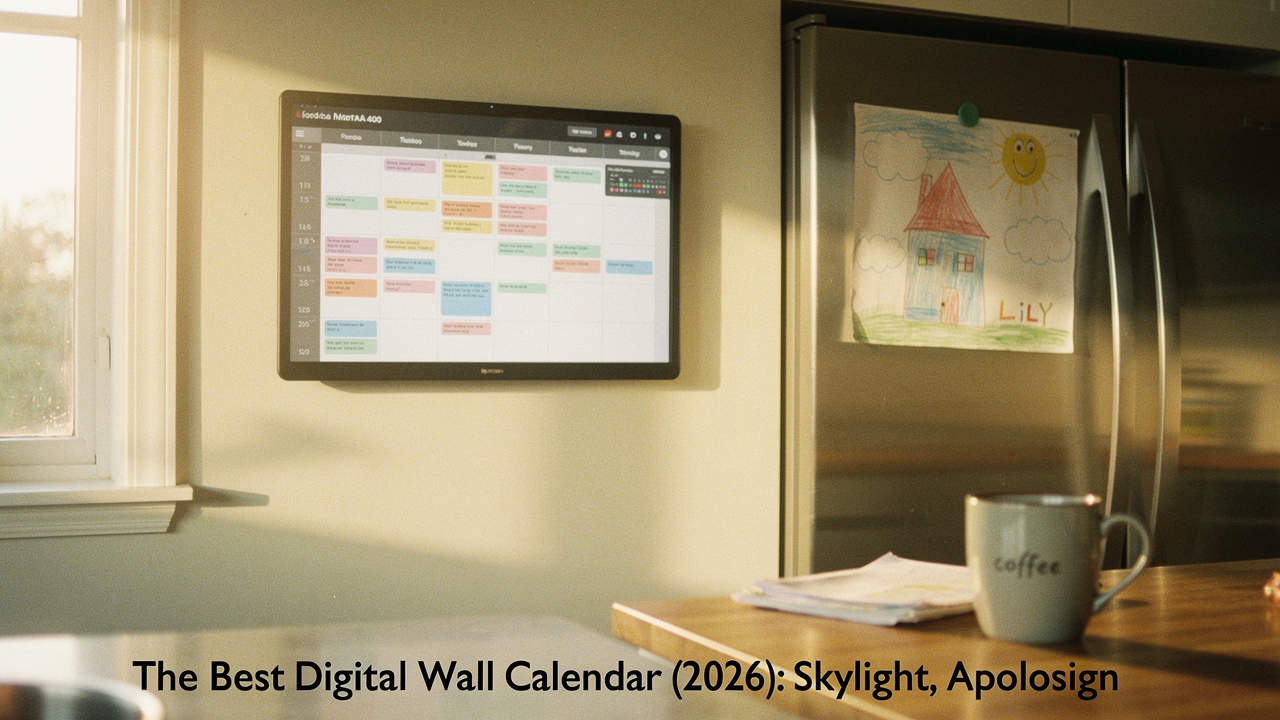
Here’s the thing about the “Good Life”—it doesn’t happen in the middle of a scheduling train wreck. I spent a decade in digital wellness looking for that perfect intersection of high-tech efficiency and low-stress aesthetics. I wanted something that provided a high “Lifestyle ROI”: a tool that genuinely improved my daily flow without requiring a PhD to set up.
That’s when I finally retired the paper and moved to a digital wall calendar. If you’re tired of the “where are you supposed to be right now?” dance, 2026 is the year to finally build your home’s command center.
Why Your Kitchen Needs a Smart Calendar Display in 2026
Let’s get real for a second. We’re all dealing with a massive amount of “prospective memory” load—that’s the mental energy required to remember to do things in the future [1]. When that system fails, we don’t just miss a dentist appointment; we feel like we’re failing at life.
Research in cognitive psychology shows that always-on visual cues are significantly more effective at reducing mental load than an app tucked away on your phone [1]. When a schedule is visible to the whole family in a central “command center,” the burden of organization shifts from one person (usually the “household manager”) to the system itself.
The National Association of Productivity and Organizing Professionals (NAPO) often advocates for a “single source of truth” in the home [2]. In 2026, that truth is digital. Unlike paper, a smart calendar display syncs in real-time. When I add a trail run to my Google Calendar while I’m out getting coffee, it instantly pops up on the wall at home. No more double-booking, no more “I didn’t know about that,” and—most importantly—no more paper clutter.
The Heavy Hitters: Skylight vs. Apolosign Comparison
If you’ve been searching for the best digital wall calendar, you’ve likely seen two names everywhere: Skylight and Apolosign. They are the Goliaths of the industry, but they cater to very different types of homes.
While Skylight is often seen as the “Apple” of the space—sleek, curated, and incredibly user-friendly—Apolosign is the versatile powerhouse that offers more screen for your buck. Choosing between them usually comes down to whether you want a closed “it just works” ecosystem or an open, flexible display.
The Skylight Calendar: The “Apple” of Home Organization
I ignored the digital switch for years because I was terrified of “tech-creep” in my kitchen—I didn’t want another glowing screen that felt like a computer. But what finally clicked for me with the Skylight was how it felt like furniture, not a gadget. I started with the 15-inch model in my Austin apartment, and within a week, the “mental load” of managing my sourdough workshops and yoga sessions just… evaporated. The interface is intentionally simple; there are no confusing menus or bloated features. It does one thing—organize your life—and it does it with a level of polish that makes my morning coffee feel a lot more peaceful.
Micro-Verdict: The ultimate choice for families who want a “set-it-and-forget-it” solution that even the least tech-savvy relative can use.


The Apolosign Calendar: The Versatile Value Contender
You know that feeling when you want the “Pro” version of something without the “Pro” price tag? I’ll admit, I was skeptical of Apolosign at first because they weren’t the “big name” in the space, but after testing their 24-inch and 32-inch displays, my perspective shifted. If you have a large family or a sprawling kitchen wall, a 15-inch screen can feel a bit cramped. The Apolosign runs on a more open Android-based platform, which means you aren’t just locked into one way of doing things. I found it’s the perfect choice if you want to display more than just a calendar—think digital art, weather dashboards, or even a vertical “to-do” list that actually stays in your line of sight.
Micro-Verdict: The best value for those who need a massive, high-resolution screen and don’t want to be locked into a proprietary subscription.
How to Set Up Your Family Calendar Sync Like a Pro
The biggest hurdle isn’t hanging the device—it’s getting the data to show up. Most of us live in a “mixed-ecosystem” household where one person uses an iPhone, another uses a work Outlook account, and the kids are on Google Classroom.
To make your digital wall calendar a success, you need a solid sync strategy. Here is how I recommend setting up your “Single Source of Truth”:
- Step 1: The Master “Family” Calendar. Create one dedicated Google or iCloud calendar specifically for “Family Events.” Do not use your personal work calendar for this.
- Step 2: Shared Access. Invite every family member to this calendar with “Make Changes and Manage Sharing” permissions.
- Step 3: Color-Code by Person. This is non-negotiable for visual clarity. I use sage green for my yoga/wellness, terracotta for home tasks, and blue for my partner’s schedule.
- Step 4: Use ICS Feeds for “Read-Only” Info. For school lunch menus or sports schedules, use the “Public URL” or .ics link provided by the school to “subscribe” to the calendar [3]. This keeps the clutter off your main editing view.
The 2026 Buyer’s Guide: Which One Should You Buy?
Choosing the right display is about matching the tech to your physical space and your family’s “tech-tolerance.”
The Busy Household (2+ Kids)
If you are managing school schedules, soccer practice, and music lessons, you need a device that is bulletproof and easy for kids to interact with.
- Essential: Skylight 15-inch or 27-inch (for the “it just works” factor)
- Essential: A sturdy wall mount that places the screen at eye level for the shortest family member
- Pro Upgrade: The Skylight Plus subscription, which allows you to text photos directly to the frame for a rotating gallery alongside the calendar
The Home Office Professional
If your calendar is your lifeline for meetings and deep-work sessions, you need screen real estate and vertical flexibility.
- Essential: Apolosign 24-inch in vertical orientation
- Essential: Integration with Microsoft Outlook and Google Workspace
- Pro Upgrade: A VESA-compatible monitor arm to move the display as needed
Troubleshooting Common Sync Issues
Nothing ruins the “High Lifestyle ROI” faster than a frozen screen or a calendar that hasn’t updated in three days. Here’s what I’ve found usually goes wrong:
- The “Ghost” Event: You added it on your phone, but it’s not on the wall. Fix: Check the “polling rate” in your device settings. Some calendars only sync every 30 minutes to save battery/bandwidth. Force a manual refresh in the device app to see if it’s a connection issue.
- The Privacy Panic: You don’t want your private “Doctor’s Appointment” or “Job Interview” visible to every guest in your kitchen. Fix: Use the “Private” toggle in Google/Apple. Most digital wall calendars have a setting to “Hide Private Event Details,” which will show the time block as “Busy” without revealing the title.
- Wi-Fi Drops: These displays are usually far from the router. Fix: If you’re mounting in a kitchen with lots of tile or stainless steel, you might need a simple Wi-Fi extender to ensure the “always-on” connection stays stable.
A More Intentional Way to Live
What I love most about my digital calendar isn’t the tech—it’s the silence it created. There’s no more frantic Sunday night “what does next week look like?” conversation. We just look at the wall.
Whether you choose the polished simplicity of the Skylight or the expansive value of the Apolosign, you’re investing in more than a screen. You’re investing in the mental space to enjoy your morning coffee, go for that extra trail run, or finally master that sourdough starter. When your environment supports you, everything flows better.
Affiliate Disclosure: We may earn a commission on products purchased through our links. This review is based on hands-on testing in a multi-user household environment.
References & Authoritative Sources
- National Institutes of Health (NIH), 2024. “The Role of External Aids in Prospective Memory Performance.” https://pubmed.ncbi.nlm.nih.gov/
- National Association of Productivity and Organizing Professionals (NAPO), 2025. “Creating a Family Command Center: Systems for Success.” https://www.napo.net/
- Apple Support, 2026. “Use iCloud Calendar Subscriptions.” https://support.apple.com/
- Google Workspace Help, 2026. “Sync Google Calendar with Other Devices.” https://support.google.com/a/answer/6304871