
=
Here in Austin, I’ve spent the last decade obsessed with what I call “High Lifestyle ROI.” I believe that if you spend two hours thoughtfully organizing your space, you’ll save twenty hours of frustration, cleaning, and troubleshooting over the next year. Living well isn’t about buying every gadget on the market; it’s about choosing the ones that solve real problems.
Lately, I noticed something strange: some of the best guides on this topic have simply vanished from the internet, leaving behind broken links and “404 Not Found” pages. I decided it was time to build the definitive, human-friendly manual. Whether you’re working from a corner of your living room or managing a triple-monitor gaming rig, this is how we turn that wire clutter into a system that actually supports your life.
Why Cable Management is the Foundation of Productivity
Let’s be honest: it’s hard to feel like a “pro” when your workstation looks like a tech landfill. Beyond the aesthetics, there’s actual science behind why we feel better when our wires are tucked away.
Research in environmental psychology has shown a direct link between physical clutter and cognitive load. When our environment is chaotic, our brains have to work harder to filter out irrelevant visual information, which leads to faster mental fatigue [1]. I felt this personally when I was trying to master my sourdough starter last year; I couldn’t focus on the timing of my folds because the kitchen counter was a mess of charging cables and appliances.
There’s also the safety factor. OSHA and workplace safety experts frequently point out that loose cables are one of the leading causes of trips and falls in home offices [2]. Plus, if you have pets (my golden retriever is notorious for this) or toddlers, a “cable nest” is a safety hazard waiting to happen. Proper desk organization isn’t just about “sparking joy”—it’s about creating a space that is physically and mentally safe.
The 6-Step Blueprint to Tame Messy Cables
Most people try to fix wire clutter by buying a pack of zip ties and hoping for the best. That’s a band-aid, not a system. To get a result that lasts, you have to follow a sequence.
Step 1: The Great Unplug (and Audit)
The first step is the hardest: you have to unplug everything. I know, it sounds daunting. But you cannot organize a mess you are currently using. Take everything out, wipe down the dust that has inevitably gathered in the cord-clusters, and audit your gear. Ask yourself: “When was the last time I actually used this peripheral?” If the answer is “six months ago,” it goes in the drawer, not back on the desk.
Step 2: Map Your Power and Data Routes
Before you plug a single thing back in, decide where your “Main Hub” will be. Usually, this is a high-quality surge protector.
Here is the secret: try to keep your power cables on one side and your data cables (like HDMI or USB) on the other. This isn’t just for neatness; keeping them separated can actually reduce electromagnetic interference, which sometimes causes that annoying flicker in your monitors. Also, never “daisy-chain” power strips by plugging one into another. The National Electrical Code (NEC) is very clear about this being a major fire hazard [3].
Step 3: Mount Your Power Source
Don’t leave your power strip on the floor. It becomes a dust magnet and a foot-rest (which is bad for the cables). Mount it to the underside of your desk or inside a management tray.
Step 4: Bundle Your Fixed Cables
Group the cables that always stay together—like your monitor power and display cords—using reusable wraps.
Step 5: Secure the Vertical Runs
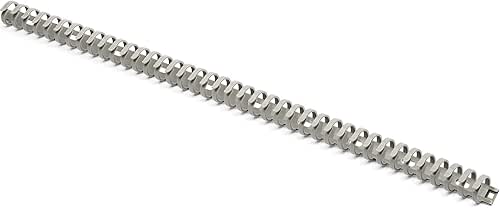
If you have a standing desk, this is where you use a cable spine or a sleeve to manage the “run” from the desk down to the wall outlet.
Step 6: Label Both Ends
This is the “High ROI” move. Use a label maker or even just some masking tape to label what each cord is. Future-you will be so grateful when you need to swap out a monitor and don’t have to play “follow the wire” under the desk.
The Essential Tool Kit: Best Cable Management Solutions
I’ve tried the “cheap” plastic clips that pop off the desk after three days of Texas humidity. They aren’t worth the dollar you save. When looking for cable organizers, I apply the “Good Life Test”: Is it built to last, and does it actually solve the problem?
I used to be a “box” person. I thought shoving all my power bricks into a plastic box on the floor was the answer. But every time I needed to plug in a temporary charger or check a connection, I had to dig through a hot, tangled mess inside that box. It was frustrating and, frankly, a bit of a fire risk since those bricks need to breathe. Eventually, I realized that vertical space was my best friend. I started looking for a way to get everything off the floor while keeping it accessible.
What changed the game for me was moving to an open-wire under-desk tray. It keeps the power bricks elevated and allows for air circulation, but because it’s a grid, I can use Velcro ties to secure every individual cord exactly where I want it.
Micro-Verdict: The open-tray system is the gold standard for anyone with more than three devices.
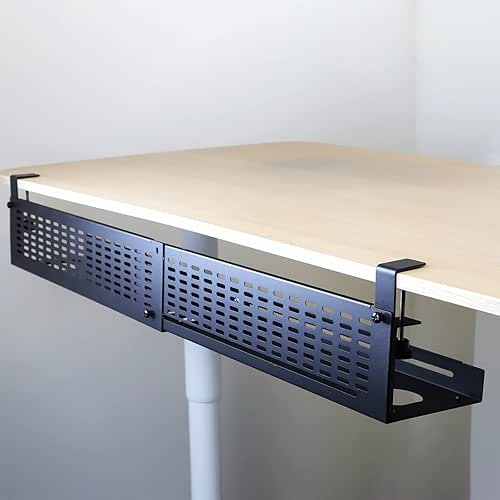

Under-Desk Trays vs. Cable Boxes
If you’re wondering which one to choose, here’s how I break it down for my friends:
- Cable Boxes: Best for “low-maintenance” areas like a TV stand or a nightstand where you rarely change what’s plugged in.
- Under-Desk Trays: Best for workstations. Look for metal versions over plastic; they dissipate heat from power bricks much more effectively [4].
- Magnetic Clips: Essential for your daily drivers—like your phone charger or laptop cable—to keep them from sliding off the desk when you unplug.
Persona Loadout: The Minimalist Remote Worker (Small Spaces)
You work from a corner of your living room and need to disappear at 5 PM.
- Essential: A high-quality tech pouch for your dongles and cables to live in when not in use.
- Essential: Weighted cable holders for your desktop so cords don’t fall behind the furniture.
- Pro Upgrade: A compact “Cable Box” that matches your decor to hide the main power strip.
Persona Loadout: The Power User / Gamer
You have dual monitors, a mechanical keyboard, a streaming mic, and probably a ring light.
- Essential: A wide, steel under-desk tray (or two) to hold multiple power bricks.
- Essential: A pack of 50+ reusable Velcro cable ties (don’t use plastic zip ties—they’re too permanent).
- Pro Upgrade: A label maker to identify the “Monitor 1,” “Monitor 2,” and “PC Power” cords.
Special Setup: Managing Cables on a Standing Desk
Standing desks are amazing for your back, but they are the ultimate test for cable management. If you don’t account for the movement, you risk “guillotining” a cable or, worse, pulling your expensive PC off the desk when you hit the “up” button.
The most important concept here is the “Service Loop.” This is a deliberate slack left in the cables that run from your moving desk to the stationary wall outlet. I learned this the hard way when I nearly yanked my laptop onto the floor during a morning yoga-and-work session.
Research from desk manufacturers like Desky suggests anchoring your cables to the desk frame itself, then using a “cable spine” to guide the wires down to the floor [5]. This protects the wires from being pinched in the desk’s lifting mechanism.
Micro-Verdict: A flexible cable spine is a non-negotiable insurance policy for your standing desk gear.
DIY Hacks and Renter-Safe Solutions
I spent years in Austin rentals where I couldn’t drill holes into the walls or even the underside of the built-in desks. If you’re in the same boat, don’t worry—you can still have a clean setup.
Here’s the thing about adhesives: not all are created equal. I’ve found that the “standard” foam tape on cheap clips usually fails within a month. If you want a renter-safe solution that actually holds, I highly recommend using Command Strips or 3M VHB tape. They hold significantly more weight and come off cleanly when it’s time to move.
One of my favorite “old school” hacks is using large binder clips. You can clip them to the edge of your desk and thread your charging cables through the silver “arms.” It keeps your cords right at your fingertips for zero dollars. For more inspiration, the community at r/DeskCableManagement is a goldmine for these kinds of “low-tool” fixes.
Safety First: Avoiding the ‘Fireball’ Under Your Feet
We need to have a quick “friend-to-friend” chat about safety. It’s easy to get so caught up in making things look pretty that we forget these wires carry electricity.
The National Fire Protection Association (NFPA) warns that “daisy-chaining” (plugging power strips into other power strips) is a leading cause of electrical fires in home offices [3]. Also, be very careful with “cable boxes.” If you stuff three large power bricks for a gaming PC into a small, unventilated box, they can overheat.
Before you tuck everything away, do a quick inspection:
- Check for Fraying: If you see copper, throw it away. It’s not worth the risk.
- Feel for Heat: If a power brick is too hot to touch comfortably, it needs more airflow.
- Avoid the “Rug Wrap”: Never run power cords under rugs or carpets; the friction and heat buildup can cause a fire over time [6].
Quarterly Maintenance: The “Sunday Reset”
Every three months, I do a quick “Sunday Reset” of my workspace. I crawl under the desk, blow out the dust with some compressed air, and make sure all the adhesive clips are still holding strong. It takes five minutes, but it keeps the system from degrading back into chaos.
A tidy desk really is a tidy mind. When your environment supports you rather than distracting you, everything else—from your work to your sourdough hobbies—just flows better.
References
- McMains, S., & Kastner, S. (2011). Interactions of Top-Down and Bottom-Up Mechanisms in Human Visual Cortex. The Journal of Neuroscience. https://www.jneurosci.org/content/31/2/587
- Occupational Safety and Health Administration (OSHA). (2024). Computer Workstations eTool: Good Working Positions. https://www.osha.gov/etools/computer-workstations/positions
- National Fire Protection Association (NFPA). (2023). Electrical Safety in the Home Office. https://www.nfpa.org/Public-Education/Fire-causes-and-risks/Top-fire-causes/Electrical
- IEEE Standards Association. (2022). Guide for the Design and Installation of Cable Systems in Substations. https://standards.ieee.org/
- Desky. (2024). How To Organise Cables, Cords & Wires Under Desks. https://desky.com/blogs/news/how-to-organise-cables-under-desk
- U.S. Consumer Product Safety Commission (CPSC). (2023). Extension Cord Safety Tips. https://www.cpsc.gov/s3fs-public/016.pdf