=
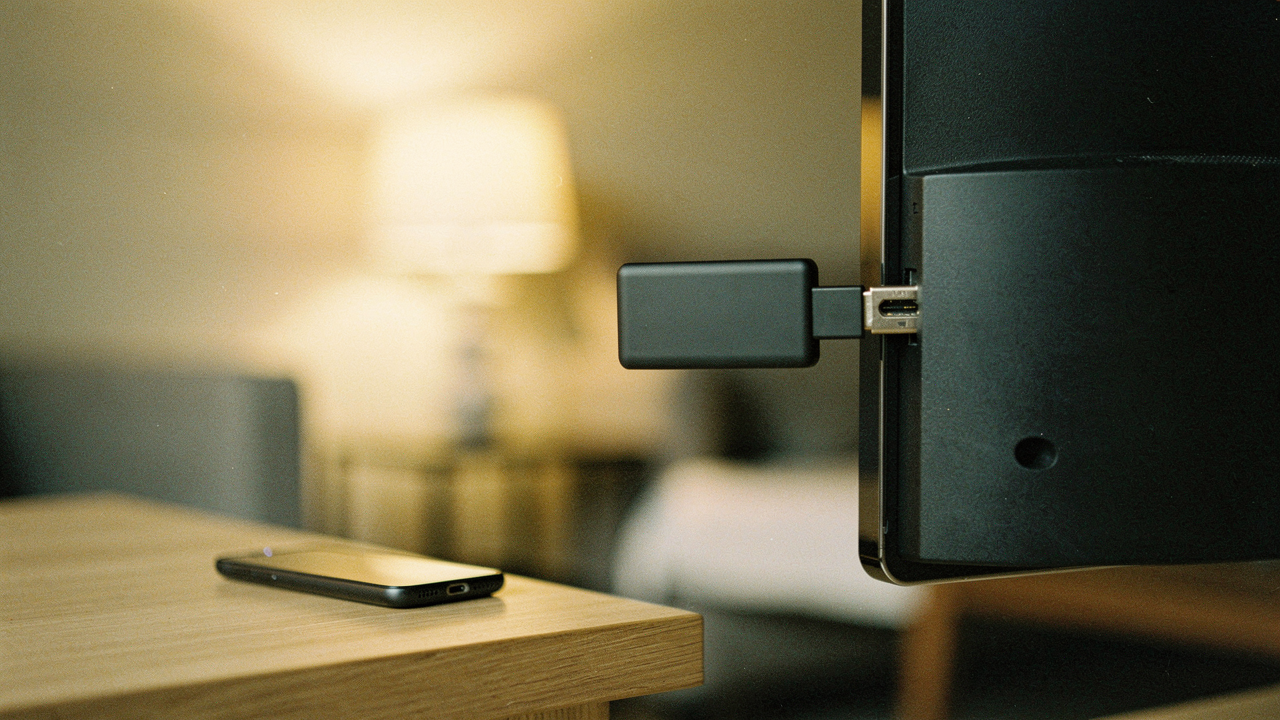
It’s a frustrating reality for so many of us: we spend $1,000 or $1,500 on a gorgeous 4K display, only to have the “smart” brain inside it turn into mush within two or three years. I call it the “Smart TV Decay.” Here’s the thing—I finally got tired of fighting my remote and spent $30 on a tiny piece of plastic that fixed everything.
What I realized is that decoupling your screen from its software is the ultimate “High Lifestyle ROI” move. It’s about choosing a better experience for less than the cost of a nice brunch. If your TV feels like it’s stuck in 2015, let’s talk about why it’s happening and how a budget streaming stick can save your sanity.
The Smart TV Decay: Why Great Panels Have Terrible Brains
You might be wondering why a TV that looked so snappy in the showroom now feels like it’s wading through molasses. The answer is a bit of a “planned obsolescence” cocktail. Unlike your smartphone, which usually has a fairly powerful processor, many smart TVs ship with just enough RAM and processing power to run the interface as it exists on the day you buy it.
As apps get bigger and the operating system updates, that hardware can’t keep up. According to research from ZDNET, cached data on smart TVs often becomes bloated or corrupted over time, leading to crashes and significant lag [1]. It’s essentially a computer that’s running out of breath.
Then there’s the “bloat.” If your home screen feels like it’s trying to sell you everything from a new car to a show you’d never watch, you’re not alone. BGR recently noted that major platforms like Tizen and webOS have significantly increased ad density, which eats up system resources just to show you promos you didn’t ask for [2].
What’s even more frustrating is the “choice overload.” Sofia Digital identifies inconsistent focus states and confusing menu hierarchies as top user frustrations [3]. You just want to watch a movie, but the interface is forcing you to navigate a labyrinth of “sponsored content” and “recommended for you” tiles.
The $30 Solution: Why a Budget Streaming Stick Wins
The highest ROI move you can make for your home theater isn’t buying a new TV—it’s buying a dedicated “brain.” This is what I call the “Modular TV” approach. You keep the beautiful panel for its picture quality, but you let an external device handle the heavy lifting.
External streaming sticks are built for one purpose: streaming. Because companies like Amazon, Roku, and Google want you to stay in their ecosystem, they support these devices with much more frequent software updates than your TV manufacturer likely does [4].
Best Buy’s learning center points out that because these devices are so affordable, you can upgrade the “brain” of your TV every few years for $30–$50 without having to haul a 65-inch screen to the recycling center [5]. It’s a sustainable, efficient way to keep your tech feeling fresh. Plus, there’s the “AirBnB Hack”: I always toss my streaming stick in my bag when I travel. It means I have all my logins and my familiar interface on any hotel TV without having to type passwords into a public remote.
Top Picks: The Best Budget Streaming Devices Under $40
I’ve spent the last few months testing the most popular budget options to see which ones actually deliver on the promise of a “Good Life” upgrade. Here is how they stack up.
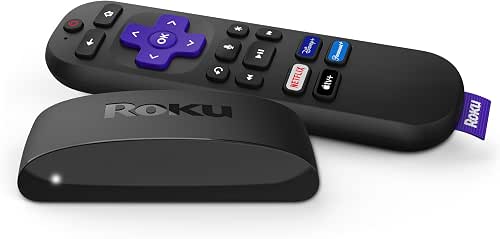
Best for Simplicity: Roku Express 4K
I’ll be honest: I ignored Roku for years because the interface looked “boring.” But after a week of struggling with my TV’s built-in menus, I realized that “boring” is actually exactly what I wanted. I wanted an interface that didn’t move, didn’t try to be a social media feed, and just showed me my apps. When I set this up for my parents, who usually find tech overwhelming, it was the first time they didn’t call me for troubleshooting help.
Micro-Verdict: The ultimate “set it and forget it” choice for anyone who values a clean, fast, and predictable experience.

Best For:
- Minimalists who want an ad-light experience
- Anyone setting up a TV for less tech-savvy family members
- Users who want a neutral platform that doesn’t push one specific service
Best for Alexa Users: Amazon Fire TV Stick HD
You know that feeling when you’re tucked into the couch under a weighted blanket and you realize you left the kitchen light on? I lived that every night until I integrated the Fire Stick into my smart home. I was skeptical about the ad-heavy interface, but the convenience of the voice remote eventually won me over. I can ask Alexa to “show me the front door camera” right on the TV, which is a game-changer for solo movie nights.
Micro-Verdict: A powerhouse of convenience if you’re already living in an Alexa-powered home.

Best For:
- People who already use Alexa for their lights or security cameras
- Prime Video power users who want deep integration with their library
- Budget-conscious buyers who wait for the frequent $20 sales
Best for Google Ecosystem: Chromecast with Google TV (HD)
Let’s be real: searching for what to watch is exhausting. I used to spend 20 minutes scrolling before I even hit “play.” What finally clicked for me with the Chromecast was the “For You” tab. It’s the only recommendation engine that actually seems to know my taste, pulling options from Netflix, Hulu, and HBO all into one screen. It felt like having a personal curator who actually understands my obsession with 90s thrillers.
Micro-Verdict: The smartest choice for people who hate searching for content and love personalized suggestions.
Best For:
- Android users who want seamless casting from their phones
- People who subscribe to 5+ services and need one place to see all their options
- Anyone who values a modern, sleek interface with beautiful screen savers
The ‘Dumb TV’ Conversion: How to Set It and Forget It
Once you have your stick, the goal is to never see your TV’s original interface again. You want to “convert” your smart TV back into a high-quality monitor. Here is the ritual I recommend for the smoothest experience:
- Perform a Cold Boot: Before plugging in your new stick, unplug your TV from the wall for 60 seconds. Whizz Experts notes this clears the system’s memory and can resolve underlying lag [8].
- Switch to “Movie” or “Filmmaker” Mode: While you’re in the TV’s settings, change your picture mode. Wirecutter recommends these presets for the most accurate colors and for disabling the “soap opera effect” (motion smoothing) [9].
- Enable HDMI-CEC: This is the secret sauce. In your TV settings, look for something called “CEC” (Samsung calls it Anynet+, LG calls it SimpLink). This allows your new streaming stick remote to turn the TV on and off and control the volume.
- Disconnect the TV from Wi-Fi: Since your stick is doing the work now, you don’t need your TV to be “smart” anymore. This stops the TV from downloading background updates or displaying built-in ads.
Frequently Asked Questions
Do I need a 4K stick for a 1080p TV?
Surprisingly, yes—I often recommend it. Even if your TV can’t display 4K, the 4K versions of these sticks usually have faster processors and more RAM. As Tom’s Guide points out, that extra “oomph” makes the menus feel much snappier, which is the whole reason we’re doing this upgrade in the first place [4].
Will it make my picture look better?
It won’t magically turn a 1080p screen into a 4K one, but it can improve the “feel” of the picture. External sticks often have better video decoders than aging TV software, which can lead to less buffering and smoother motion during fast scenes.
Does a streaming stick use more power?
Not significantly. Most budget sticks draw about 5 watts of power, which is incredibly efficient compared to a full-sized cable box or gaming console. It’s a very low-impact addition to your utility bill.
Living the High Lifestyle ROI
At the end of the day, your home should be a place of rest, not a place where you fight with a remote for ten minutes just to watch the news. Spending $30 on a streaming stick isn’t just a tech purchase; it’s an investment in your daily flow. It’s about reclaiming those small moments of frustration and turning them back into relaxation.
If you’re tired of the lag, stop fighting your TV. Choose the stick that fits your life, plug it in, and let your environment start supporting you again.
Which stick are you leaning toward? I’d love to hear about your TV “redemption” stories in our Best Goods for Good Life community or you can sign up for my ‘Saturday Optimization’ newsletter for more tips on creating an intentional, high-ROI home.
***
References
- ZDNET (2024). Best smart TV hacks, tips, and tricks to improve performance. https://www.zdnet.com/home-and-office/home-entertainment/best-smart-tv-hacks-tips-trick-to-improve-performance
- BGR (2024). Major smart TV OSs ranked from worst to best by user reviews. https://www.bgr.com/2068133/major-smart-tv-os-ranked-worst-best-user-reviews
- Sofia Digital (2023). Smart TV UX/UI Design Challenges. https://sofiadigital.com/smart-tv-ux-ui-design-challenges
- Tom’s Guide (2024). Should you use your TV’s smart platform instead of a streaming box? https://www.tomsguide.com/tvs/should-you-use-your-tvs-smart-platform-instead-of-a-streaming-box
- Best Buy (2024). Smart TV or Streaming Media Player: Which is Best? https://www.bestbuy.com/discover-learn/smart-tv-or-streaming-media-player-which-is-best/pcmcat1648749950130
- CNET (2024). Best streaming device of 2024. https://www.cnet.com/tech/home-entertainment/best-streaming-device
- Stuff.tv (2024). Roku Express 4K Review. https://www.stuff.tv/features/best-tv-streaming-sticks-devices
- Whizz Experts (2023). Troubleshooting slow smart TV performance. https://whizz-experts.com/support/smart-devices/smart-tv-slow-performance
- Wirecutter (2024). 5 things to instantly improve a TV’s performance. https://www.nytimes.com/wirecutter/reviews/expert-advice-improve-tv-performance
Disclaimer: This post contains affiliate links. Recommendations are based on hands-on testing and independent research from authoritative tech reviewers.