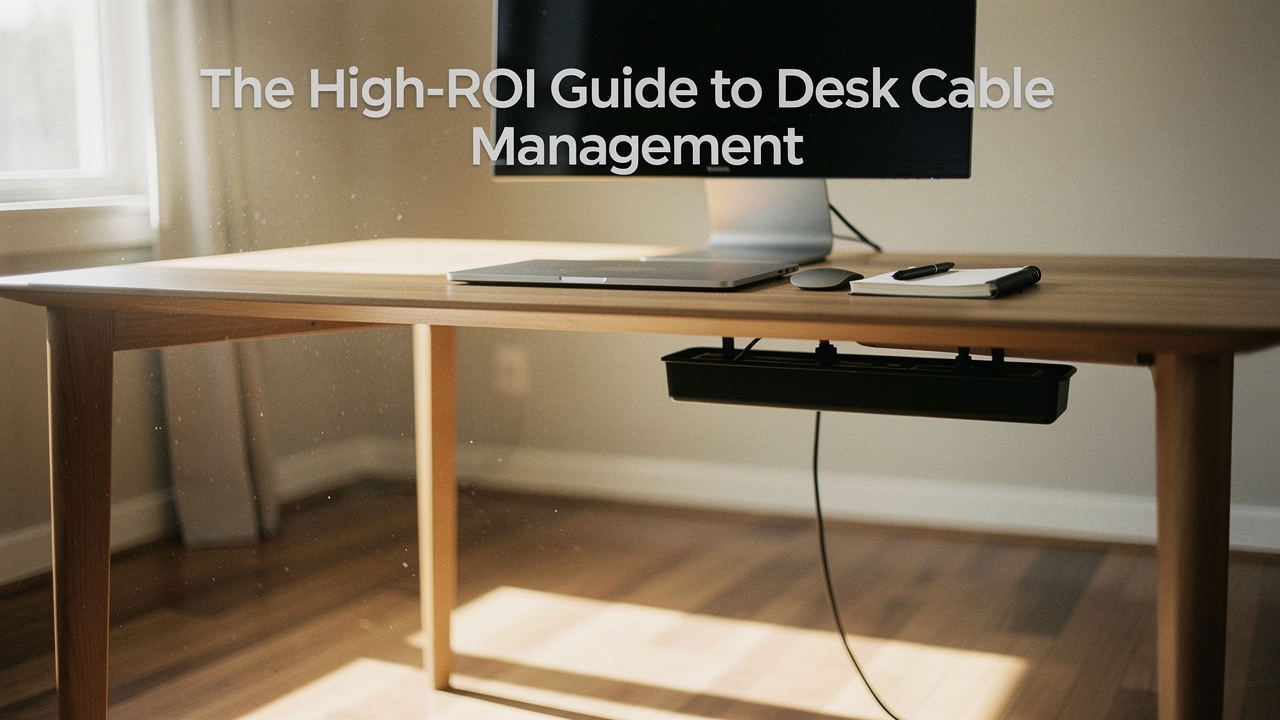
Here’s the thing about wire clutter: we usually treat it like a chore we’ll “get to eventually,” or we buy a pack of cheap zip ties and hope for the best. But if you’re like me and value a high lifestyle ROI, you know that a few hours of intentional setup can pay dividends in mental clarity for years. This isn’t just about hiding wires; it’s about building a professional-grade system that supports your flow.
The Quick Fix: Jordan’s 3-Step Cable System
If you’re short on time, here is the “Best Goods for Good Life” philosophy for a tidy desk:
- Phase 1: Audit. Unplug everything, discard what you don’t use, and map your power needs.
- Phase 2: Route. Use under-desk trays for heavy power bricks and magnetic clips for daily-use cables.
- Phase 3: Label. Identify both ends of every cord so you never have to play “cable detective” again.
The Cost of Chaos: Why Cable Management Matters
I used to think cable management was just for “tech bros” or extreme minimalists. Then I realized how much my messy workspace was actually costing me. When your environment is cluttered, your brain has to work harder to filter out that visual noise, which leaves less energy for the work that actually matters.
The data backs this up. A survey by FormAssembly found that 40% of professionals feel a cluttered workspace actively decreases their productivity [5]. Beyond the mental toll, there’s a professional one. In the era of high-definition Zoom calls, a background filled with dangling wires doesn’t exactly scream “authority.” Hexcal, a leader in workstation design, points out that a clean workspace reduces cognitive load, allowing you to stay in the “flow state” longer [1].
Phase 1: The Audit (Root Cause Analysis)
Before you spend a dime on organizers, we have to look at why the mess happened in the first place. Usually, it’s a combination of “device churn” (keeping cables for gear you no longer own) and having the wrong cable lengths.
What finally clicked for me was the “one-in, one-out” rule. Every time I add a new peripheral—a new mic, a second monitor, a charging dock—I audit what’s already there. Do I really need that printer plugged in 24/7 if I only use it once a month?
Here is my checklist for a successful audit:
- Identify Power-Hungry Gear: Laptops and monitors need dedicated power and often have bulky “bricks.”
- Sort Data vs. Power: Keep high-speed data cables (like HDMI or Fiber) away from power lines when possible to avoid interference.
- Measure Twice: Most people have 6-foot cables for a 3-foot reach. That excess slack is exactly what creates the “tangle.”
Workspace Persona Loadouts
Depending on how you work, your needs will look different. Here’s how I suggest kitting out your space:
The Minimalist Remote Worker
You value clear surfaces and only use a few essential devices.
- Essential: A multi-port USB-C hub to consolidate power and data into one line.
- Essential: A small under-desk cable box for your main power strip.
- Pro Upgrade: An integrated monitor arm with built-in cable routing channels.
The Creative Power User
You have dual monitors, speakers, a camera, and a dedicated mic.
- Essential: A heavy-duty steel under-desk tray (like the ones from Oakywood).
- Essential: Industrial-strength Velcro rolls for bundling thick cord groups.
- Pro Upgrade: A powered docking station to act as the “brain” of your desk.
The Cable Management Toolkit: Essential Solutions
Let let be honest: I ignored high-quality trays for years, thinking a few adhesive clips would do the trick. I was wrong. The weight of three power bricks and a dozen cords will rip a cheap plastic clip off your desk in a week.
I’ve spent months testing different mounting solutions, and for the “High Lifestyle ROI” I always look for, the goal is “set it and forget it.” According to NYMag Strategist, the best solutions aren’t necessarily the most expensive, but the ones with the best durability—specifically looking at adhesive strength and material weight [4].
Let’s talk about the heavy lifters. I used to find myself constantly kicking my power strip under my desk, which would eventually pull on my monitor cables and—worst case—unplug my laptop mid-render. I tried the plastic “baskets” from the hardware store, but they sagged under the weight. I finally invested in a steel under-desk tray that actually bolts into the desk frame. It felt like a project at first, but now every single bulky power brick is off the floor and tucked away safely.
The real win here: A rigid steel tray creates a “false floor” for your desk, making the entire setup look wireless.
For the things you touch every day—like your phone charger or laptop lead—you need something more accessible. You know that feeling when you unplug your laptop and the charging cable immediately slides off the desk and disappears into the abyss? I used to use bits of tape or heavy books to hold them in place. What changed the game for me was a weighted magnetic organizer. I placed it right at the edge of my desk, and now my cables just snap into place when I’m done.
The game-changer: Magnetic holders keep your daily-use cables exactly where you need them without the “sticky” mess of traditional clips.
Sub-Sections for the Toolkit
- Under-Desk Trays and Raceways: These are for the “permanent” parts of your setup. Look for J-channels if you want to be able to swap cables in and out easily.
- On-Desk Tidying: Use cable sleeves for “cable snakes” (where 3+ wires travel to the same place) and magnetic clips for your “reach” cables.
Phase 2: The Step-by-Step Installation
Ready for the “Big Rewire”? Grab a coffee, put on a podcast, and let’s do this right.
- Step 1: The Great Unplug. Safety first. Power down everything and clear your desk surface.
- Step 2: Mount the Power. Mount your power strip to the underside of the desk or inside your tray. Safety Warning: Per NFPA and UL standards, never “daisy-chain” power strips (plugging one into another) and ensure your power bricks have enough airflow to prevent heat buildup [2].
- Step 3: Route the Longest Cables First. Start with your monitors. Route them through your monitor arms or down the desk legs. Use Velcro ties—not zip ties—because you will want to move things later. Professional installers prefer Velcro because it doesn’t crush the delicate internal shielding of high-speed data cables [6].
- Step 4: Labeling for the Future. This is the step everyone skips, but it’s the most important for permanent organization. Label both the plug end and the device end. Desky recommends using simple color-coded flags or a dedicated label maker [3].
Advanced Blueprints: Standing Desks and Renter-Friendly Fixes
If you have a standing desk, you have a unique challenge: the “slack.” I’ve seen people rip their PC ports out because they forgot to account for the desk’s upward travel.
- The Slack Rule: Always route your cables with the desk at its highest point. If they reach at the top, they’ll be safe at the bottom.
- The “Cable Spine”: For a very clean look, use a weighted cable spine that expands and contracts as the desk moves.
For my fellow renters, drilling holes in a desk or wall isn’t always an option. I’ll admit—I was skeptical at first, but heavy-duty Command strips on a glass or metal desk frame can actually hold a surprising amount of weight. Use them to mount your power strip directly to the desk leg.
Phase 3: The Maintenance Loop
Management isn’t a one-time event; it’s a habit. I call it the “5-Minute Friday.” Before I log off for the weekend, I do a quick audit.
Here’s what an IT professional would tell you: Cables are like any other equipment—they wear out. Periodically check your bundles for insulation wear or “kinks.” If a wire is tangled, it creates “hot spots” that can damage the cord over time [6].
What surprised me most about this process was how it changed my relationship with my work. When I sit down now, I don’t see a mess of things to be fixed. I see a space that’s ready to support me. That’s the High Lifestyle ROI I’m talking about.
This post contains affiliate links. Recommendations are based on hands-on testing and professional IT standards.
References & Resources
- Hexcal (2024). The Ultimate Guide to Cable Management for a Clean Desk Setup. https://www.hexcal.com/blogs/articles/ultimate-guide-to-cable-management-for-a-clean-desk-setup-in-your-home-office
- UL Solutions (2025). Safety Standards for Power Distribution and Surge Protection.
- Desky (2024). How to Organize Cables Under Your Desk: A Step-by-Step Guide. https://desky.com/blogs/news/how-to-organise-cables-under-desk
- NYMag Strategist (2023). The Best Cable Organizers for Every Type of Mess. https://nymag.com/strategist/article/best-cable-organizers.html
- FormAssembly (2022). The Impact of Workspace Organization on Professional Productivity Survey. https://www.formassembly.com/blog/how-to-tidy-up-your-workspace/
- TS Cables (2023). How to Avoid Tangled Wires in Network Cabling. https://tscables.com/blogs/news/how-to-avoid-tangled-wires-in-network-cabling