=
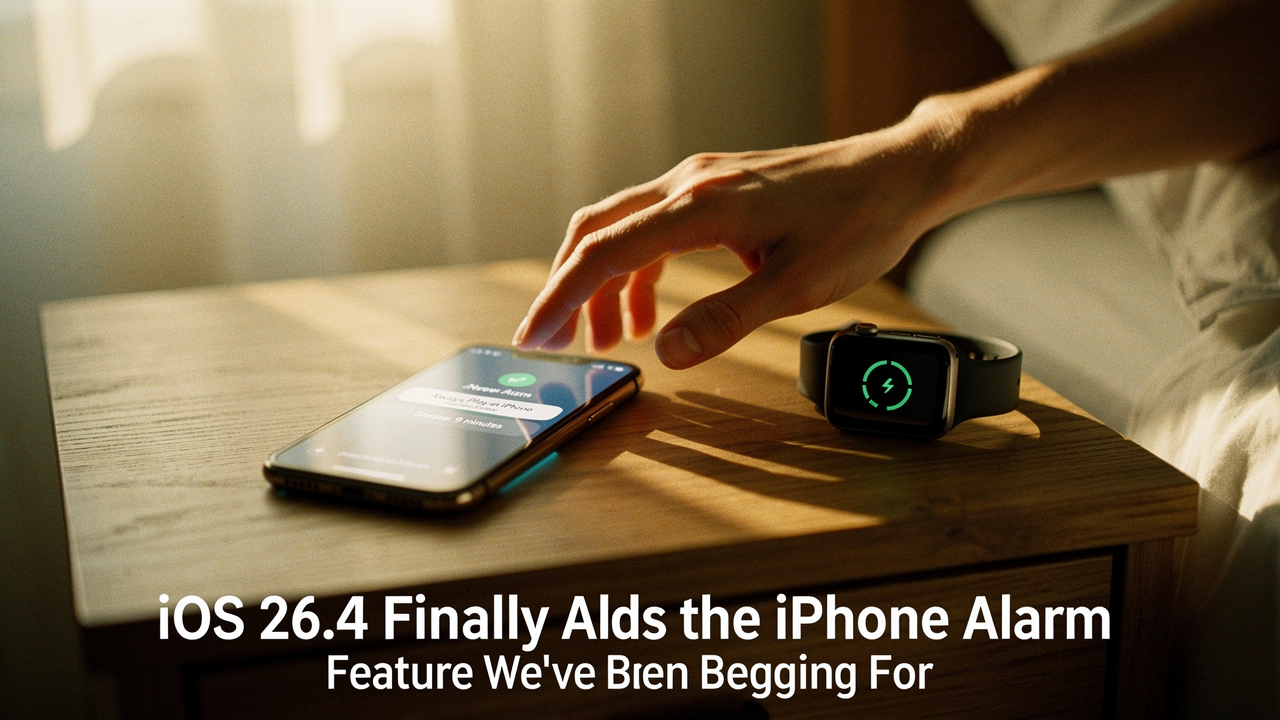
For years, those of us who wear our watches to bed for sleep tracking have dealt with a frustrating “feature”: the watch “steals” the alarm. It vibrates on your arm while your iPhone stays silent. For light sleepers, it’s a dream; for the rest of us, it’s a recipe for oversleeping.
Here is the good news: the iOS 26.4 update is finally addressing this with a “High Lifestyle ROI” fix that genuinely improves our daily flow. We’re finally getting the dual-device alarms, custom snooze times, and audio flexibility we’ve been requesting for over a decade.
Quick Answer: The iOS 26.4 Alarm Fix
The “long-missing” feature in iOS 26.4 is the “Always Play on iPhone” toggle. When enabled, your Sleep Schedule alarm will sound on both your Apple Watch (haptics) and your iPhone (audio) simultaneously. To turn it on, go to the Clock app > Alarm tab > Change (under Sleep/Wake Up) and toggle Always Play on iPhone to ON. This update also introduces customizable snooze durations (1–15 minutes) and full support for custom audio files as alarm tones.
The Problem: Why Your Apple Watch Was “Stealing” Your Wake-Up Call
Here’s the thing about the Apple ecosystem: it’s designed for seamless transitions, but sometimes those transitions are too seamless. Historically, if you used the Sleep Schedule feature and wore your Apple Watch to bed, iOS assumed you wanted a discreet wake-up. The system would route the alarm exclusively to your wrist, silencing the iPhone’s speakers entirely [1].
While this is great for people who share a bed and don’t want to wake their partner, it created a massive limitation for heavy sleepers. A gentle vibration on the wrist is rarely enough to pull someone out of a deep REM cycle. Reports have circulated for years on platforms like AppleInsider about “silent alarms” that were actually just alarms being redirected to a watch the user had slept through [2].
The Risk of the “Silent Haptic”
Relying solely on haptics is a gamble. If your watch slips slightly or if you’ve had a particularly exhausting day, that “tap” becomes background noise in your dreams. For those of us who view punctuality as a form of self-care, this was a major flaw in an otherwise stellar device. The lack of an audio backup on the iPhone felt like a missing safety net for our most important mornings.
How to Enable “Always Play on iPhone” in iOS 26.4
I’ll be honest—I was skeptical when I first heard about the update. I’ve tried every workaround in the book, from setting “backup” alarms five minutes apart to leaving my watch on the charger. But the solution in iOS 26.4 is built directly into the UI.
Here’s the catch: the feature is OFF by default [3]. You have to go in and tell your iPhone that you want it to be loud. You can do this through two different paths depending on which app you prefer.
Method 1: Using the Health App
This is the most comprehensive way to manage your sleep hygiene settings.
- Step 1: Open the Health app on your iPhone.
- Step 2: Tap the Browse tab at the bottom right.
- Step 3: Select Sleep from the list.
- Step 4: Scroll down and tap Full Schedule & Options.
- Step 5: Tap Edit under your Next schedule.
- Step 6: Scroll to the bottom and toggle Always Play on iPhone to the ON position.
Method 2: Using the Clock App
If you’re already setting your alarms for the next day, this path is much faster.
- Step 1: Open the Clock app.
- Step 2: Tap the Alarm tab.
- Step 3: Find your Sleep | Wake Up alarm at the top and tap Change.
- Step 4: Scroll down to the Alarm Options and switch on Always Play on iPhone.
- Step 5: Tap Done at the top right to save your changes.
What surprised me was how much more confident I felt going to sleep once this was set. Knowing that both my wrist and my nightstand would be making noise removed that low-level “alarm anxiety” we all feel before a big day.
Beyond Dual Alarms: Custom Snooze and Tones
The iOS 26.4 update didn’t stop at dual-device support. It also tackled two other “legacy” frustrations that have existed since the very first iPhone.
The End of the Mandatory 9-Minute Snooze
For 19 years, iPhone users were locked into a 9-minute snooze cycle—a nod to mechanical alarm clock history that felt increasingly out of place in a digital world [4]. What finally clicked for Apple was that sleep hygiene isn’t one-size-fits-all. In iOS 26.4, you can finally customize your snooze duration anywhere between 1 and 15 minutes.
If you’re like me and find that 9 minutes is just long enough to fall back into a deep sleep (making you groggier), trying a 5-minute snooze can be a game-changer for your morning alertness.
Personalizing Your Wake-Up Loadout
Depending on how you wake up, you might want to customize these new settings:
- For the Heavy Sleeper: Set “Always Play on iPhone” to ON, choose a custom high-energy audio file as your tone, and set a 3-minute snooze to keep your brain engaged.
- For the Minimalist: Keep the Apple Watch haptics but set a 15-minute “safety” snooze that only sounds on the iPhone if you haven’t moved.
- The “Gentle” Routine: Use a custom recording of calm birds or a favorite acoustic song, enabled by the new custom audio support [5].
Troubleshooting: Why Your iOS 26.4 Alarm is Still Silent
I’ve had readers message me saying, “Jordan, I updated to 26.4, but my alarm is still a whisper!” This usually isn’t a bug with the update itself, but rather a conflict with other “smart” features.
The “Attention Aware” Trap
There is a feature called Attention Aware that is often the culprit behind quiet alarms. If your iPhone thinks you are looking at it—even if you’re just squinting at the screen in a morning daze—it will automatically lower the volume of alerts [6].
If your alarm starts loud and then immediately drops to a whisper, go to Settings > Face ID & Passcode and toggle Attention Aware Features to OFF. It’s one of those things I ignored for years until I realized it was the primary reason I was missing my 6 AM wake-up calls.
Bluetooth & Audio Routing Glitches
Another common issue is audio routing. If you leave your AirPods on your nightstand instead of in their case, your iPhone might try to “wake up” your earbuds instead of you [7].
Quick Checklist for Alarm Reliability
- Disconnect Bluetooth: If you’re having issues, try toggling Bluetooth off before bed to force audio through the phone speakers.
- Check Focus Modes: Ensure your “Sleep Focus” or “Do Not Disturb” isn’t accidentally silencing the Clock app (though by default, Clock should override these).
- Test Your Tone: Some custom audio files might have low internal volume. Always “preview” your custom tone in the settings to ensure it’s loud enough.
New UX: Slide to Stop vs. The Classic Button
Finally, let’s talk about how we actually turn the thing off. Starting in the iOS 26 cycle, Apple moved away from the giant “Stop” button in favor of a “Slide to Stop” gesture [1].
The logic here is sound: it’s much harder to accidentally dismiss an alarm while you’re half-asleep if you have to perform a deliberate sliding motion. However, if you find this frustrating during a groggy morning, you can revert to the old style. Go to your Clock settings to toggle between the slider and the classic button. Personally, I’ve stuck with the slider—it’s saved me from “accidental dismissal” more than once.
The Verdict: A Massive Lifestyle ROI
Bottom line: iOS 26.4 is the most important alarm update in iPhone history because it treats us like adults with different needs. Whether you need the dual-device “Always Play” safety net or just want to change that 9-minute snooze to something that actually fits your rhythm, these changes are earned wins for our daily routines.
Did the 26.4 update finally fix your wake-up routine? Drop a comment below—I’m curious if you’re sticking with the classic 9-minute snooze or finally going custom!
Resources & Technical References
- Ryan Christoffel (2026). iOS 26.4 gave your iPhone an alarm feature that’s long been missing. 9to5Mac. https://9to5mac.com/2026/04/28/ios-26-4-gave-your-iphone-an-alarm-feature-thats-long-been-missing/
- AppleInsider Staff (2025). If your iPhone alarms aren’t going off, you’re not alone. AppleInsider. https://appleinsider.com/articles/25/01/23/if-your-iphone-alarms-arent-going-off-youre-not-alone
- LADBible Tech (2026). iOS 26.4 iPhone alarm feature quietly added to stop you ever sleeping in again. LADBible. https://www.ladbible.com/news/technology/ios-264-iphone-alarm-apple-watch-888041-20260429
- UniladTech (2025). iPhone finally gets “revolutionary” update to snooze alarms. Unilad. https://www.uniladtech.com/apple/iphone/iphone-update-snooze-alarms-custom-times-566629-20250611
- IBTimes (2026). Apple iOS 26.4 Finally Adds Custom Alarm Tones to iPhone After Years of Demand. International Business Times. https://www.ibtimes.com.au/apple-ios-264-finally-adds-custom-alarm-tones-iphone-after-years-demand-1867749
- Asurion Tech Tips (2024). Fix your iPhone alarm not going off. Asurion. https://www.asurion.com/connect/tech-tips/fix-iphone-alarm-not-going-off/
- MacObserver How-To (2026). Fix: Alarm Only Plays Through Earphones on iOS 26. MacObserver. https://www.macobserver.com/tips/how-to/fix-alarm-only-plays-through-earphones
Disclaimer: This guide is based on iOS 26.4. Features like “Always Play on iPhone” require a paired Apple Watch and an active Sleep Schedule configured in the Health or Clock app.