=
Jordan Miller here, writing from my sun-drenched home office in Austin. I’ll be honest: I’ve spent the better part of a decade trying to recreate the “Retina dream” on my desk. There is nothing quite as jarring as unplugging your MacBook Pro—with its gorgeous, fluid Liquid Retina XDR display—and plugging it into a monitor that makes your emails look like they were printed on a 1990s dot-matrix printer.
We’ve all been there.
You buy a highly-rated “4K monitor,” hook it up with excitement, and suddenly the text is either microscopic or fuzzy. It feels like a downgrade. After years of testing displays, calibrating P3 gamuts with my trusty colorimeter, and dealing with monitors that refuse to wake up from sleep, I’ve realized that a Mac-focused monitor isn’t just about the resolution. It’s about how it talks to macOS.
In this guide, I’m sharing the “Best Goods for Good Life” approach to displays. We’re looking for high lifestyle ROI: products that simplify your desk, protect your eyes, and actually spark joy when you sit down for your Monday morning deep work.
The ‘Mac-Native’ Experience: Why Most Monitors Fail the Test
The reason your external screen often looks “off” compared to your MacBook comes down to a concept called pixel density. Apple designed macOS to look best at a density of roughly 218 pixels per inch (PPI) [1]. This is what gives you those crisp, smooth curves on fonts.
Here is the thing about most 27-inch monitors: they usually come in two flavors—1440p (QHD) or 4K (UHD).
- 27-inch 1440p: These sit at about 109 PPI. macOS treats these as “standard” displays. While the text is a good size, it lacks the sharpness of a Retina screen.
- 27-inch 4K: These sit at about 163 PPI. This is the “danger zone” for macOS. To make the UI readable, the Mac has to use “scaling,” which puts a heavy load on your GPU and can occasionally lead to slight blurriness if the monitor’s internal processor isn’t top-tier.
- 27-inch 5K: This is the gold standard at 218 PPI. It matches the Mac’s internal scaling perfectly, giving you a native “Retina” experience without the GPU having to do math [1].
What I found after testing dozen of setups is that while 5K is the dream, it’s also a significant investment. For many of us, a high-quality 4K screen with the right panel technology is the “sweet spot” for a high-ROI workspace.
The Jordan Miller ‘Mac Experience Rating’ System
When I’m testing a monitor for my Austin studio, I put it through what I call the Good Life Test. It has to solve a real problem (clutter), be built to last (no flimsy stands), and spark joy (color that actually matches my photos).
To give you the best recommendations, I’ve rated these displays on four specific Mac-centric criteria:
- Text Clarity: Does the scaling feel natural or fuzzy?
- Color Accuracy: Can it hit the DCI-P3 gamut that Apple uses?
- Connectivity: Does it offer at least 65W–96W of Power Delivery (PD) over a single cable?
- Reliability: Does it wake up instantly when you touch your mouse?
The Scaling Sweet Spot: 4K vs. 5K at 27 Inches
If your budget allows, 5K is the only way to get a 1:1 match with your MacBook’s pixel density. However, I’ve found that modern M2 and M3 chips handle 4K scaling so much better than the old Intel Macs did. If you are doing spreadsheet work, coding, or writing, a 4K 27-inch monitor set to “Looks like 2560 x 1440” in your display settings is often the best value for your money.
The Top 27-Inch Monitors for Mac: Our Hand-Picked Winners
1. The Gold Standard: Apple Studio Display
I ignored this monitor for a year because of the price tag. I kept telling myself my old 4K Dell was “good enough.” But after a week of staring at the Studio Display, I realized how much eye strain I was tolerating. The 5K resolution means the text is physically rendered at the size Apple intended, with zero scaling artifacts.
The journey to this monitor usually starts with frustration over other screens not waking from sleep or having wonky brightness controls. What sold me wasn’t just the panel; it was the integration. You can control the brightness and volume directly from your Mac keyboard, just like an iMac. Plus, the 600 nits of brightness [1] means even in my bright, sun-filled home office, I never struggle with glare.
Micro-Verdict: The ultimate “it just works” experience for those who value absolute visual perfection.
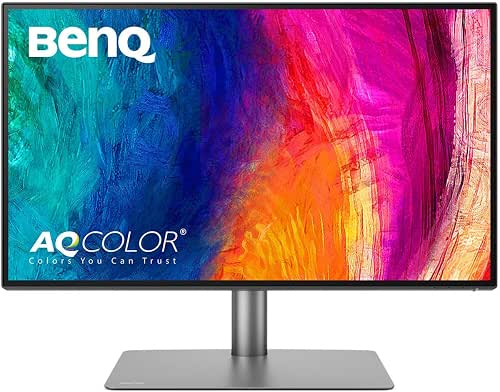
2. The Creative Pro Value: BenQ PD2725U
If you are a photographer or designer in Austin like me, you know that color is everything. I’ve tried “budget” creative monitors before, and they always had a weird yellow or blue tint compared to my MacBook. When I found the BenQ PD2725U, it felt like someone finally listened to Mac users.
It features a dedicated “Mac Mode” that is factory-calibrated to match the P3 color space of your MacBook Pro. It also uses Thunderbolt 3, which is more stable for Macs than standard USB-C. What surprised me was the “Hotkey Puck”—a little physical dial that lets you switch color modes instantly. I use it to jump from sRGB for web work to M-Book mode for everything else.
Micro-Verdict: The best professional alternative to the Studio Display, offering incredible color matching for hundreds less.

3. The Productivity Workhorse: Dell UltraSharp U2723QE
Let’s be real: not everyone needs 5K or perfect P3 color for editing. Some of us just need a massive, reliable canvas for 50 Chrome tabs and a Slack window. For years, I recommended the standard Dell UltraSharp, but the U2723QE changed the game with “IPS Black” technology.
I noticed the difference immediately in my late-night writing sessions. The blacks are deeper, and the contrast is 2000:1, which is double most office monitors. It also acts as a full dock. It provides 90W of power—enough to charge even a 14-inch MacBook Pro under a heavy load [1]—and has a built-in Ethernet port. It’s the ultimate “one cable” solution for a minimalist desk.
Micro-Verdict: A connectivity beast that turns your desk into a streamlined powerhouse with just one cable.
Your Persona Loadout: Which One Fits Your Life?
The Minimalist Remote Worker
You work from a corner of your living room and hate cables. You want a clean, “Pinterest-worthy” setup that works every time you plug in.
- Essential: Dell UltraSharp U2723QE (for the built-in hub)
- Essential: A high-quality 2-meter Thunderbolt 4 cable
- Pro Upgrade: A single-monitor VESA arm to clear up desk space
The High-End Creative
You spend your days in Lightroom, Final Cut, or Canva. Color accuracy isn’t a luxury; it’s a requirement for your business.
- Essential: BenQ PD2725U (for the Mac-matched color)
- Essential: Calibrite Display Pro HL for monthly calibration
- Pro Upgrade: A monitor hood to block ambient light
One Cable to Rule Them All: Solving the Connectivity Puzzle
One of the biggest pain points I hear from my readers is about “flickering” or the monitor simply not turning on. Most of the time, it isn’t the monitor—it’s the cable.
Macs are notoriously picky about bandwidth. If you are using a 4K monitor at 60Hz, you need a cable that supports DisplayPort Alt Mode 1.4 or higher [2]. While USB-C looks the same across the board, the internal wiring varies wildly.
I always recommend using the cable that came in the box, or better yet, investing in a certified Thunderbolt 4 cable. Thunderbolt provides a much wider “highway” for data, which usually solves the common Mac “wake from sleep” issues. Also, keep an eye on your Power Delivery (PD). If you have a 16-inch MacBook Pro, a monitor that only offers 45W PD will actually drain your battery while you work. Look for 85W or 90W to stay topped up.
Troubleshooting 101: Common Mac External Display Glitches
Even with the best gear, macOS can sometimes be a bit… temperamental. Here’s my “Sunday Reset” checklist for when things aren’t looking quite right:
- Text looks blurry? Go to System Settings > Displays. Hold the “Option” key while clicking “Scaled” to see more resolution options. Ensure you are running at the monitor’s native resolution.
- Colors look washed out? Check if HDR is turned on in macOS settings. Unless you are specifically editing HDR video, turning this off often makes the desktop UI look much more natural.
- Monitor won’t wake up? This is a classic. Try disabling “Automatic Graphics Switching” in your Battery settings (for Intel Macs) or ensure your monitor’s firmware is up to date via the manufacturer’s website.
- Colors don’t match your MacBook? Use the macOS Display Calibrator Assistant. Type “Digital Color Meter” into Spotlight to help you find the right white point, or go to Displays > Color Profile > Customize to run a basic calibration.
Final Verdict: Choose for Scaling, Stay for the Color
What finally clicked for me after a decade of desk setups is that your monitor is the most important piece of furniture in your digital life. It’s where you spend 8+ hours a day. Buying a monitor that forces you to squint at fuzzy text is a “low ROI” move.
If you want the absolute best, the Apple Studio Display is the winner for its native Retina scaling. If you want the smartest value for a creative life, the BenQ PD2725U is my daily driver.
What Mac are you currently using? Drop a comment below with your model (e.g., M2 Air, M1 Max 16″), and I’ll tell you exactly which cable and scaling setting will give you the best results. Let’s make your workspace a little more beautiful, together.
Affiliate Disclosure: This article contains affiliate links. If you purchase a product through these links, I may earn a small commission at no extra cost to you. These commissions help support my work in providing honest, hands-on reviews. All testing was performed on an M2 MacBook Pro and Mac Studio in a real-world home office environment.
Sources & Technical References
- Apple Support (2024). Connect a display to Mac. https://support.apple.com/en-us/HT210794
- VESA (2023). DisplayPort Alt Mode for USB-C Standard. https://vesa.org
- RTINGS (2024). Monitor PPI and Text Clarity Research. https://www.rtings.com
“`