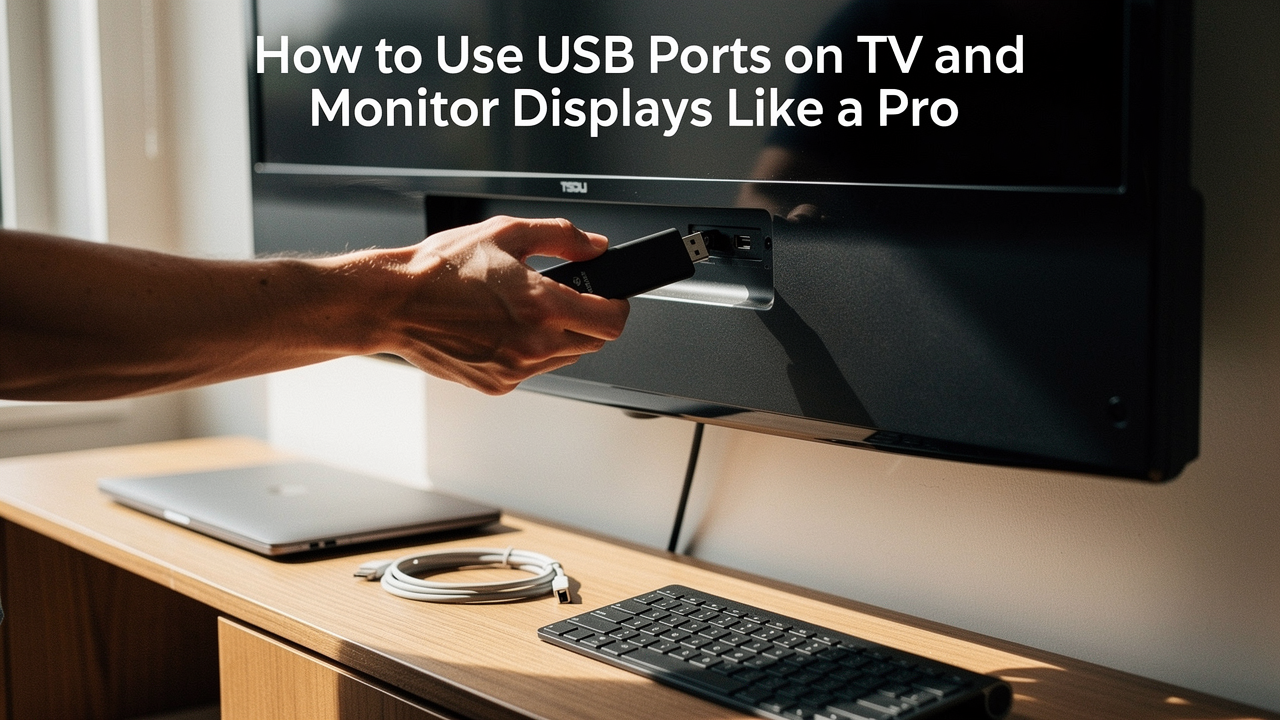
It wasn’t until I finally sat down with a cup of coffee and a determination to “optimize my flow” that I realized these ports are actually high lifestyle ROI assets. When used correctly, they can declutter your space, power your ambiance, and even turn a basic monitor into a powerhouse docking station.
Here’s the thing: most people don’t use them because they don’t know what they’re allowed to plug in. We’re going to fix that. This guide is your roadmap to transforming wasted connectivity into a streamlined, intentional setup.
Quick Guide: What Can You Actually Do With Those Ports?
- Power Streaming Sticks: Run your Fire Stick or Roku directly from the TV’s power.
- Bias Lighting: Plug in LED strips to reduce eye strain during movie nights.
- Media Playback: Play high-bitrate 4K movies directly from a thumb drive.
- Desktop Hub: Connect your mouse, keyboard, and webcam through your monitor to save laptop ports.
- Ambiance: Power small desk fans or decorative lamps without needing another wall plug.
Not All Ports Are Equal: Identifying Your USB ‘Type’
Before you start plugging things in, we have to look at the “labels.” Just like you wouldn’t put diesel in a gasoline car, you shouldn’t expect every USB port to handle high-power tasks.
The USB Implementers Forum (USB-IF) sets specific standards for how much power a port must provide. A standard USB 2.0 port typically offers 500mA (0.5A) of current, while a USB 3.0 port—usually identified by a blue plastic “tongue” inside—bumps that up to 900mA (0.9A) [1].
When you look at the back of a Samsung or LG TV, you’ll often see different labels next to the ports:
- 5V 0.5A: This is the baseline. It’s perfect for a thumb drive or a low-power LED strip, but it might struggle to power a modern streaming stick.
- 5V 1.0A (or HDD): This port is designed for “High Draw” devices like external hard drives. If you’re powering a streaming device, this is the port you want [2].
- Service: Beware of this one. On some older models, this port is strictly for firmware updates by technicians and may not provide data or consistent power to your gadgets.
Jordan’s Pro Tip: Look for the icons. A “Trident” symbol indicates data and standard power. A “Lightning Bolt” usually means the port is designed for charging and might even stay on when the TV is in standby mode.
The Living Room Setup: What to Connect to TV USB Ports
My Sunday reset ritual involves clearing the visual clutter in my living room. Nothing ruins a “calm space” like five different power bricks plugged into a single outlet behind the media console. This is where your TV’s USB ports become a secret weapon for minimalism.
Powering Streaming Sticks and Bias Lighting
You know that feeling when you buy a new Chromecast or Fire Stick and realize it needs yet another wall plug? You can often skip it. By using the TV’s own USB port, the streaming stick turns on and off with your TV.
Here’s the catch: Modern streaming sticks are power-hungry. If you see a “low power” warning on your screen, it means your TV’s port isn’t providing enough juice. Always aim for the port labeled 1.0A or HDD to ensure the device doesn’t reboot in the middle of your favorite show.
Local Media Playback: Beyond the Streaming App
Sometimes, streaming services just don’t cut it. If you’re a cinephile who wants the highest possible bitrate for a 4K movie, playing it from a physical USB drive is the way to go.
However, I’ve seen so many people get frustrated when their TV says “File Not Supported.” This usually comes down to formatting. Most TVs from brands like Sony and TCL require the drive to be formatted as FAT32 or exFAT [4]. If your drive is formatted for a Mac (APFS) or a Windows-specific NTFS, the TV will simply ignore it.
The Living Room Minimalist Loadout
If you want a setup that feels intentional and clutter-free, here is what I recommend for your TV’s spare ports:
- Essential: A 1-foot USB power cable (replaces the 6-foot cable that comes with streaming sticks).
- Essential: A high-speed 128GB USB 3.0 thumb drive for “offline” movie nights.
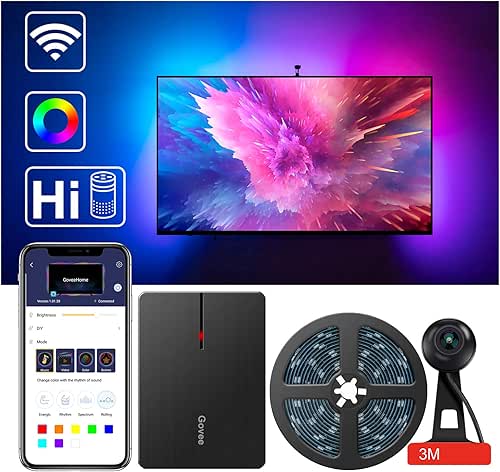
- Pro Upgrade: A USB-powered LED bias lighting kit to reduce eye strain and make colors pop.
- Pro Upgrade: A USB-to-Ethernet adapter (for certain LG/Sony TVs that only have 10/100 built-in ports) to get faster internet speeds.
The Office Setup: Mastering the Monitor USB Hub
This was my biggest “lightbulb” moment. I spent years plugging my mouse, keyboard, and webcam directly into my laptop, which meant every time I took my laptop to a coffee shop, I had to unplug four different things.
Most modern monitors from Dell, ASUS, and BenQ have built-in USB hubs. But here’s the mistake I made (and maybe you have too): I didn’t connect the “Upstream” cable.
The Mystery of the Upstream Port
For the USB ports on your monitor to “talk” to your computer, you need an upstream connection. This is usually a USB-B port (it looks like a square house) or a USB-C port.
Once you connect that single cable from the monitor to your laptop, every other port on the monitor becomes active. Now, your monitor acts as a docking station. You plug your peripherals into the monitor once, and you only ever have to plug one cable into your laptop to get started.
Using USB-C for One-Cable Bliss
If you have a newer monitor that supports USB-C Power Delivery (PD), you’ve hit the jackpot. This standard—often governed by VESA guidelines—allows a single cable to carry the video signal to the monitor, send data to your keyboard and mouse, and charge your laptop all at once [5].
What surprised me was that not all USB-C monitors provide enough “juice.” A MacBook Pro usually needs at least 60W to 96W to stay charged while working. Check your monitor’s specs to ensure the “Power Delivery” wattage matches your laptop’s needs.
Creative Accessories for Your Spare Ports
Once you’ve handled the basics, it’s time for the “High Lifestyle ROI” gadgets. These are the small additions that make your workspace or theater feel curated.
Ambiance: Desk Lamps and Under-Monitor Lighting
I’m a big believer that lighting dictates your mood. If I’m working on a deadline, I want cool, focused light. If I’m journaling, I want a warm glow. I found a small, architect-style LED lamp that runs entirely off a USB port. It stays on when my monitor is on and turns off when I leave the room.
Micro-Verdict: Using USB for lighting removes “outlet anxiety” and keeps your desk lines clean.

Utility: USB Fans and Ethernet Adapters
In the heat of an Austin summer, even the best AC needs a little help. I ignored those tiny USB desk fans for years, thinking they were gimmicky. I was wrong. A low-decibel USB fan plugged into the back of your monitor can provide just enough airflow to keep you focused without the noise of a standing fan.
Micro-Verdict: A whisper-quiet USB fan is the most underrated ergonomic upgrade for a home office.
Troubleshooting: When Your Ports Won’t Play Ball
If you’ve plugged something in and… nothing happens, don’t panic. It’s usually one of three things:
1. The “Upstream” Issue (Monitors Only)
As I mentioned, your monitor’s USB ports are essentially a “dead” extension cord unless that upstream cable is connected to your PC. Check for a USB-B or USB-C cable running from the display to your computer.
2. The Power Overload
If you plug in a high-powered external hard drive and it starts “clicking,” it’s not getting enough power. The USB-IF electrical safety rules actually trigger a “Power Surge on Hub Port” error in Windows if a device tries to pull more than the port can handle [1]. In this case, you’ll need a “powered” USB hub that plugs into the wall.
3. Format Frustrations
For TVs, if your video files aren’t showing up, the drive is likely formatted as NTFS.
- Fix: Move your files to your computer.
- Fix: Reformat the USB drive to exFAT (this works on both Windows and Mac and is recognized by most modern Smart TVs).
- Fix: Move the files back and try again.
Summary: Conduct Your Own ‘USB Audit’
We often overlook the small ways our environment can support us. Take five minutes today to do a “USB Audit.” Look at the back of your TV and the bottom of your monitor. Is there a streaming stick you could declutter? Is there a lamp you could power more efficiently?
Living well isn’t about having the most expensive tech—it’s about making sure every piece of tech you own is working for you, not against you. By unlocking these “wasted” ports, you’re one step closer to a space that feels intentional, organized, and ready for whatever your day brings.
Got a creative use for a spare port that I missed? I’d love to hear it. Leave a comment below and let’s help each other build better, cleaner setups.
References
- USB Implementers Forum (USB-IF). (2024). USB 3.1 & Power Delivery Specifications. https://www.usb.org/
- Samsung Support. (2025). Using the USB ports on your Samsung TV. https://www.samsung.com/support/
- LG Electronics. (2024). External Storage Device Compatibility and Formatting. https://www.lg.com/support
- RTINGS.com. (2025). TV Input and Connectivity Testing Results. https://www.rtings.com/tv
- VESA (Video Electronics Standards Association). (2024). DisplayPort Alt Mode over USB-C Standard. https://vesa.org/
Disclaimers: Using ‘Service Only’ ports for power is at the user’s own risk and may void certain warranties. Always check your specific manufacturer’s manual before connecting high-draw devices.